AI Anti-Spam Comments
Let an AI service read your comments, so you clean less spam and spend more time with real readers.
Comment spam is cheap to send and tiring to clean. You see links to pharmacies and casinos. You see vague praise from a strange address. Keyword filters miss much of it, because modern spam often looks like a person wrote it.
This add-on sends each new comment to an AI service. The service reads the comment and returns scores. The add-on then sorts the comment into one of three groups: clean, suspicious, or spam. Clean comments continue as usual. Suspicious comments wait for you. Spam is handled as you choose in Spam Action: deleted, or held for moderation.
Your queue gets shorter. You only look at the comments that really need a person.
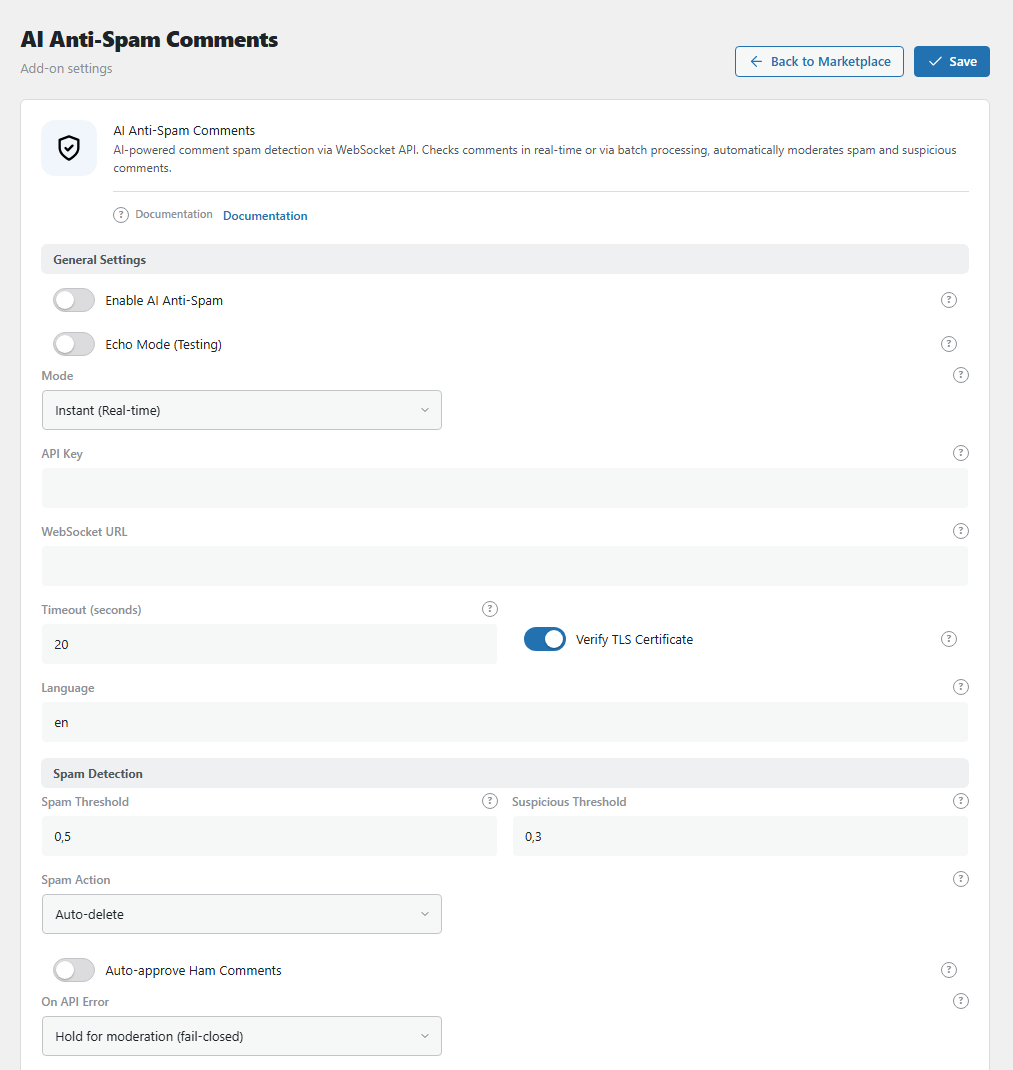
The AI Anti-Spam Comments panel. Open it from BotBlocker → Add-ons.
Your comments leave your site
Be clear about this before you turn it on. The add-on sends the text of each checked comment, and the language code, to an outside AI service. By default, this is the service at ai.globus.studio.
The add-on does not send the name, email, or IP address of the author. Only the text goes out. The text itself can contain personal data.
How a comment is sorted
The service gives each comment three scores from 0 to 1: spam, suspicious, and clean. A higher score means "more like this". The add-on then asks two questions, in this order:
- Is the spam score at or above the Spam Threshold (0.5)? Then it is spam.
- If not: is the suspicious score at or above the Suspicious Threshold (0.3)? Then it is suspicious.
- If neither: it is clean.
A higher limit means the comment needs a "worse" score before it is caught. So a higher threshold is more relaxed, and a lower threshold is stricter.
For example, the service scores a comment spam 0.62, suspicious 0.20. That is above 0.5, so it is spam. Another comment scores spam 0.10, suspicious 0.41. That is below 0.5, but above 0.3, so it waits for you.
What happens to each group
- Spam: the comment follows the Spam Action setting. With Auto-delete it is deleted for good. With Hold for moderation it is marked as spam and goes to Comments → Spam; you can open it and restore it.
- Suspicious: the comment goes to the moderation queue (Comments → Pending). It waits for you to approve it.
- Clean: WordPress decides, as it does without the add-on. If your WordPress settings hold all new comments, clean comments are held too. Turn on Auto-approve Ham Comments if you want clean comments to go live at once.
If another plugin already marked a comment as spam or trash, this add-on does not change it.
The visitor sees a short message on the post page when their comment is held or marked as spam. You write these messages in the Messages group.
You can also see the result for each comment. Open a comment in Comments → Edit. The AI Anti-Spam box shows the score and the group.
Who is checked
- Site administrators are never checked. Other logged-in users, such as authors or customers, are checked.
- Empty comments are not sent.
- Only some categories, if you want. You can protect a busy news section and leave a quiet section as it is.
Check now, or check later
You choose when the check happens with the Mode setting.
Instant (default): the site asks the service while the visitor sends the comment. The comment gets its group before anyone sees it. The visitor waits for the answer, up to the Timeout (20 seconds by default).
Cron: the comment is saved at once with its normal WordPress status, and the visitor does not wait. A scheduled task then checks the new comments in groups. By default, it runs every 5 minutes and checks up to 20 comments each time (see Cron Interval and Batch Size). On a site where WordPress publishes new comments at once, a spam comment is visible until the task checks it.
In Cron mode, when a run has room left, it also checks older comments in Pending that were never checked, oldest first. A comment that fails the check 3 times is marked with an error and is not tried again.
When the service does not answer
The service can be down, slow, or your key can be wrong. Then the add-on acts differently in each mode:
- Instant: the On API Error setting decides. By default, the comment waits for you. No unchecked comment goes live.
- Cron: the task tries the comment again on the next run, up to 3 times. After 3 failures, it stops trying. The comment keeps the status that WordPress gave it. The On API Error setting is not used in this mode.
If the service answers, but the answer is incomplete, the comment is treated as suspicious. It waits for you.
Settings
The default values fit most sites. Start with them. Change the thresholds only after you have seen some results.
General Settings
Enable AI Anti-Spam
Default: Off
The main switch. When it is off, no comment is checked and nothing leaves your site.
Echo Mode (Testing)
Default: Off
When it is on, BotBlocker does not call the AI service. A simple word list on your own site gives the scores. For example, words like "casino" or "cheap" make a comment look like spam. You need no API key, and no comment text leaves your site.
The word list is much weaker than the AI service. Keep this switch off on a live site.
Mode
Default: Instant (Real-time)
When comments are checked. Read Check now, or check later above.
- Instant (Real-time): the comment is sorted before it is saved. The visitor waits for the answer.
- Cron (Batch processing): the comment is saved at once and checked a few minutes later. The form stays fast.
API Key
Default: empty
Your site's key for the AI service. Get it when you register your site at ai.globus.studio. The add-on sends the key with each check, so the service knows your site.
Without a key, the add-on cannot check comments. Every check counts as an error, and the comment follows the On API Error setting.
WebSocket URL
Default: empty (uses the service default)
The address of the service. WebSocket is the type of live connection the add-on uses. The address must start with wss:// or ws://. If it does not, BotBlocker clears the field and uses the default address.
Leave it empty. Change it only if the service tells you to.
Timeout (seconds)
Default: 20 (allowed range 5 to 30)
How long your site waits for the service to connect and answer. If you type a number outside the range, BotBlocker uses 5 or 30.
- Lower number: the comment form never hangs for long. But a slow answer counts as an error more often.
- Higher number: a slow service gets more time. But in Instant mode, the visitor waits longer.
For example, with 10 seconds, a visitor waits at most about 10 seconds. If the service is slower, the comment waits for you in the queue.
Verify TLS Certificate
Default: On
Checks that the secure connection really goes to the service, and not to someone in the middle.
Keep it on. Turn it off only for a local test server. On a live site, without this check, someone could read your comments or fake the answer.
Language
Default: en
Tells the service which language your comments use. Type a two-letter code, such as en, de, fr, or uk. Set it to the main language of your site for better results.
Spam Detection
Spam Threshold
Default: 0.5
A comment with a spam score at or above this number is treated as spam. See Spam Action for what happens to it. The range is 0 to 1.
- Lower number: stricter. More comments go to Spam, and some real ones too.
- Higher number: more relaxed. Fewer comments go to Spam, and some spam gets through to the next check.
This number must be higher than the Suspicious Threshold. If it is not, BotBlocker sets it to the Suspicious Threshold plus 0.1 when you save. For example, if you set Suspicious to 0.6 and Spam to 0.5, Spam is saved as 0.7.
Suspicious Threshold
Default: 0.3
A comment that is not spam, but has a suspicious score at or above this number, waits for you in the moderation queue.
- Lower number: stricter. More comments wait for you.
- Higher number: more relaxed. Fewer comments wait, and more go on as clean.
Spam Action
Default: Auto-delete
What the add-on does with a comment that it marks as spam.
- Auto-delete: the comment is deleted for good. You cannot restore it.
- Hold for moderation: the comment is marked as spam and waits in Comments → Spam. You decide whether to restore or delete it.
Pick Hold for moderation while you learn how the add-on scores your comments. Then a real comment that is caught by mistake is not lost.
Auto-approve Ham Comments
Default: Off
"Ham" means a clean comment. When this is on, clean comments go live at once, even if your WordPress discussion settings say to hold them.
When it is off, WordPress decides, as usual. Keep it off for the first weeks. Turn it on when you trust the results.
On API Error
Default: Hold for moderation (fail-closed)
What happens to a comment in Instant mode when the service does not answer. This setting is not used in Cron mode.
- Hold for moderation (fail-closed): the comment waits for you. No spam gets through during an outage.
- Approve (fail-open): the comment goes live without a check. Visitors are happy, but spam can get through.
For example, the service is down for one hour and 40 comments arrive. With the default, all 40 wait in your queue. With Approve, all 40 are live, and some can be spam.
Category Filter
Filter by Categories
Default: Off (all categories)
Turn it on and add one or more categories. Then only comments on posts in those categories are checked. All other comments are not sent to the service.
If you turn it on but add no category, all comments are checked. Pages have no categories, so comments on pages are not checked while a filter is active.
Moderation Mode
Hold Comments for Moderation
Default: Off
Turn it on to keep new comments in the queue until you review them. The AI check still runs: spam follows Spam Action, and clean comments stay held instead of being published.
Comments written by administrator authors are never held in this mode.
Apply To
Default: All comments
- All comments: every new comment is held.
- Selected categories: only comments on posts in the chosen categories are held.
If you choose Selected categories but add no category, all comments are held. The category list appears only for this option.
Categories to hold
Default: No categories selected
The selector appears when Apply To is Selected categories. Choose a category in the list and click Add category. Remove one with the cross on its chip, or empty the list with Clear all.
Comments on posts in the listed categories wait for review, and comments elsewhere publish normally. If the list stays empty, BotBlocker holds every comment, because an empty filter matches everything. Pages have no categories, so comments on pages are not held while this filter is active.
Messages
Hold Message
Default: "Your comment is awaiting moderation."
The text the visitor sees when their comment waits for review. Leave it empty to show nothing.
Spam Message
Default: "Your comment has been rejected as spam."
The text the visitor sees when their comment goes to Spam. Leave it empty to show nothing. A friendly text helps a real person who was caught by mistake, for example: "We could not publish your comment. Please contact us."
Cron Settings
These two settings show only in Cron (Batch processing) mode.
Batch Size
Default: 20 comments per run (allowed range 1 to 100)
How many comments each scheduled run checks.
- Lower number: each run is short and light for your server. But on a busy day, a line of comments can grow.
- Higher number: the line clears faster. Each run takes longer.
For example, with 20 comments every 5 minutes, the add-on can check up to 240 comments per hour.
Cron Interval
Default: Every 5 minutes
How often the scheduled run starts. You can pick 5, 15, or 30 minutes, or hourly.
A shorter time means spam is removed sooner. WordPress runs scheduled tasks only when someone visits the site. On a quiet site, a run can start later than planned.
Logging
Enable Logging
Default: On
Writes each check result to the PHP error log (a server file for technical messages). This works only when BotBlocker debug mode is on in wp-config.php (BBCS_DEBUG). Without debug mode, this switch has no effect.
Use it with your developer while you adjust the thresholds. To see results without the log, open a comment and look at the AI Anti-Spam box.
When things do not go as planned
- Real comments wait in the queue? Raise the Suspicious Threshold a little, for example from 0.3 to 0.4.
- Real comments go to Spam? Open Comments → Spam and restore them. Then raise the Spam Threshold, for example from 0.5 to 0.6.
- Too much spam still gets through? Lower the Spam Threshold a little. In Cron mode, also set WordPress to hold new comments, so nothing is live before the check.
- Nothing is checked? Make sure Enable AI Anti-Spam is on. Open a comment and look at the AI Anti-Spam box. If it says the comment was not checked, look at the category filter, and remember that administrators are skipped.
- Every comment waits in the queue? The service may not answer. Check the key. Ask your host if your server can open outbound WebSocket connections. If the panel shows "stream_socket_client Required", your server is missing a PHP function. Your host can add it.
- The comment form is slow? Lower the Timeout (seconds), or switch Mode to Cron (Batch processing).