Search and referrer behavior
Keep your analytics correct, your search listing clean, and your check pages out of other sites' frames.
When a visitor must pass a verification check, BotBlocker shows its check page first and then sends the visitor on to the page they asked for. This small detour has side effects. Your analytics tool can lose the information about where the visitor came from. Search engines can find page addresses with extra parameters and list them as duplicates.
The settings on this page handle these side effects. They keep the original referrer through the check, they look for suspicious links in the referrer, and they add instructions for search engines to your pages. One setting also stops other sites from showing BotBlocker's check page inside a frame.
Most of these settings do not block anyone. A wrong value shows up in your analytics or your search results, not as a blocked visitor. So change them with care, and check your search console after a change.
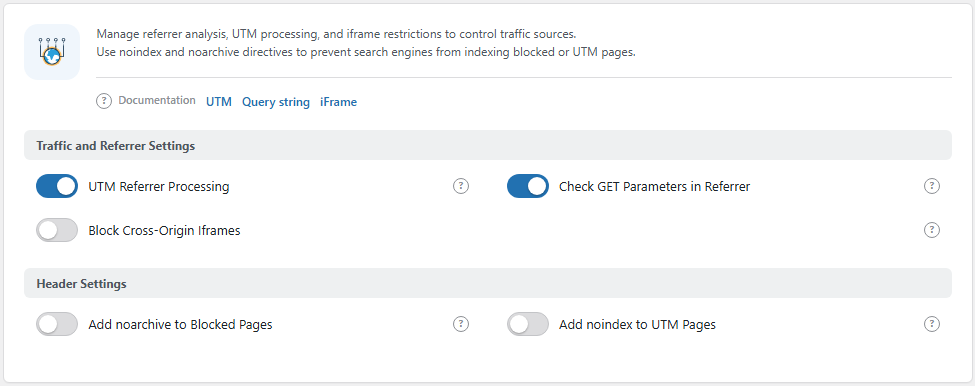
The Traffic & Referrer panel. Open it from BotBlocker → Settings → Traffic → Traffic & Referrer.
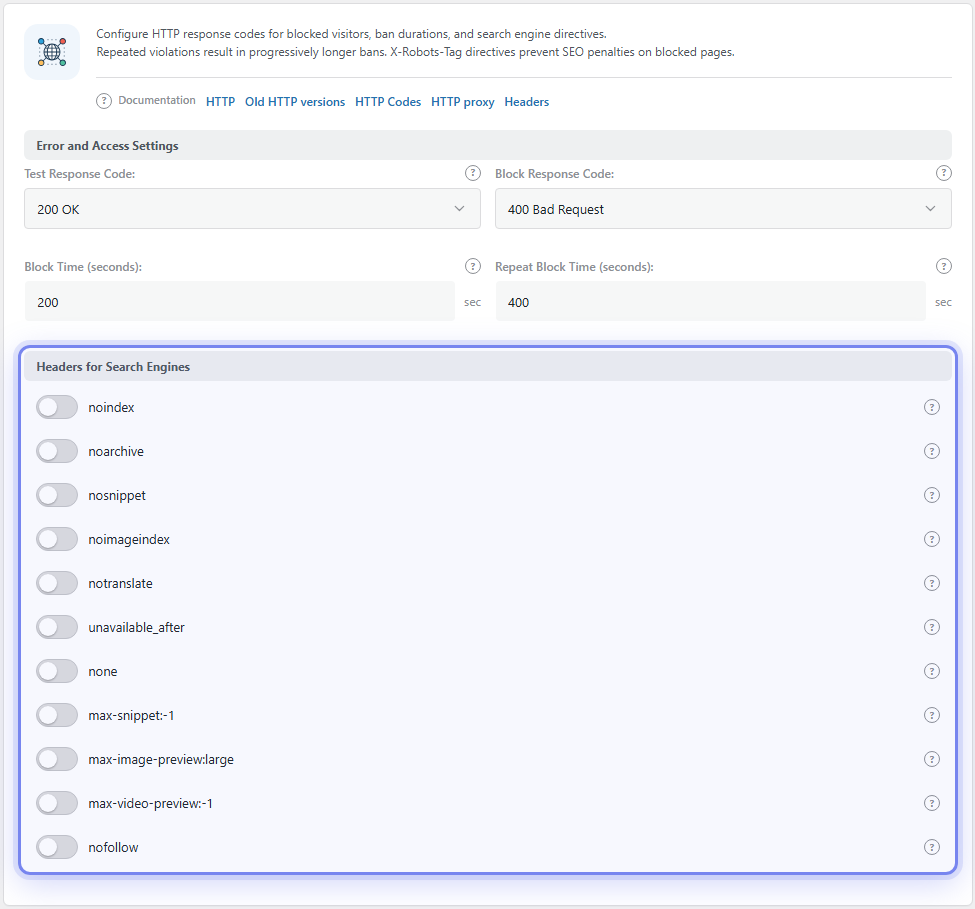
The Headers for Search Engines group is on another panel. Open it from BotBlocker → Settings → System → Error & Access.
The check page can hide where a visitor came from
A visitor clicks a link on another site and arrives at your page. If BotBlocker shows a check, the visitor passes it and then goes on to your page. But now the browser says that the visitor came from your own check page. Your analytics tool loses the real source.
With UTM Referrer Processing on, BotBlocker keeps the real source. If the browser sent a referrer, then after the check it sends the visitor to the page with an extra utm_referrer parameter that holds the original referrer. Analytics tools can then read the real source. For example, a visitor from a news site lands on /offer/?utm_referrer=https://news.example/article.
These extra addresses are copies of your normal pages. If a search engine finds them, it can see duplicate content. Add noindex to UTM Pages tells search engines not to list the pages with the utm_referrer parameter. The two settings work as a pair.
Suspicious links in the referrer
Some bots fake a referrer to look like a visitor from a search or an ad. They often copy a search or tracking address, with parameters such as q, utm_source, gclid, or fbclid. Check GET Parameters in Referrer looks at the parameters in the referrer address. When it finds one of the parameters on BotBlocker's list, it marks the visitor as suspicious. The visitor is not blocked for this alone, but the next checks treat the visitor more strictly.
This check only applies to visitors who do not have a valid pass yet. Read Bot detection signals for the other signals, and Cookies and sessions for the pass.
Instructions for search engines
Search engines read an X-Robots-Tag header with each page. It tells them if they may list the page, show a snippet, or keep a cached copy.
BotBlocker always sends noindex on its check page, and noindex, noarchive on its block and denied pages. So these pages never appear in search results, and you do not need a setting for this.
The Headers for Search Engines group and Add noarchive to All Pages are different. They add instructions to the normal pages that BotBlocker lets through to your visitors and to search engines. This is a site-wide change. For example, if you select noindex there, you ask search engines to remove your pages from their results.
Verified search engines pass BotBlocker without a check. Read Bot detection signals.
Frames and clickjacking
Another site can show your page inside a frame. In a clickjacking attack, the frame is hidden, and the visitor clicks something that they cannot see.
Block Cross-Origin Iframes protects BotBlocker's own check page and block page. BotBlocker sends X-Frame-Options: SAMEORIGIN with these pages, so only your own site can show them in a frame. It does not change your normal pages.
To protect all your pages, including your login page, use the Security Headers add-on. When the add-on sends the frame header, BotBlocker leaves this job to the add-on.
Settings
The defaults are safe for most sites. Change a search setting only when you know how it affects your listing.
Traffic and Referrer Settings
These settings handle the referrer and frames on the check page.
UTM Referrer Processing
Default: On
Keeps the original referrer when a visitor passes a check. If the browser sent a referrer, BotBlocker adds a utm_referrer parameter with the real source to the address that the visitor goes to after the check.
- On: your analytics can still see where checked visitors came from. A visitor without a referrer goes to the plain address.
- Off: after a check, the visitor goes to the plain address. Analytics can show your own site as the source.
Use it together with Add noindex to UTM Pages below, so these extra addresses do not appear in search.
Check GET Parameters in Referrer
Default: On
Looks at the parameters in the referrer address and marks the visitor as suspicious when it finds a parameter from BotBlocker's list. The list has search and tracking parameters that fake referrers often copy, for example q, text, utm_source, utm_campaign, gclid, fbclid, msclkid, ref, and clickid.
- On: visitors with such referrers get stricter checks.
- Off: BotBlocker ignores the referrer parameters.
Real visitors from ads and campaigns can also have these parameters. If many real visitors from one campaign see checks, write down the exact link, and then turn this off.
Block Cross-Origin Iframes
Default: Off
Stops other sites from showing BotBlocker's check page and block page inside a frame.
- On: BotBlocker sends
X-Frame-Options: SAMEORIGINwith these pages. - Off: no frame header from BotBlocker.
If your site is shown inside a frame on a partner site, visitors who must pass a check there see an empty frame. For full clickjacking protection on all pages, use the Security Headers add-on.
Header Settings
These settings add instructions for search engines.
Add noarchive to All Pages
Default: Off
Adds noarchive to the X-Robots-Tag header of the pages that BotBlocker lets through. This asks search engines not to show a cached copy of your pages. BotBlocker's own block pages always have noarchive, with or without this setting.
- On: search engines do not offer cached copies of your pages.
- Off: search engines decide for themselves.
It does not remove your pages from search results, and it does not block anyone.
Add noindex to UTM Pages
Default: Off
Adds noindex to pages whose address has a utm_referrer parameter. These are the addresses that UTM Referrer Processing makes after a check. Search engines then do not list these copies, and your normal addresses stay in search.
- On: no duplicate
utm_referreraddresses in search results. - Off: search engines can list them.
It does not look at other campaign parameters, such as utm_source or utm_campaign. For those, use the canonical URL settings of your SEO plugin.
Headers for Search Engines
X-Robots-Tag directives
Default: none selected
Adds the selected instructions to the X-Robots-Tag header of every page that BotBlocker lets through. Each switch adds one instruction:
- noindex: do not list the page in search results.
- nofollow: do not follow the links on the page.
- none: the same as
noindexandnofollowtogether. - noarchive: do not show a cached copy.
- nosnippet: do not show a text preview in the results.
- noimageindex: do not list the images on the page.
- notranslate: do not offer a translation of the page.
- unavailable_after: stop showing the page after a date. BotBlocker sends it without a date, so search engines can ignore it.
- max-snippet, max-image-preview, max-video-preview: BotBlocker sends these with the widest values (
-1,large,-1). They allow full previews.
Do not select noindex, nofollow, or none on a public site. They apply to all your pages, so your site can disappear from search. Search engines can need weeks to list your pages again. Change these only if you know your SEO plan, and check the result in your search console. When one of them is on, the panel shows a warning below the group.
When something goes wrong
- Your pages disappear from search results? Open Headers for Search Engines and turn off
noindex,none, andnofollow. Then ask the search engine to crawl your pages again. - Your analytics shows your own site as the source? Turn on UTM Referrer Processing.
- Duplicate addresses with
utm_referrerin your search console? Turn on Add noindex to UTM Pages. - Visitors from one ad campaign see checks? Write down the exact link. Then turn off Check GET Parameters in Referrer and watch the result.
- An embed on a partner site shows an empty frame? Turn off Block Cross-Origin Iframes, or ask the partner to link to your site instead.
- A security scanner says your pages can be framed? This setting only protects BotBlocker's own pages. Use the Security Headers add-on.