Pusher Digest
Put your BotBlocker numbers on your own live dashboard, next to all your other data.
Do you already use Pusher? Pusher is a service that sends live messages to web pages and apps. If you have a dashboard that listens to Pusher, this add-on is for you. Once a week, BotBlocker sends a short summary to your Pusher channel. Your dashboard picks it up and shows it.
You see your security picture in the place you already look every day. You do not need to log in to WordPress for it.
Do you only want a weekly summary as a message on your phone? Then Telegram Reports is easier. It needs no Pusher account and no own app.
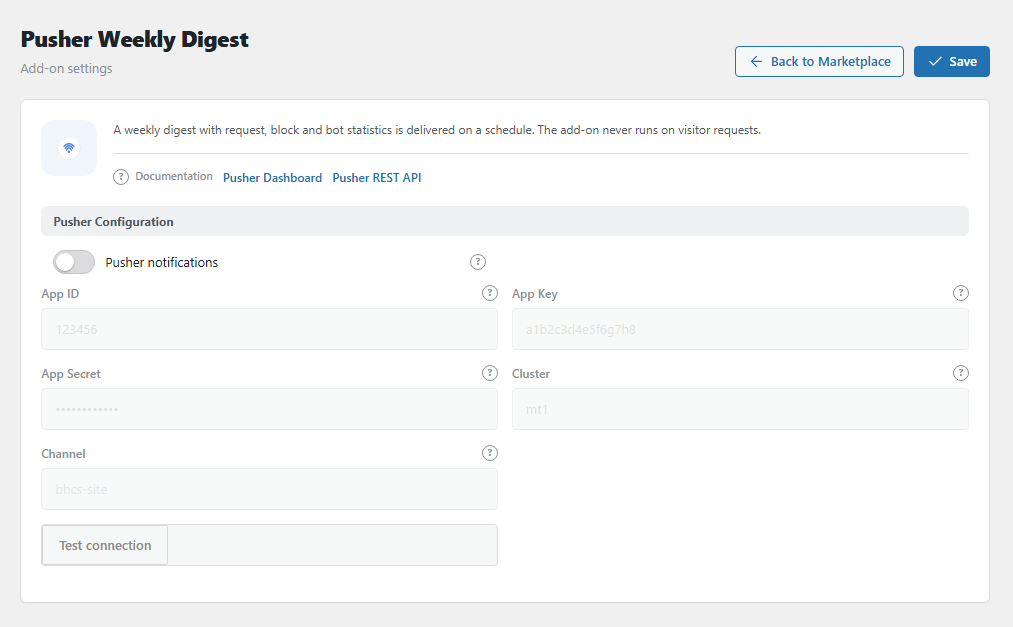
The Pusher Weekly Digest panel. Open it from BotBlocker → Add-ons.
BotBlocker sends, your app shows
BotBlocker sends the weekly summary to Pusher. Pusher passes it on to every page or app that listens to the same channel at that moment. BotBlocker does not include a dashboard. The page or app that shows the summary is your own.
The setup needs:
- A PRO license for BotBlocker, to use this add-on.
- A Pusher account with a Channels app. This is a separate account at Pusher. Pusher has a free plan (Sandbox), and its limits cover one message per week.
- The app keys: the app ID, key, secret, and cluster. Pusher shows them in the app's App Keys tab. They go into the fields of this panel.
- Your own dashboard that listens to the channel that is set in this panel.
What is in the message
Each week, BotBlocker sends one event with the name botblocker.report to your channel. It contains:
- the site name and domain,
- the dates of the last 7 days,
- your site timezone,
- if BotBlocker is active or disabled,
- the protection mode (FULL or FRONTEND),
- the request numbers: total, allowed, blocked, and search-engine bots,
- the block rate, in percent.
The request numbers come from the BotBlocker counters. These are the same running totals that your BotBlocker dashboard shows, and they go back further than the last week.
For example, if the counters show 9,000 allowed and 1,000 blocked, the message says total 10,000 and block rate 10%.
When it is sent
The first message goes out one week after you turn the add-on on. Then it goes once a week.
It runs as a WordPress scheduled task, not during visitor requests. So it never slows down your site. WordPress runs scheduled tasks only when someone visits the site. On a quiet site, the message can come a bit late.
Do not want to wait a week? Click Test connection in the panel. It sends a test event, botblocker.test, at once. If your dashboard shows it, the weekly message will work too.
What leaves your site
The message goes to Pusher, an outside service. It contains only the numbers and site details in the list above. It contains no visitor IP addresses and no personal data. If your rules do not allow site data to go to an outside service, do not turn on this add-on.
Settings
All settings are in one group. Fill all of them before you click Test connection.
Pusher Configuration
Pusher notifications
Default: Off
The main switch. When it is on, BotBlocker plans the weekly message. When it is off, BotBlocker removes the plan, and Test connection also fails.
While it is off, the other fields are locked. Turn it on first, then fill them in.
App ID
Default: empty
The number of your app in Pusher, for example 123456. Find it on the App Keys page of your app in the Pusher dashboard.
App Key
Default: empty
The public key of your app. Your dashboard uses the same key to listen, so it is not a secret.
App Secret
Default: empty
The private key. BotBlocker uses it to sign each message, like a signature on a letter. Pusher accepts only signed messages.
Never put this value in a page, a script, or a code repository. If someone sees it, make a new secret in your Pusher dashboard and paste it here.
Cluster
Default: empty (uses mt1)
The region where you made your Pusher app, for example eu, us2, or ap1. You see it on the App Keys page.
If you leave it empty, BotBlocker uses mt1. If your app is in another region, the message fails. So always type the cluster, even if you think it is the default.
Channel
Default: bbcs-site
The name of the channel. Your dashboard must listen to exactly this name.
If you send from several sites to one Pusher app, give each site its own channel. For example, bbcs-shop and bbcs-blog. Then your dashboard knows which site sent which numbers.
BotBlocker removes characters that Pusher does not allow, such as spaces. It keeps letters, numbers, and _ - = @ , . ;. It cuts the name at 164 characters. If nothing is left, it uses bbcs-site. For example, my site becomes mysite.
When the numbers do not arrive
- Test connection says "Connection failed"? Make sure Pusher notifications is on. Check the App ID, key, and secret for extra spaces. Check that the Cluster matches your app.
- Still fails with correct keys? Your server may block outgoing connections. Ask your host to allow connections to
pusher.com. - The test works, but nothing shows on your dashboard? Your dashboard listens to another channel, or uses another cluster. Compare both with this panel. Remember that the channel name may have lost some characters.
- The weekly message never comes? Check that the weekly task exists. Go to BotBlocker → Settings → Data → Cron Jobs and look for Pusher Weekly Digest. If it is missing, turn Pusher notifications off and on again, and save.
- You deleted and installed the add-on again? Deleting the add-on also deletes its settings. Enter the keys and channel again.