HTTPS Protocol
Make sure that your visitors see the padlock, not a "Not secure" warning.
Visitors trust a site with a padlock in the address bar. The padlock means that the connection is encrypted (private), so nobody on the way can read or change it. But a certificate alone is not always enough. Old links and bookmarks still send people to http://. And a page can lose its padlock because one old picture still loads over http://.
This add-on fixes both problems inside WordPress. It sends visitors to the secure address, and it repairs old links in your pages while they load. You do not need to edit server files or search all your posts by hand.
It works right away. The main switches are on when you activate the add-on.
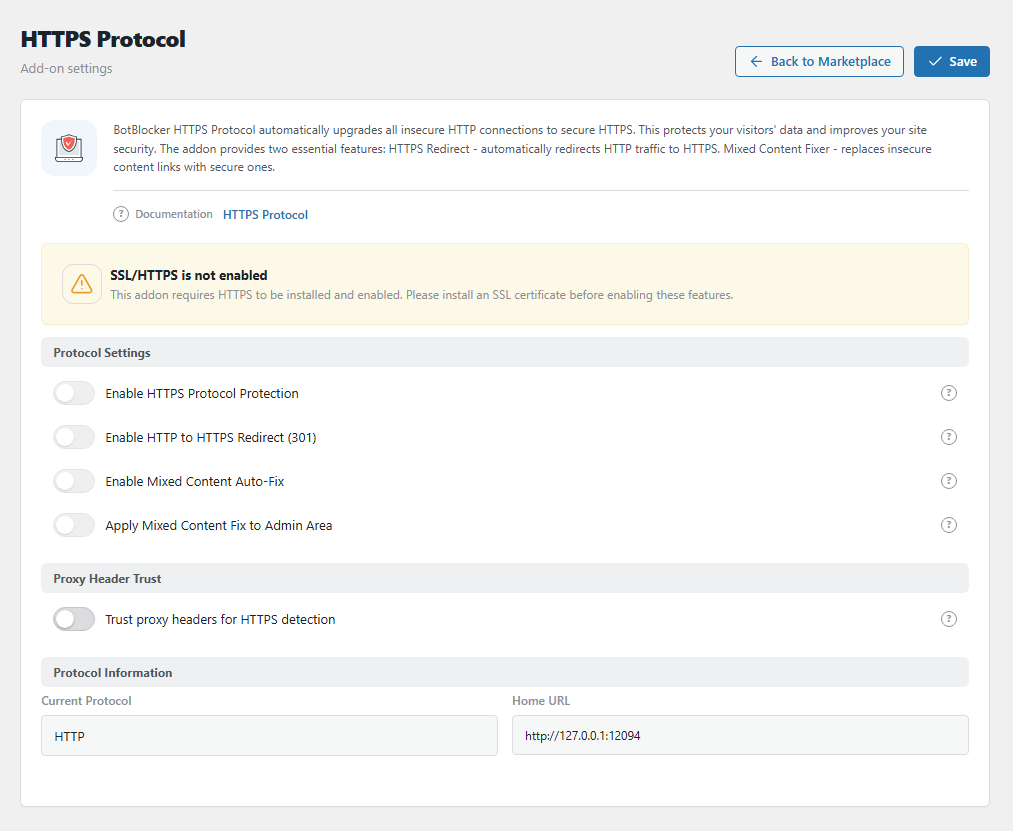
The HTTPS Protocol settings panel. Open it from BotBlocker → Add-ons.
First, you need a certificate
This add-on does not make your site secure by itself. It needs an SSL certificate that already works. The certificate is what makes HTTPS possible. Your host usually gives you one for free.
The panel tells you what it sees. SSL/HTTPS is active on this site means that you are ready. SSL/HTTPS is not enabled means that you must install a certificate first. Under Protocol Information, you also see the current protocol and your home address.
Job 1: send visitors to the secure address
A visitor opens http://example.com/shop. The add-on sends them to https://example.com/shop, the same page, but secure. This is a "redirect". It is permanent (code 301), so search engines also learn to use the secure address.
A form that sends data over plain HTTP is redirected with code 308. This code keeps the form data, so nothing is lost on the way.
Some requests are never redirected:
- The admin area and the login page. WordPress has its own settings for them.
- Certificate checks at
/.well-known/acme-challenge/. Services like Let's Encrypt use this address to renew your certificate, so it must stay open.
Job 2: repair old links in your pages
Your posts may still contain old addresses like http://example.com/wp-content/uploads/photo.jpg. On a secure page, the browser calls this "mixed content": a secure page with an unsafe part. The browser then blocks the item or removes the padlock.
The add-on reads each page just before it goes to the visitor, and it changes these addresses to https://:
- All links to your own site, with or without
www. - Pictures, frames, and scripts from any site.
- Stylesheets, social-media preview pictures, and form targets.
- Background pictures in inline styles, and addresses in
data-attributes.
It changes the page that the visitor gets, not your database. Your stored posts stay as they are. So you can turn the fix off at any time, and nothing is lost.
It works only on pages that open over HTTPS. On a plain-HTTP page, it does nothing.
Settings
Protocol Settings
Enable HTTPS Protocol Protection
Default: On
The main switch. When it is off, the add-on does nothing: no redirect and no link repair.
Enable HTTP to HTTPS Redirect (301)
Default: On
Redirects every http:// request to the same address on https://. REST API requests are redirected too. See Job 1 for the exceptions.
When to turn it off: only while you replace your certificate or move to a new domain. If the redirect points to an address with no valid certificate, visitors get a browser security error.
Limit: the redirect runs after the BotBlocker visitor check. A visitor who must pass a check sees the check page over plain http:// first. They go to https:// only after they pass. To use HTTPS from the first request, also add a redirect on the web server (ask your host). The server redirect and this setting do not conflict.
If your host already redirects to HTTPS, you can keep this on. It then simply has nothing to do.
Enable Mixed Content Auto-Fix
Default: On
Repairs old http:// addresses in your public pages. See Job 2 for the list of addresses it changes.
For example, a 2015 post shows a photo from http://example.com/wp-content/uploads/2015/photo.jpg. The visitor gets https://example.com/... instead, and the padlock stays.
Limits: it repairs only the HTML page. It cannot reach inside separate files. An http:// address inside a .css or .js file, or an address that a script builds later, stays unsafe. Also, it cannot help if the other site has no HTTPS version. Then the picture or script breaks. In that case, replace that item.
Apply Mixed Content Fix to Admin Area
Default: Off
Does the same repair on your admin screens. Turn it on only if the admin area shows mixed-content warnings, for example a broken picture in the media library. If the admin area works normally, keep it off. It adds a small amount of work to each admin page.
Proxy Header Trust
Trust proxy headers for HTTPS detection
Default: Off
Many sites have a proxy or CDN in front of them, for example Cloudflare. A proxy is a middleman: the visitor talks HTTPS to the proxy, and the proxy talks to your server, often over plain HTTP. Your server then thinks that the visitor used HTTP. The redirect sends them to HTTPS again, the proxy asks over HTTP again, and so on. This is a redirect loop.
The proxy adds a short note to each request, like "the visitor used HTTPS". When this switch is on, the add-on believes this note. It knows the notes of Cloudflare, Amazon CloudFront, Microsoft Azure, and the common X-Forwarded notes.
Turn it on if your site is behind a proxy or CDN that handles the certificate. Keep it off if visitors connect straight to your server.
Risk: anybody can write such a note. Without a proxy that removes fake notes, a visitor can pretend to use HTTPS. Then they skip the redirect. Turn it on only behind a proxy that you trust.
When HTTPS does not behave
- The page reloads again and again (redirect loop)? Almost always a proxy problem. Ask your host if a proxy or CDN handles HTTPS. If yes, turn on Trust proxy headers for HTTPS detection. Test in a private window.
- The padlock is still missing on one page? Open the browser console. It names the unsafe item. If the address is inside a
.cssor.jsfile of your theme or a plugin, the auto-fix cannot reach it. Ask the developer to fix it. - A picture from another site is broken now? That site has no HTTPS version. Upload the picture to your own site.
- The BotBlocker check page opens over
http://? The add-on redirects only after the visitor passes the check (see Enable HTTP to HTTPS Redirect). To serve the check page over HTTPS too, ask your host to add an HTTP-to-HTTPS redirect on the web server. - You cannot open the site at all? Turn off the main switch here if you can reach the admin area. If you cannot, use the links in Emergency recovery secrets.