TLS fingerprinting
Catch bots that lie about their browser, by looking at how they connect.
Every browser connects to your site in its own way, a kind of handshake. Chrome, Firefox, and Safari each have their own. A scraping tool or a script has a different one. A bot can easily fake a browser's name, but it is very hard to fake its handshake. BotBlocker compares the two. When a visitor says "I am Chrome" but connects like a scraping tool, BotBlocker catches it.
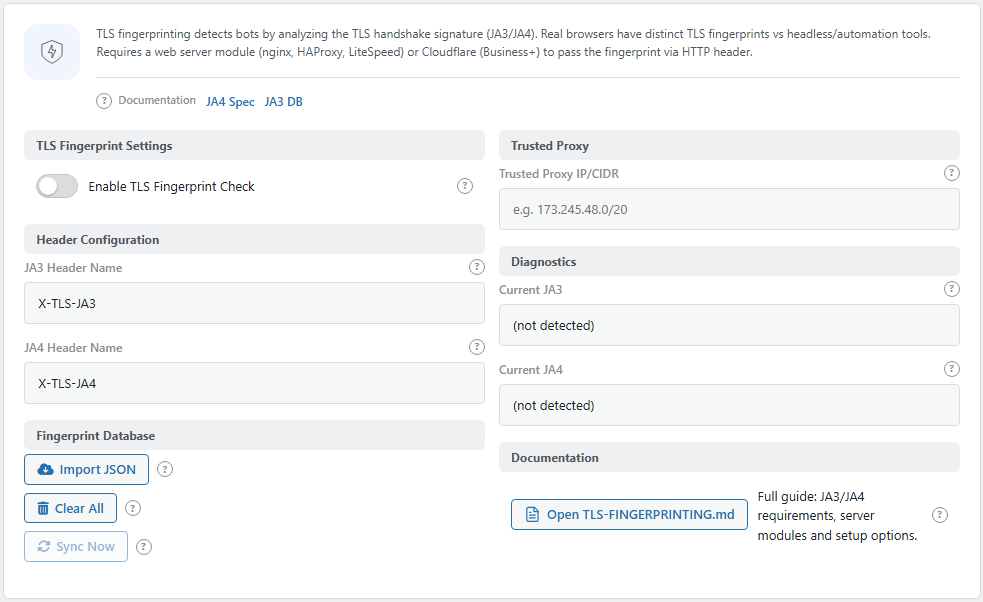
The TLS Fingerprinting panel. Open it from BotBlocker → Settings → Detection → TLS Fingerprinting.
Two parts make it work
- Your side: the handshake. WordPress cannot see the handshake. Cloudflare, or a module in your web server, must pass it on to WordPress. Without it, this feature has nothing to check. Then leave it off. All other protection works without it.
- Our side: the knowledge. BotBlocker Cloud keeps an up-to-date list of the handshakes of real browsers and known bot tools, collected from all BotBlocker sites. It syncs to your site automatically, so you do not have to maintain it.
Before you turn it on
- Send the fingerprint. On Cloudflare, the fingerprint is available on some plans (the panel mentions Business and higher), and BotBlocker reads it automatically. On your own server, your host installs a fingerprint module for nginx, HAProxy, or LiteSpeed. The Open TLS-FINGERPRINTING.md button on the panel opens the full setup guide.
- Name your proxy. If the fingerprint comes from your own proxy or load balancer, enter its address in Trusted Proxy IP/CIDR. BotBlocker accepts the fingerprint only from Cloudflare and from this address. Anyone can send a fake fingerprint header, so BotBlocker ignores it from anywhere else.
- Check that it arrives. Look at Current JA4 in the Diagnostics group. If it shows a value, turn on Enable TLS Fingerprint Check.
What BotBlocker does with it
- The handshake fits the browser: nothing happens. The visitor continues.
- Something looks a bit off, for example an unknown handshake: BotBlocker marks the visit as suspicious. This is a note, not a block. It adds weight to other decisions and shows in the log.
- A known bot tool claims to be a browser, or the handshake belongs to a known attack tool: the visitor gets the check page. A real person can still pass it.
A fingerprint is not an identity. Millions of people with the same browser share one, and it can change when a browser updates. So BotBlocker uses it as one signal among many. It works together with Browser checks, which look at the browser from the inside, and Bot detection signals.
Settings
TLS Fingerprint Settings
Enable TLS Fingerprint Check
Default: Off
Turns the fingerprint check on. When it is off, BotBlocker ignores fingerprints completely.
Turn it on after the fingerprint header reaches WordPress. The Diagnostics group on the same panel shows the fingerprint of your own current request, so you can check this first. You must also turn this on and save before you can use Sync Now in the database group.
Header Configuration
These two fields tell BotBlocker which request headers hold the fingerprint. There are two common formats: JA3 and the newer JA4. BotBlocker prefers JA4 and uses JA3 when JA4 is missing. Change them only to match what your server or proxy sends.
JA3 Header Name
Default: X-TLS-JA3
The name of the header with the JA3 value. If this header is missing, BotBlocker also looks at Cloudflare's Cf-JA3-Fingerprint header. So behind Cloudflare, you do not need to change this field.
JA4 Header Name
Default: X-TLS-JA4
The name of the header with the JA4 value. There is no automatic Cloudflare fallback for JA4. If your server module writes a different header name, enter it here exactly.
Fingerprint Database
This group has no settings of its own. It holds three buttons for the list of known fingerprints:
- Sync Now: downloads the current list from BotBlocker Cloud now, without waiting for the automatic sync. It works only after Enable TLS Fingerprint Check is on and saved.
- Import JSON: loads your own list. The file must be a JSON array of objects with the fields
fingerprint,category,ua_family, anddescription. - Clear All: removes all known fingerprints. After that, every fingerprint counts as unknown.
Trusted Proxy
Trusted Proxy IP/CIDR
Default: Empty
The IP address or range of your proxy, for example 173.245.48.0/20. BotBlocker accepts fingerprint headers only from this address or range, and from Cloudflare.
- Empty: only Cloudflare can supply a fingerprint. Headers from anywhere else are ignored.
- Filled in: your proxy can supply a fingerprint too.
Enter only the address of the machine that really sits in front of WordPress. Do not enter a wide range to "make it work", because every address in the range can then send a fake fingerprint.
Diagnostics
The Current JA3 and Current JA4 fields show the fingerprint of your own request, as the server received it. They are the fastest way to see whether the header arrives at all.
When something goes wrong
- Current JA3 and Current JA4 are empty. No fingerprint reaches WordPress. Set up Cloudflare or a server module first. Check that the header names in Header Configuration match what your server sends.
- The current values show, but the check does nothing. The request may not come from a trusted source. Enter your proxy's address in Trusted Proxy IP/CIDR. Also check that the database is not empty: use Sync Now.
- Sync Now does not work. Turn on Enable TLS Fingerprint Check and save first.
- Real visitors are sent to the check page. Look at the reason in the log. If a normal browser is listed as an automation tool, update the database with Sync Now, or remove the wrong entry from your imported list.
- You are not sure about the effect. Turn off Enable TLS Fingerprint Check. All other protection keeps working.