HTTP and site behavior
Control how your site answers browsers, apps, and search engines.
Every visit is a conversation. A browser, an app, or a search engine sends a request, and your site sends an answer: a status code, some headers, and the page. BotBlocker sits in the middle of this conversation. Most of the time, it only decides who may continue. But it also adds small notes to the answer: instructions for search engines, permission headers for browsers, and cache hints.
The settings in this section control these notes. They almost never block a visitor. A wrong value is more likely to break a checkout, hide a page from search, or make your analytics wrong. So this section is where you look when something "just stops working" and no block appears in your reports.
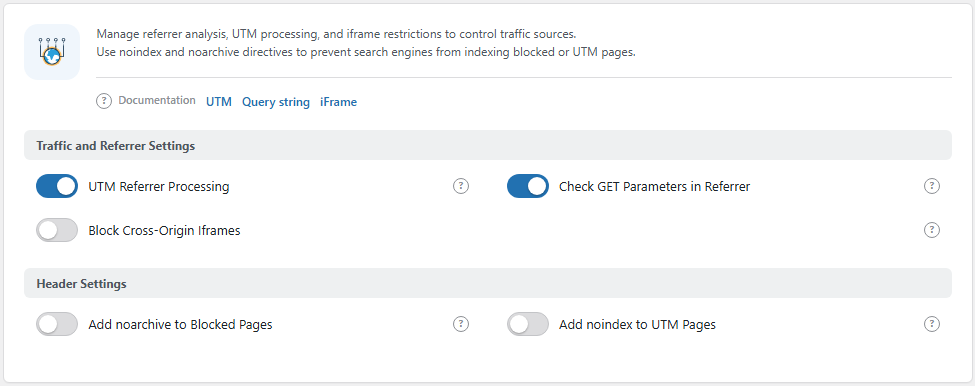
The Traffic & Referrer panel, one of the panels in this section. Open it from BotBlocker → Settings → Traffic → Traffic & Referrer.
The pages in this section
- Responses and API access: browser permission questions (preflight requests) and the CORS headers of the verification check. Read it when a store, an app, or a payment tool fails.
- Search and referrer behavior: search engine instructions, the original referrer after a check, and frames. Read it when your search listing or your analytics looks wrong.
- Blocks and responses: the status codes and block times for refused requests.
- Cookies and sessions: the verification cookie and the
Vary: Cookieheader for caches.
Where the settings are
The settings are on four panels:
- BotBlocker → Settings → Detection → Bot Detection, group Extra Options: Allow OPTIONS Preflight.
- BotBlocker → Settings → Traffic → Traffic & Referrer: referrer, UTM, frame, and search header switches.
- BotBlocker → Settings → System → Error & Access: status codes, block times, and Headers for Search Engines.
- BotBlocker → Settings → System → Cookie Settings, group Cache Compatibility: Send Vary: Cookie Header and Strict CORS Headers.
Add-ons that change the answer
Some add-ons add their own notes to your site's answers:
- Security Headers adds browser security headers to all your pages, for example against clickjacking.
- HTTPS Protocol makes sure that visitors use the secure connection.
- Cookie Alert tells visitors about the cookies that your site uses.
Find the cause step by step
The symptoms on these pages often look unrelated: a broken embed, a failed checkout, a page that left the search results. Work in this order:
- Name the symptom: a visitor is refused, an integration fails, an embed is empty, or a page is missing from search.
- Open the page in this section for that symptom, and find the setting behind it.
- Set that value back to its default and test again.
- Keep a changed value only if you can say what problem it fixes. Write down what you changed and when.
When something goes wrong
- A store, an app, or a payment tool fails with no block in the reports? Read Responses and API access.
- Your pages left the search results? Check Headers for Search Engines in Search and referrer behavior.
- Analytics shows your own site as the source? Check UTM Referrer Processing in Search and referrer behavior.
- A visitor is refused with the wrong status code? Read Blocks and responses.
- A cache shows the check page to verified visitors? Read Cookies and sessions.