Hide Admin
Move your login page to a private address, so bots stop knocking on the default door.
Every WordPress site has its login page at the same address: /wp-login.php. Attackers know this, and their bots try it all day. They guess passwords, again and again. Each try costs your server work, and fills your logs.
This add-on moves your login page to an address that only you know. Bots that try the old address find nothing useful. Your logs get quieter, and your server does less work.
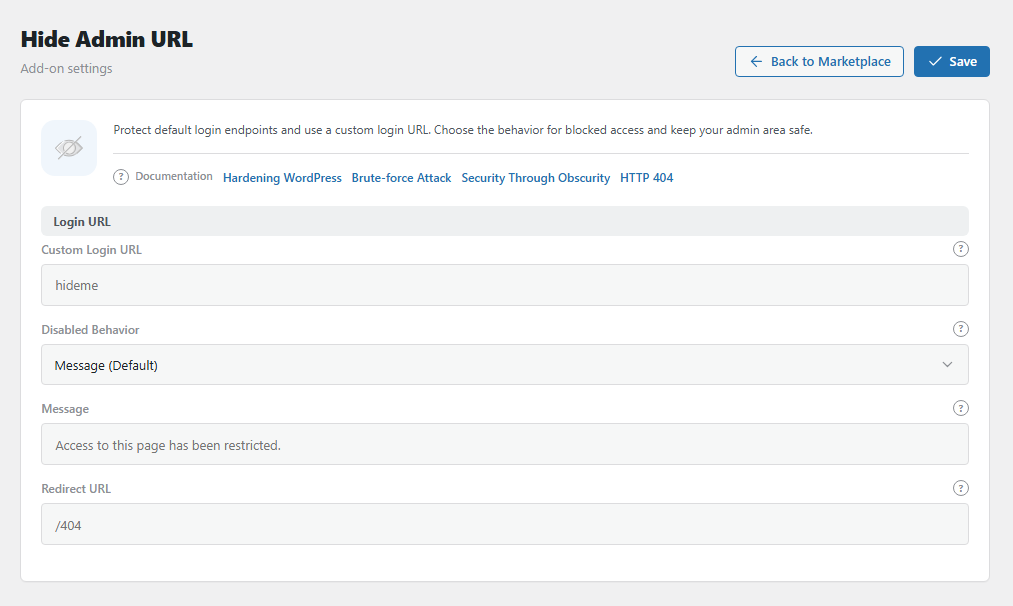
The Hide Admin URL panel. Open it from BotBlocker → Add-ons.
Your new login address
You pick a short word, for example hideme. Your login page then opens at https://example.com/hideme/.
If your site does not use pretty links (the WordPress Permalinks setting is "Plain"), the address is https://example.com/?hideme instead.
WordPress links follow the new address. Password reset emails, the "log out" link, and the welcome email for new users all point to it. So your users do not see a broken link.
Nothing changes until you type a word. With an empty field, the add-on does nothing.
What happens at the old doors
When a visitor who is not logged in tries one of these addresses, they get what you chose in Disabled Behavior:
/wp-login.php, the old login page./wp-admin/, the admin area. Before, WordPress sent them to the login page. Now it does not./wp-register.phpand/wp-signup.php, the old sign-up pages./wp-admin/customize.php, the theme customizer.
When you are logged in, /wp-admin/ works as normal. You only need the new address to log in.
It hides the door, it does not lock it
This add-on changes where your login page is. It does not make passwords stronger. A bot that finds your new address can still guess passwords. So also use login brute-force protection, and two-factor authentication for important accounts. Together, these give you strong login security.
It cannot run with WPS Hide Login
WPS Hide Login is another plugin that does the same job. When it is active, this add-on stays off, and the panel is read-only and tells you why. Deactivate WPS Hide Login first. Then set your address here.
Settings
All 4 settings are in the group Login URL. Save the settings, then test the new address in a private browser window before you log out.
Login URL
Custom Login URL
Default: empty (the add-on does nothing)
The word for your new login address.
Rules for the word:
- Use only letters, numbers,
-, and_. No.php, no slashes, no question marks, no spaces. - Do not use
wp-login,wp-admin,wp-register, orwp-signup. WordPress uses them already. - Do not use a word that a page, post, category, or tag on your site already uses. For example, if you have a page at
/contact/, you cannot usecontact.
If the word breaks a rule, BotBlocker shows an error and keeps your old address.
Pick a word that you can remember, but that bots cannot guess. login or admin are bad choices, because bots try them. team-door-42 is better.
Be careful: this is the easiest way to lock yourself out. Write the new address down, for example in your password manager, before you log out.
Disabled Behavior
Default: Message
What a visitor sees at the old login addresses:
- Message (Default): a short page with your text, and a 403 status (403 means "no access"). This is the friendliest choice. A real person understands what happened.
- 404 Not Found: your theme's "page not found" page. Scanners think that there is no WordPress login here. But a real person can be confused.
- Home Page: sends the visitor to your home page.
- Redirect: sends the visitor to a page that you choose in Redirect URL.
For most sites, 404 Not Found gives bots the least information.
Message
Default: empty (shows "Access to this page has been restricted.")
The text on the page when Disabled Behavior is Message. Plain text only. Keep it short, for example "This page is not available."
Do not write your new login address here. Everybody who tries the old address can read this text.
Redirect URL
Default: empty
Where to send visitors when Disabled Behavior is Redirect.
Write a path on your own site that starts with /, for example /contact/. BotBlocker adds your site address in front of it. A full address to another site does not work: BotBlocker adds your site address to it too, so the result is a broken link.
If this field is empty, BotBlocker shows the Message page instead.
Do not send visitors to a page that shows your new login address.
If you are locked out
- You cannot log in? Type the new address exactly as you saved it. Check each letter. If your site uses "Plain" permalinks, use
https://example.com/?yourword. - You forgot the new address? Use your emergency recovery link. Then read the address in this panel.
- Nothing else works? With your host's file manager, rename the folder
wp-content/plugins/botblocker-security. WordPress then turns BotBlocker off, and the login page goes back to/wp-login.php. Log in, give the folder its old name, and activate BotBlocker again. Or ask your host for help. - The new login address opens a post, page, or category instead of the login form? Its slug (the last part of the address, for example
my-logininexample.com/my-login) is the same as the slug of that content, so the address opens that content. Choose a slug that no post, page, or category uses. - Old bookmarks do not work? This is on purpose. Update your bookmarks, and tell the people who log in to your site.
- The panel is read-only? WPS Hide Login is active. Deactivate it first.