Cookie Alert
Tell your visitors about cookies with a clean, light banner that feels like part of your site.
In many countries, a site must tell visitors that it uses cookies. A cookie is a small note that your site stores in the visitor's browser. BotBlocker uses cookies too, for example to remember that a visitor already passed a check.
Cookie Alert shows a small banner with your message, a link to your policy page, and an accept button. It needs no outside service, no account, and no heavy scripts. The banner comes from your own site, so it loads fast and does not send your visitors' data to anybody else.
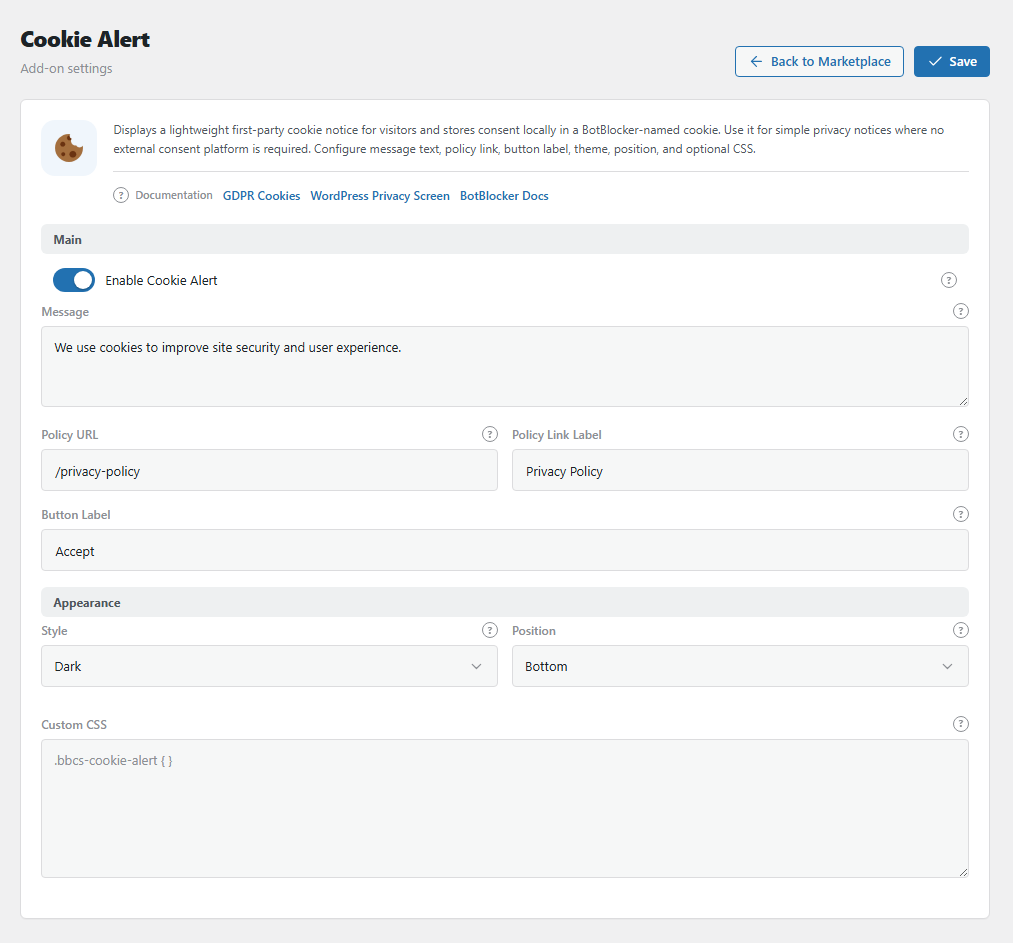
The Cookie Alert settings panel. Open it from BotBlocker → Add-ons.
What your visitors see
The banner floats at the bottom or the top of the screen, above your content. It has a small margin on each side and round corners. On a phone, the text and the button stand one above the other, and the button is full width, so it is easy to tap.
The policy link opens in a new tab. So the visitor does not lose the page that they read.
The banner shows on your public pages only, never in the admin area. It also shows to you when you are logged in, until you click the button.
The button remembers for one year
When a visitor clicks the button, the banner goes away at once. The browser stores a cookie for one year. While this cookie exists, your site does not show the banner to that browser again.
Each browser remembers on its own. A visitor who uses a phone and a laptop clicks once on each. A visitor who clears their cookies sees the banner again.
Built for cookie notices
Cookie Alert does one job: it tells visitors that your site uses cookies, links to your policy, and remembers their click. Because it does only this, it stays light. It adds no outside service, no tracking of its own, and almost no weight to your pages.
This fits sites that use cookies for the site to work, for example to keep a visitor logged in, to keep a shopping cart, or to remember that a visitor passed a BotBlocker check. Many countries require only a notice for these cookies.
Some laws, for example the GDPR and the ePrivacy Directive in the EU, require consent before a site sets other cookies, for example for analytics or ads. That needs a consent manager: a tool that blocks those scripts until the visitor agrees, lets the visitor choose cookie types, and keeps a record of each consent. Cookie Alert does not do these things. On a site that needs them, a consent manager replaces Cookie Alert.
Settings
The ready-made text works on day one. Change the policy link first, so that it opens your real policy page.
Main
Enable Cookie Alert
Default: On
Shows the banner on your public pages. When it is off, the banner and its style and script do not load at all.
Message
Default: "We use cookies to improve site security and user experience."
The text that your visitors read. Say plainly what you use cookies for, in one or two short sentences. Most people do not read long text.
For example: "We use cookies to keep your cart and to protect this site from bots."
If you press Enter in the text, the banner shows a new line there. HTML tags are removed when you save.
Policy URL
Default: /privacy-policy
The page that the policy link opens. A page on your own site is best. Visitors trust it more, and you can keep it up to date.
The default /privacy-policy is the address of the privacy page that WordPress makes. Open it once to check that it exists. If your page has another address, write it here.
If you leave this field empty, the banner shows no link.
Policy Link Label
Default: "Privacy Policy"
The text of the policy link, for example "Cookie Policy" or "Learn more". If you leave it empty, the banner shows no link.
Button Label
Default: "Accept"
The text on the button that closes the banner. Keep it short and clear, for example "OK" or "Got it".
Appearance
Style
Default: Dark
The colors of the banner:
- Dark: dark gray background, white text, light blue button. Good on light sites.
- Light: white background, dark text, blue button. Good on dark sites, or when you want a quiet look.
Position
Default: Bottom
Puts the banner at the Bottom or the Top of the screen. The banner floats above your content, so it covers a part of the page until the visitor clicks.
- Bottom: less in the way when people start to read. But it can cover a chat button, a "back to top" button, or a sticky "add to cart" bar.
- Top: keeps the bottom free. But it can cover your menu or logo.
Check both on a phone before you choose.
Custom CSS
Default: empty
Your own style rules for the banner. CSS is a short language that tells the browser how things look. Use it to match your theme.
For example, to use your brand color on the button:
.bbcs-cookie-alert__button { background: #e63946; color: #fff; }The main parts are .bbcs-cookie-alert (the banner), .bbcs-cookie-alert__text (the message), and .bbcs-cookie-alert__button (the button).
Risk: your rules load on every page where the banner shows, and they can change the whole page, not only the banner. Always start each rule with .bbcs-cookie-alert. One mistake can also hide the banner fully, and a hidden banner is easy to miss. Look at the banner after each change.
When the banner misbehaves
- You do not see the banner? Your browser may already remember your click. Open your site in a private window. If it is still missing, clear your page cache.
- Changes do not show? Clear your page cache. Then test in a private window.
- The policy link is missing? Policy URL or Policy Link Label is empty. Fill in both.
- The policy link shows "page not found"? Your policy page has another address. Copy its real address into Policy URL.
- The banner covers a button or your menu? Try the other Position.
- The banner is gone, or the page looks strange after a style change? Remove your Custom CSS for a moment. If things come back, a rule in your CSS is the cause.