Hosting and compatibility
BotBlocker works on almost any WordPress hosting. You do not need a special server, an expensive plan, or extra services. Normal shared hosting is enough.
Like every plugin, BotBlocker needs a few basic things from your host. Most hosts give them by default, so usually you do nothing. When something is missing, BotBlocker says so, and you can ask your host about it.
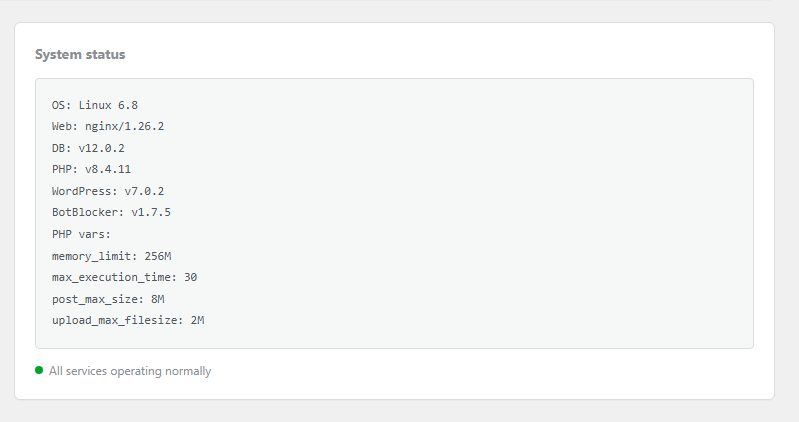
The System status card shows what your hosting gives BotBlocker. Open it from BotBlocker → About.
What your host must give
- PHP 7.4 or newer and WordPress 5.9 or newer. BotBlocker is tested with WordPress up to version 7.1. If your site is older, BotBlocker does not start, and WordPress shows a message that tells you what to update.
- A folder where it can save files. BotBlocker keeps its working files in its own folder:
wp-content/uploads/botblocker/.
Highly recommended: working scheduled tasks
BotBlocker cleans old logs and updates its data in the background. For this, it uses the WordPress task scheduler, called WP-Cron.
BotBlocker protects your site without it. But without working scheduled tasks, old logs stay longer and data updates come late. So make sure that they work. See Scheduled tasks need a visitor.
Optional extras
BotBlocker does not need Redis, Memcached, or any other extra service. They are optional and can make BotBlocker faster. See Cache backends.
When something is missing, BotBlocker keeps working
BotBlocker does not stop your site when the hosting is not perfect. It finds another way:
- It cannot save a data file, or someone deletes it? BotBlocker keeps the data in the database and makes the file again when it can.
- Your server has no image library (PHP GD)? The picture challenges show simple buttons instead. Visitors can still pass the check.
- A scheduled task did not run? BotBlocker finds it and runs it again. The next section tells you how.
Its folder stays closed to the web
BotBlocker puts 3 small protection files in its folder: .htaccess, web.config, and index.php. They tell the server: "nobody can open these files from a browser". Apache servers read .htaccess, and Windows (IIS) servers read web.config.
nginx ignores .htaccess and web.config. If your host uses nginx, ask them to block web access to wp-content/uploads/botblocker/. This matters most for backup files.
Scheduled tasks need a visitor
WP-Cron is not a real clock. It works like a shop assistant who checks the task list only when a customer comes in. Each time someone opens a page, WordPress looks at the list and runs the tasks that are due.
On a busy site, this works well. On a quiet site, nobody comes in for hours, so cleanups and reports run late.
BotBlocker helps in 2 ways:
- It catches up on late tasks. When a visitor comes, BotBlocker also checks if a task is long overdue, and runs it. This works even when your host turns WP-Cron off. But it still needs a visitor.
- It gives you a ready command for a real clock. Your hosting can run your tasks on a timer, every few minutes, with or without visitors. This is a system cron job. To set one up, you need a command with your site's address in it. BotBlocker writes this command for you:
- Open BotBlocker → Settings → Data → Cron Jobs and copy the cURL command.
- In your hosting control panel (for example cPanel or Plesk), open Cron Jobs, and paste the command. It already says to run every 10 minutes (the
*/10 * * * *part at the start). Some panels, like cPanel, have separate fields for the time. Then select every 10 minutes there, and paste only the part that starts withcurl. Not sure how? Send the command to your host and ask them to add it.
Is your site quiet? Add the system cron job. It is the only fix that does not wait for visitors.
Settings
These settings are on BotBlocker → Settings → Data → Cron Jobs. Most of them only show a status. You cannot change them, and they do not change your hosting account. The panel is here to tell you whether your scheduled tasks work, and to give you the command for your host.
To see and control each task one by one, use the Cron Jobs Manager add-on.
Cron Settings
The state of WP-Cron, and the ready-made commands for a system cron job.
WP-Cron enabled
Default: Active
Shows whether the WordPress task scheduler is on. It is for information only. It shows off when WP-Cron is turned off in wp-config.php (the DISABLE_WP_CRON line). Your host can add this line. Then BotBlocker depends on its fallback check and on a system cron job.
Active does not mean that your tasks run on time. It only means that the scheduler is on. On a quiet site, tasks can still run late. See Scheduled tasks need a visitor.
cURL command (for system cron)
Default: A ready-made command with your site's address
A complete command that opens your site's task page. Copy it, and add it to the cron jobs in your hosting control panel. Or send it to your host and ask them to add it. After that, your scheduled tasks run on time, even when nobody visits your site.
Wget command (for system cron)
Default: A ready-made command with your site's address
The same as the cURL command, but for servers that use the Wget tool. cURL and Wget are 2 small programs that open a web address. Use the one that your host has. You need only 1 of the 2 commands.
Task Recovery
BotBlocker's own safety net for missed tasks. Both items are always on. They only show the status.
Automatic task recovery
Default: Active
When a scheduled task was missed, BotBlocker finds it at the next check and puts it back on the schedule. This helps when WP-Cron is not reliable.
Fallback check every 15 minutes
Default: Active
The check that finds the missed tasks. It runs at most once every 15 minutes, when someone opens a page. It does not use WP-Cron, so it works even when WP-Cron is off. But it still needs a visitor. For exact timing, add a system cron job.
Common hosting problems
Start with BotBlocker → About. The System status card shows your versions (PHP, WordPress, database, web server) and your PHP limits. Your host will probably ask for these details. Make a backup before you change file permissions or delete files.
- You cannot see BotBlocker in WordPress? Your PHP or WordPress version is probably too old. WordPress shows a message that tells you what is needed. Update PHP or WordPress, or ask your host to do it.
- A notice about missing files comes back again and again? Something removes or blocks BotBlocker's files. Check the 3 causes below.
- WordPress cannot write to the folder, but you can? On shared hosting, your FTP account and WordPress often use different users. Ask your host to fix the permissions of
wp-content/uploads/botblocker/. - Your host does not let plugins keep PHP files in uploads? BotBlocker keeps its data files there. Ask your host to allow them in the BotBlocker folder.
- Your host's virus scanner deletes BotBlocker's files? Some scanners remove PHP files in uploads by mistake. First make sure that the files belong to BotBlocker. Then ask your host to exclude the BotBlocker folder from the scan.
- Cleanups, reports, or data updates run late? Open Settings → Data → Cron Jobs, copy the cURL or Wget command, and add a system cron job. See Settings.
- WP-Cron enabled shows off? WP-Cron is turned off in
wp-config.php. Many hosts do this and run their own system cron job. If tasks run late, ask your host to add the command from the Cron Jobs panel, so background tasks run on time. - Cloud features or data updates do not work? Your host can block internet access from your site with a firewall or proxy. No BotBlocker setting can fix this. Ask your host to allow HTTPS connections from your server. See Cloud API.
- Wrong countries, wrong rate limits, or real visitors blocked? A CDN, load balancer, or proxy can hide your visitors' real address, so WordPress sees the address of that service. Read Network connection types and Where protection applies before you make your rules weaker.
- Your host uses nginx? Ask them to block web access to
wp-content/uploads/botblocker/. See Its folder stays closed to the web.