Emergency recovery secrets
A spare key for your own site: get back in when a security rule locks you out.
A security plugin must be strict. Sometimes it is too strict with the wrong person. Your IP address changes, you add a rule with a typo, or a new setting catches admin requests. Then the WordPress login does not help, because BotBlocker stops you before you get to it.
For this case, BotBlocker gives you secret recovery links. Each link is a normal web address with a private code in it. When you open it, BotBlocker pauses its checks, turns protection off, or turns it back on. You do not need to log in. That is why the links work when nothing else does.
The same fact makes them dangerous. Anyone who has a full link can use it. Keep the links like passwords: in a password manager, never in a screenshot, a support ticket, or a shared chat.
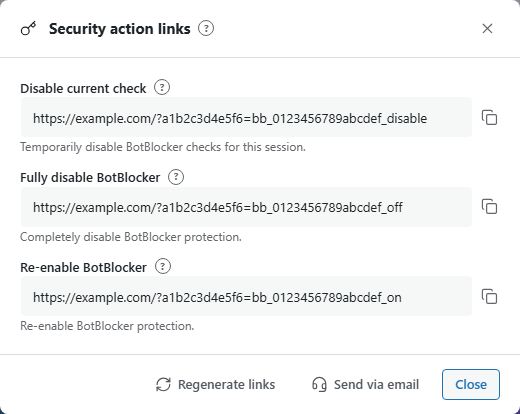
The Security action links panel. Open it from BotBlocker → Dashboard → Secret links.
How a recovery link is built
Each link has two private parts: a parameter name and an action value. Both are made for your site only. A link looks like this, with fake values:
https://example.com/?bbcs_a1b2c3=bbcs_9f8e7d_disable
BotBlocker acts only when both parts match the stored values exactly. If you cut or change the link, it does nothing. So always copy and keep the full link.
A visit with a recovery link is marked noindex, so search engines do not store it. BotBlocker also writes it to the visit log, so you can see later when a link was used.
Three links, from gentle to strong
The panel shows three links. Use the gentlest one that solves your problem.
- Disable current check skips BotBlocker's checks for you only, in this browser, for up to 2 hours. Your settings do not change. Use this first.
- Fully disable BotBlocker turns protection off for the whole site, for every visitor. Use it only when the first link is not enough.
- Re-enable BotBlocker turns protection on again after you used the second link.
A recovery link only lets you in. It does not fix the rule that locked you out. When you are back in the Dashboard, find and fix that rule first. Then turn protection back on.
After you use a link, regenerate the links
We strongly recommend this step. A recovery link works until you regenerate it. After you use a link, it can stay in your browser history, in an email, or in server logs. Anyone who finds it there can use it.
To remind you, the alert bell shows Recovery Link Used after any recovery link was opened. The alert stays until you regenerate the links. Its View audit log link shows the IP address and time of each use.
So when you are back in and the problem is fixed, open BotBlocker → Dashboard → Secret links and click Regenerate links. The old links stop working at once, and a Disable current check session that is still open ends too. Then store the new links in a safe place.
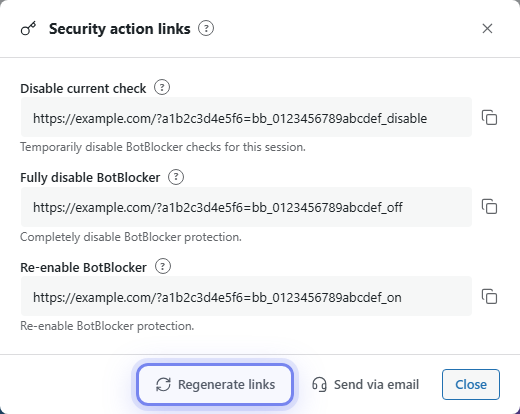
Click Regenerate links after you used a recovery link.
Keep the links outside your site
Store the links now, while everything works. If you keep them only inside the Dashboard, you cannot reach them when you are locked out. Good places are a password manager or a secure team vault. Decide who may use them, and agree that the person who uses a link tells the others.
The panel has two buttons for this:
- Send via email sends the management links by email, so you have a copy outside the site.
- Regenerate links makes new links. The old links stop working at once. Use it after you used any recovery link, or after a link was shared with the wrong person.
When you regenerate links, the salts stay the same (see below). Visitors who passed the check stay verified. Update your stored copy with the new links.
Salts and keys: the site's private ingredients
BotBlocker mixes secret values into its hashes and signatures. A hash is a short code made from other data. Because each site has its own secret values, a code from one site is useless on another site. You do not choose or change these values by hand. BotBlocker makes them for you.
These values are not performance settings. A new value does not make the site safer. It only makes old cookies, tokens, and signatures invalid.
Settings
The recovery panel has no normal fields to edit. The values below exist so that you know what they are and where they come from.
Security action links
The secret recovery parameter is the private parameter name in every recovery link. BotBlocker makes it at install time. You never see it as a separate field. It is only part of the full links. Without the matching action value, it does nothing useful.
Disable current check
Default: Generated for this site
The link that skips BotBlocker's checks for your current session. Your settings stay the same, and all other visitors are still protected. The session ends when you close the browser, or 2 hours after you opened the link. Then open the link again if you still need it. This is the right first step when you are locked out. Open the link, go to the Dashboard, and fix the rule that caught you. Then regenerate the links.
Fully disable BotBlocker
Default: Generated for this site
The link that turns BotBlocker protection off for the whole site. It works like the pause switch on the Dashboard. Protection stays off until you turn it on again. Bots are not stopped during that time. Use this only when Disable current check does not help. After that, fix the cause, turn protection on, and click Regenerate links.
Re-enable BotBlocker
Default: Generated for this site
The link that turns BotBlocker protection on again, without the Dashboard. The same rules come back as before. If a rule locked you out, fix it first, or you are locked out again.
Salt and site keys
Salt
Default: Generated for this site
A random value that makes BotBlocker's cookie values impossible to guess. You can see it, read-only, on BotBlocker → Settings → System → Cookie Settings; see Cookies and sessions. You cannot edit it there. It only shows that the value exists.
Clear visitor cookies in Maintenance actions replaces this salt for the current site. Every old cookie stops working; recovery links are not affected. Regenerate links on the Dashboard changes the links and keeps the salt.
When something goes wrong
- The link does nothing? Check that you copied the full link, with both the parameter and the value.
- An old link stopped working? Someone clicked Regenerate links. Get the new links from the Dashboard, or from your email copy.
- Disable current check did not help? Use Fully disable BotBlocker. Do not edit files or the database by hand first.
- You are back in but get locked out again? Fix the rule that caught you before you turn protection on. Check Auto-save administrator IPs, so your connection is remembered.
- A link was shared by mistake? Click Regenerate links now, and save the new links.
- No link works and you cannot reach the Dashboard? Remove the BotBlocker lines from
wp-config.php, or rename the BotBlocker plugin folder by FTP. See Early phase and MU mode for early-mode files.