Network connection types
Decide which kinds of networks may reach your site, and keep your own site's background work running.
Every request comes from a network address. The address does not tell you who the visitor is, but it tells you how they connect: directly from a home, through a proxy, from a rented server in a data center, through a VPN, or through the Tor network. Many bots use rented servers and proxy networks, because these are cheap and give them many addresses.
The rules on this panel block whole types of connections. This is a strong tool, and it is also a broad one. One rule can stop a large part of your bot traffic, but it also stops every real person who connects the same way. A VPN rule, for example, also blocks remote workers and travelers. So each rule here is a decision about your audience, not only about security.
The same panel also has the Self Connections group. WordPress often sends requests from your site to your own site, for example for scheduled tasks. These settings make sure that BotBlocker lets this internal work through.
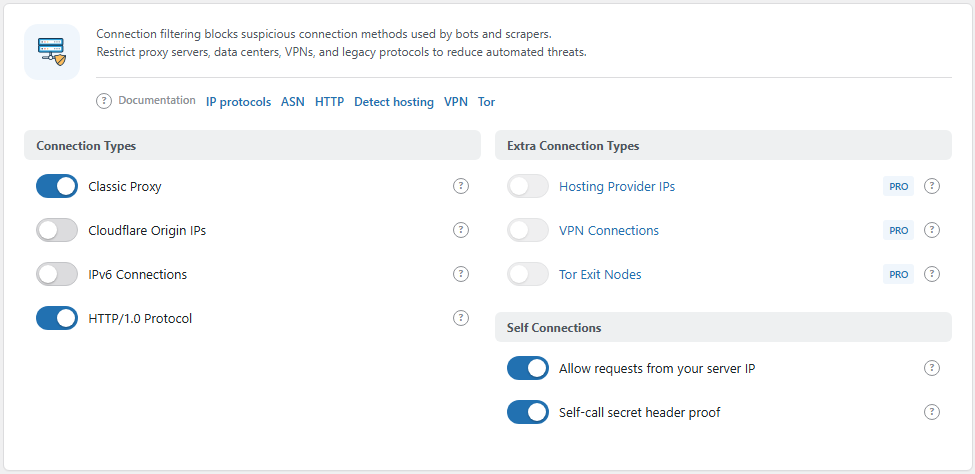
The Connection Types panel. Open it from BotBlocker → Settings → Traffic → Connection Types.
An address is a clue, not a name
An IP address is not a person. A family, an office, a school, or a mobile provider can put many people behind one address. One person can get a new address tomorrow. A VPN or a proxy can make thousands of people look like one address.
So when you block a network type, you block everyone who uses it. Before you turn on a rule, ask yourself: "Do my real visitors, my own tools, or my partners connect this way?" If the answer is "maybe", leave the rule off and watch your reports first. Read Monitoring overview.
What a blocked visitor sees
A request that one of these rules stops gets the BotBlocker denied page. There is no verification check, because the rule looks at the network, not at the person. The status code and the text come from your block settings. Read Blocks and responses.
These rules run for every visitor, also for visitors who already passed a check and hold a verification cookie. Addresses on your allow list, verified search engines, and internal site requests are handled earlier and are not affected.
Some rules need a PRO license
The rules in the Connection Types group work on every site. They use data that BotBlocker has on your server.
The rules in the Extra Connection Types group (Hosting Provider IPs, VPN Connections, Tor Exit Nodes) show a PRO badge. They need an active PRO license, because the data about hosting, VPN, and Tor networks comes from the BotBlocker cloud. Without PRO, the switches are locked and stay off. Read Cloud API.
Your own site gets a trusted path
WordPress sends requests to its own address all the time: to run scheduled tasks, to check for updates, to keep the editor session alive, and to let plugins talk to each other through the HTTP API. These requests do not come from a browser, so they cannot pass a verification check. If BotBlocker treats them like visitors, background work stops.
BotBlocker recognizes internal requests in two ways:
- By address. A request that comes from your own server's address is an internal request.
- By a secret proof. When WordPress calls your own domain, BotBlocker adds a signed note to the request. When the request arrives, BotBlocker checks the note. This works also when the request goes out through a proxy or a load balancer and comes back with a different address.
Scheduled tasks from your own server address always pass. The two settings in Self Connections control the other internal requests.
Settings
Start with the defaults. Change one rule at a time, and write down what you changed and when. Broad rules are easy to turn on and easy to forget.
Connection Types
These rules look at the protocol and the proxy information of each request. They work without PRO.
Classic Proxy
Default: On
Blocks requests that arrive through a known proxy network in a way that BotBlocker cannot trust. BotBlocker keeps a list of proxy and CDN networks, for example Cloudflare and AWS. Some entries are crawler networks, such as Google crawler ranges: BotBlocker keeps their own address and never trusts their forwarding header. You can see and edit this list on the Proxy tab of your IP lists. When a request comes from one of these networks and carries forwarding headers, but not the header that BotBlocker expects for that network, BotBlocker treats it as a classic proxy and blocks it.
- On: stops bots that hide behind open proxies and cloud forwarders.
- Off: these requests go through the normal checks.
If your site is behind a CDN or a load balancer that is not on the proxy list, add its network to the Proxy tab. Do not simply turn this rule off.
When such an edge is not on the list, BotBlocker cannot see the visitor address. A bot that claims a trusted identity from that edge is logged as unverified edge, not as a fake bot. The edge itself can still be banned when it is a real sender and is not shared infrastructure; that rule is short-lived, and hosting, cloud and crawler networks are never banned this way. A bot that proves its own connection address with reverse DNS still passes without the header, so measurement tools such as PageSpeed Insights keep working. Add the edge network to the Proxy tab to resolve the visitor normally. If you cannot learn the network, the daily task can suggest an evidenced edge, and Auto-trust Verified Edges on the Bot Detection page lets it trust that edge automatically.
The shipped AWS and CloudFront ranges stay on the proxy list but are marked as shared. BotBlocker resolves their visitor normally, yet an automatic ban targets the shared edge address for a short time instead of blocking an asserted visitor address that any tenant of that cloud could claim. You can see these entries on the Proxy tab; administrator-added edges are not marked shared.
Cloudflare Origin IPs
Default: Off
Blocks requests that come from the Cloudflare network with a visitor address in the CF-Connecting-IP header. In other words, it blocks traffic that Cloudflare forwards to your site.
If your site uses Cloudflare as its proxy or CDN, turn this rule off. With the rule on, the visitors that Cloudflare forwards to you get the denied page.
- On: for sites that do not use Cloudflare. Then no real visitor should come through Cloudflare, and the rule stops tools that use the Cloudflare network to reach your server.
- Off: for sites behind Cloudflare. BotBlocker then reads the real visitor address from Cloudflare and checks each visitor normally.
After you change this setting, open your site from a normal browser and from a phone, and check that the pages load.
IPv6 Connections
Default: Off
Blocks every visitor who connects over IPv6. Many homes and most mobile networks use IPv6 today. IPv6 is not a sign of a bot.
- On: only for sites that must serve IPv4 visitors only, for a technical or policy reason.
- Off: IPv6 visitors go through the normal checks. This is right for almost every site.
If you turn it on, check first that your monitoring services, payment providers, and other integrations can use IPv4.
HTTP/1.0 Protocol
Default: On
Blocks requests that use HTTP/1.0, a very old version of the HTTP protocol. Modern browsers never use it, but many simple bots and scripts still do. So this rule stops bots with almost no risk for real visitors.
- On: a quiet filter that catches old scripts.
- Off: HTTP/1.0 requests go through the normal checks.
Turn it off if an old uptime monitor, a server appliance, or a legacy integration stops working. These tools are the usual HTTP/1.0 clients.
Extra Connection Types
These rules use network data from the BotBlocker cloud. They need an active PRO license.
Hosting Provider IPs
Default: Off
Blocks visitors whose address belongs to a data center or a hosting provider, for example a VPS or a cloud server. Real people browse from homes, offices, and phones, not from data centers. Many bots rent servers. Search engines are always allowed.
- On: stops a large part of the bots that run on rented servers.
- Off: visitors from data centers go through the normal checks.
Your own tools can also run in data centers: uptime monitors, backup services, SEO tools, and payment callbacks. Before you turn this on, add their addresses to your allow list in IP lists.
VPN Connections
Default: Off
Blocks traffic from known VPN services. People use VPNs for work, for travel, and for privacy. Bots use them to change addresses.
- On: only when your site must refuse VPN traffic, for example because of a license or a fraud policy.
- Off: VPN users go through the normal checks, like everyone else.
Think about your audience before you turn this on. A VPN block stops many real people, and a serious attacker simply rents a different connection. For a VPN user who gets verification checks again and again, the better fix is Session Token Verification in Cookies and sessions.
Tor Exit Nodes
Default: Off
Blocks traffic from the exit points of the Tor network. Tor hides where a visitor connects from. Journalists, researchers, and people in censored countries use it. Some abuse also comes through Tor.
- On: when your site must refuse anonymous traffic as a policy.
- Off: Tor users go through the normal checks.
Self Connections
These settings give your site's own requests a trusted path through BotBlocker, so scheduled tasks, update checks, and plugin communication keep working while visitor protection stays on.
Allow requests from your server IP
Default: On
Lets requests from your own server's address skip the visitor checks. This includes WordPress HTTP API calls to your own site and the editor "heartbeat" that keeps your login session alive. Scheduled tasks from your server address pass even when this is off.
- On: internal work keeps running. This is right for almost every site.
- Off: only scheduled tasks and requests with the secret proof below skip the checks.
On shared hosting, many unrelated sites can use the same server address. Then this setting also trusts requests from those neighbor sites. If this worries you, ask your hosting provider how the address is shared, and rely on Self-call secret header proof instead.
Self-call secret header proof
Default: On
Adds a signed X-BotBlocker-Self header to each WordPress HTTP API request to your own domain. When the request arrives, BotBlocker checks the signature. A valid proof is accepted for 2 minutes. The signature uses your site's secret salt, so nobody outside can make a valid one.
- On: internal requests pass even when they arrive from a different address, for example through a proxy, a CDN, or a load balancer.
- Off: BotBlocker recognizes internal requests only by the server address.
Turn it off only if your hosting or firewall blocks requests with unknown headers. Visitors do not see this header.
Trusted application password REST access
Default: On
Lets REST clients, including MCP integrations, pass browser checks when they provide a valid WordPress application password for an administrator, editor, moderator, or shop manager. IP bans, country restrictions, ASN rules, and path rules still apply. This also works with plain-permalink REST URLs using the rest_route query parameter.
Invalid passwords still face the normal checks and count toward login brute-force protection when it is enabled. A valid password for another role continues through normal checks without counting as a failed login. Turn this off to keep all application-password clients subject to browser checks. Accepted requests appear in traffic logging with the user login and route when logging for WordPress system pages is enabled.
When something goes wrong
- Your site is behind Cloudflare and visitors get the denied page? Turn off Cloudflare Origin IPs.
- One office, school, or mobile network cannot get in? Check the rule that you changed most recently on this panel. Then check Subnet Aggregation in Rate limiting.
- An uptime monitor or an old integration stops working? Check HTTP/1.0 Protocol and Hosting Provider IPs. Add the service address to your allow list in IP lists.
- Your CDN or load balancer traffic is blocked as a proxy? Add its network to the Proxy tab in IP lists.
- Scheduled tasks, updates, or plugin features fail? Check Allow requests from your server IP and Self-call secret header proof. For REST integrations using application passwords, also check Trusted application password REST access. Then read Where protection applies.
- The PRO switches are locked? They need an active PRO license.
- VPN users see a check again and again? Do not block VPNs. Check Session Token Verification in Cookies and sessions.