Plans and licensing
BotBlocker protects your site for free. A PRO license adds the cloud checks, the network rules, and the add-ons.
Many security plugins hide their basic protection behind a payment. BotBlocker does not. Without a license, the core protection works: BotBlocker checks requests, verifies visitors, keeps logs, and applies your rules and recovery tools. The plugin calls this plan Free.
A PRO license unlocks three things:
- The cloud checks. The cloud sees bot traffic on many sites. So it can find a bad visitor that your site has never seen. When one site is attacked, every PRO site is protected from those addresses. See Cloud API.
- The network rules. Block VPN, Tor, and hosting networks.
- Installing and updating premium add-ons. An add-on that is already installed stays usable: you can turn it on, change its settings, and run it without a license. The license is needed to download it from the marketplace and to receive its updates.
A license has an end date and an allowance of requests, and you can move it to another site.
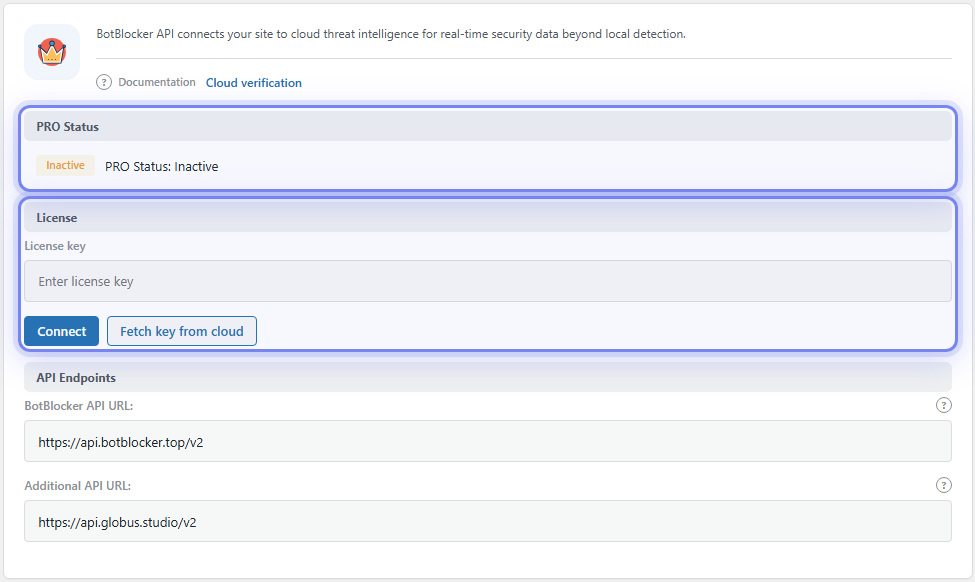
The PRO Status and License groups on a site without a license. Open them from BotBlocker → PRO. When a key is connected, a Usage group shows too.
What a license changes
Locked controls show a badge
You can see every PRO feature, also without a license. A locked control shows a colored badge next to its name, and its switch does not move. There are two badges:
- PRO: an active license unlocks it.
- Ultimate: only the highest plan unlocks it.
What PRO unlocks
With an active license, you can turn on the cloud-backed checks and the network rules. In the settings, they have names such as Cloud Validation, Block Unresponsive Clients, Block on Cloud API Errors, Hosting Provider IPs, VPN Connections, and Tor Exit Nodes. See Cloud API and Network connection types.
PRO also unlocks:
- Full protection, the strongest permanent protection level, and Emergency protection, a temporary lockdown for an active attack, in the Setup Wizard and in One-click setup.
- Early Init as a start mode, together with the Early Init add-on.
- The premium add-ons on the Add-ons page. An add-on that comes with a plan has a PRO pill on its card. The license controls installing and updating it; an add-on that is already installed can be turned on and configured without a license. See Add-ons overview.
- The cloud points of the protection score. Without a license, a site cannot reach 100%.
What Ultimate adds
The Ultimate plan adds Force Cloud Validation, the strictest protection that BotBlocker has.
With PRO, only suspicious visitors go to the cloud. But the best bots do not look suspicious. They copy a real browser and pass every local check. With Ultimate, BotBlocker checks every visitor with the cloud. So when an address attacks any site in the BotBlocker network, your site knows it on the first request, even when the visitor looks perfect.
Ultimate is for sites where one bad visitor costs a lot: stores, membership sites, and sites that are a target of attacks now.
Connect your license
Your license key comes by email when you buy the license. You also find it in the Licenses area of your account, on the site where you bought BotBlocker.
- Open BotBlocker → PRO.
- In the License group, paste the key into License key.
- Click Connect.
BotBlocker checks the key with the cloud service. When the key is valid, the status shows Active, and the PRO controls become available. You do not have to do anything else. Reload a settings page, and the locked switches move.
The same fields are also on the Integrations page, on the BotBlocker Cloud tab.
Lost your key? Use the license key from your purchase email and press Connect. The Cloud identifies a site by its key, not by its domain, so it cannot look a key up for you.
Watch your usage
A license has an end date and an allowance of requests. The Usage group shows the days remaining and requests remaining. The PRO Status card on the Dashboard shows them too, and while a license is active the PRO badge at the top of every BotBlocker page shows the requests and days left. The badge turns amber when the license is close to its end or its requests, and red when it has ended or no requests are left. Click the badge to open the PRO page, and press Refresh status there to update the numbers.
You do not have to check them every day. BotBlocker sends you an email when the license is 7, 3, and 1 days from its end, and on the day it ends. It also warns you when fewer than 1,000 and fewer than 100 requests are left, and when none are left.
When a license ends
A license ends when its end date passes or when its requests are used up. Your site then goes back to the Free plan:
- The PRO controls switch off: the cloud checks, Force Cloud Validation, and the VPN, Tor, and hosting-network rules. All controls without a PRO or Ultimate badge stay as they are.
- The add-on market stops new installs and updates. Add-ons that are already installed keep working and keep their settings; you can still turn them on and off.
- Everything else stays as it is: your protection settings, logs, rules, and recovery tools.
Your site stays protected by the free checks. To get the PRO controls back, renew the license and connect the key again on BotBlocker → PRO. After that, turn on the PRO controls that you want again, because BotBlocker does not turn them back on by itself.
Move a license to another site
A license belongs to one domain. A key that is still tied to the old domain does not activate on a new site.
- On the old site, open BotBlocker → PRO and click Disconnect.
- In the Licenses area of your account, change the domain of the license with Update Domain. Or ask the place where you bought BotBlocker to change it.
- On the new site, connect the key.
Disconnect removes the cloud connection from the site and switches the PRO controls off. Your other settings, logs, and rules stay as they are. Keep your key, so you can connect again later.
When a feature looks locked
A locked feature shows itself in one of these ways: a PRO or Ultimate badge next to a setting, a lock on the PRO Status card, or a Requires PRO button on an add-on card.
- Is a license connected? Open BotBlocker → PRO. If the status is Inactive, connect your key.
- Is it the right plan? A PRO badge needs an active license. An Ultimate badge needs the Ultimate plan.
- Has the license ended? If the usage numbers show nothing left, renew and connect again.
- The key does not connect? Make sure that the license is assigned to this exact domain. A key for another domain does not activate.
- An add-on card shows Incompatible? That is not a plan problem. The add-on needs a newer (or an older) BotBlocker core. Update BotBlocker first, and then try again. No license change fixes this. See Add-ons overview.
- The switch is still locked after you connected? Reload the page. If it is still locked, read the page for that setting, because some controls also need another setting or an add-on.