Telegram Reports
Get a short weekly security report in Telegram, so you know your site is safe without logging in.
A dashboard only helps when you remember to open it. A chat you already read is easier. This add-on sends a BotBlocker summary to your Telegram chat once a week. You see at a glance that protection is on and how much it blocked, on your phone or computer.
The report is sent by a background task, not during visits. So it does not slow down your site.
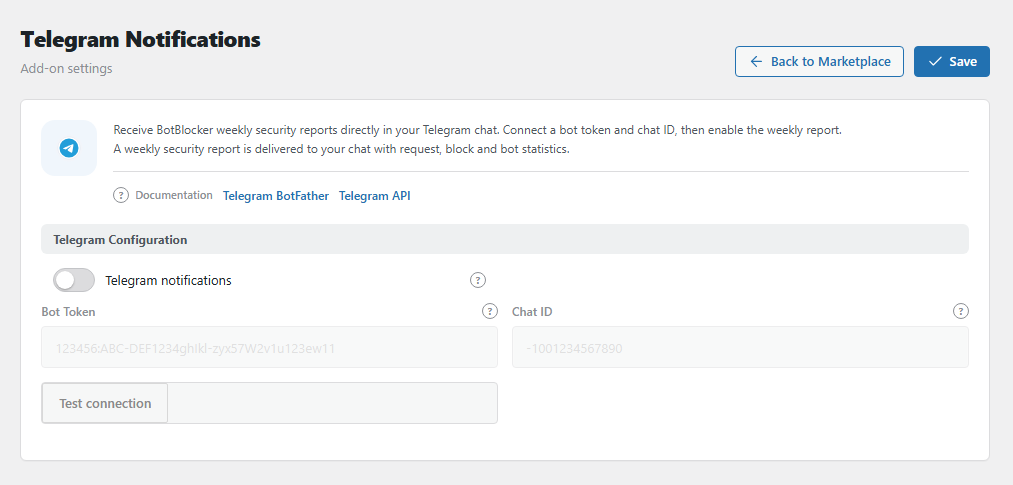
The Telegram Notifications settings panel. Open it from BotBlocker → Add-ons.
What is in the report
Each report shows:
- your site name and address, the date range, and the timezone,
- whether protection is active, and the protection mode (FULL or FRONTEND),
- the number of requests: total, allowed, and blocked,
- the number of search-engine bot visits,
- the block rate: the part of all requests that BotBlocker blocked. For example, 150 blocked of 1000 requests is 15.00%.
The numbers come from BotBlocker's main counters, the same as on the dashboard. They are totals, not only the last 7 days.
Connect your bot
BotBlocker sends the report through your own Telegram bot. A bot is a Telegram account that a program controls. The setup needs two values: the bot token, which identifies your bot, and the chat ID, which identifies the chat that gets the report.
Step 1: create a bot and get the token
- In Telegram, open @BotFather, the official Telegram tool for bots.
- Send
/newbot. - Enter a display name for the bot, for example
My Site Reports. - Enter a username for the bot. It must end with
bot, for examplemysite_reports_bot. - BotFather replies with the token. It looks like
123456789:ABC-DEF1234ghIkl-zyx57W2v1u123ew11. Copy it.
Step 2: get the chat ID
A bot can write only to a chat where it was started or added. The chat ID depends on where the report goes.
Your personal chat. Your chat ID is the same number as your Telegram user ID.
- Open your new bot in Telegram, and press Start.
- Open @userinfobot, and press Start. It replies with your ID, for example
123456789.
A group. A group chat ID is a negative number, for example -1001234567890.
- Add your bot to the group.
- Add @getidsbot to the same group. It posts a message with the group ID.
- Copy the number, with the minus sign.
- Remove @getidsbot from the group.
@getidsbot is not part of BotBlocker or Telegram. While it is in the group, it can read the messages there.
A channel. Add your bot to the channel as an administrator. For a public channel, the chat ID is its name, for example @mysitechannel. For a private channel, forward any post from the channel to @getidsbot. It replies with the channel ID, a number that starts with -100.
Step 3: save and test
- In the panel, turn on Telegram notifications.
- Paste the token into Bot Token, and the chat ID into Chat ID.
- Click Save.
- Click Test connection.
The test uses the saved values, and it sends a message at once. When the message arrives, the setup is complete. When it does not arrive, see When no message arrives.
When the report comes
When you turn on the report and save, the first report is planned for one week later. Then it comes every week. When you turn it off, or deactivate the add-on, the plan is removed.
The report uses WordPress scheduled tasks. These run only when someone visits your site. On a site with very few visitors, the report can come late. Then add a real cron job at your host, as Cron Jobs Manager explains.
This is not an alarm. A weekly report cannot warn you about an attack while it happens. For that, read Notifications and reports.
Settings
All three settings are in the group Telegram Configuration.
Telegram Configuration
Telegram notifications
Default: Off
The main switch for the weekly report. While it is off, the Bot Token and Chat ID fields and the Test connection button are locked.
Bot Token
Default: empty
The token that you got from @BotFather. It looks like 123456:ABC-DEF1234ghIkl-zyx57W2v1u123ew11. It lets the add-on send messages as your bot. The field is masked, so the saved token is not readable on screen; paste a new token to replace it.
The token is secret. With it, anyone can send messages as your bot. A token that appears in a screenshot, support ticket, or chat is exposed. To replace it, send /revoke to @BotFather, and paste the new token here.
Chat ID
Default: empty
The chat that gets the reports: your personal chat, a group, or a channel. A personal chat ID is your user ID, for example 123456789. A group or channel ID starts with a minus sign, for example -1001234567890, and the minus sign is part of the ID. A public channel can also use its name, for example @mysitechannel. See Step 2: get the chat ID.
When no message arrives
- Test connection fails? Check the token and the chat ID, and save again. Check that the bot is still in that chat. If the token leaked or was changed, make a new one in @BotFather.
- The fields and the button are locked? Turn on Telegram notifications first.
- The test works, but no weekly report comes? Look for the task Telegram Weekly Report in BotBlocker → Settings → Data → Cron Jobs. On a quiet site, add a real cron job at your host.
- You switched off the report task in the Cron Jobs Manager? Switch it on again there.
- A number looks strange? The report is a summary, not a log. Open Traffic and audit logs and read the details before you change anything.
- You plan to delete the add-on? Its settings are deleted too. Write down your chat ID first.