Add-ons overview
One plugin covers the whole site. The core stops bad bots, checks visitors, keeps a log, and helps you get back in if you are locked out. Add-ons add the parts that your site needs.
You do not need a separate plugin to hide your login page, scan for malware, add security headers, force HTTPS, stop form spam, control XML-RPC, or send alerts to Telegram. BotBlocker does all of it, from one admin area. Fewer plugins also means fewer updates and fewer conflicts, and the site stays faster.
Premium add-ons come with a PRO license. Look for the PRO pill on the add-on card. The license is needed to install and update the add-on; once it is installed, you can turn it on and change its settings without a license. Turn on the add-ons you need now, and add more at any time.
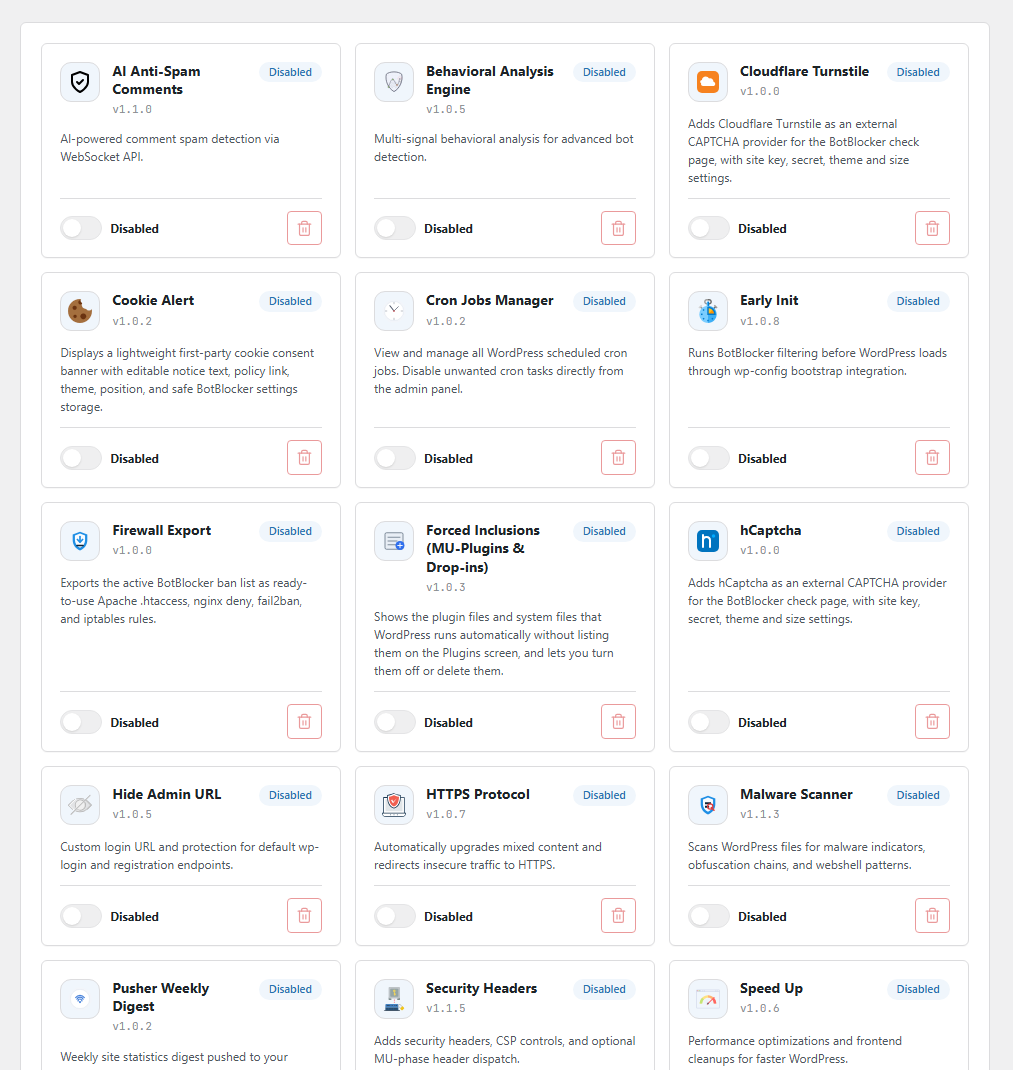
The Add-ons page: find add-ons and open their settings.
Why add-ons are easy to use
You can turn an add-on on and off at any time without changing your main protection settings. Each add-on has its own settings panel, so the main Settings page stays simple. An add-on does nothing until you turn it on, and many run only on their own schedule, so they do not slow your visitors down. None of them replaces BotBlocker's main protection; they add to it.
Find the right add-on
| I want to... | Add-on |
|---|---|
| Find hidden malware in my files and database | Malware Scanner |
| Recognize bad bots that come back again and again | Behavioral Analysis |
| Catch bots that probe my site for missing pages | 404 Scanner Guard |
| Stop scrapers from copying my posts through the feed | Feed Guard |
| Stop comment spam automatically | AI Anti-Spam Comments |
| Put a CAPTCHA in any front-end form | Form CAPTCHA (Shortcode) |
| Hide my login page from bots | Hide Admin |
| Review and close active logins of trusted users | Privileged Session Manager |
| Stop my site from advertising the WordPress readme and debug log | Hide WordPress |
| Control the old WordPress back door (XML-RPC) | XML-RPC Tunnel |
| Stop bad visitors before WordPress even starts | Early Init |
| Block bad addresses in my server firewall | Firewall Export |
| Make browsers add more safety to my pages | Security Headers |
| Remove the "not secure" warning (HTTPS) | HTTPS Protocol |
| Make my pages lighter and faster | Speed Up |
| Serve fast cached pages to real visitors, never to bots | Page Cache |
| Use hCaptcha for the visitor check | hCaptcha |
| Use Cloudflare Turnstile for the visitor check | Turnstile |
| Get a weekly report on Telegram | Telegram Reports |
| Show a weekly report on a dashboard service | Pusher Digest |
| Show a cookie notice to visitors | Cookie Alert |
| See and control WordPress background tasks | Cron Jobs Manager |
| See hidden files that run on every page | Files that run without showing up in Plugins |
Install and turn on an add-on
- Go to BotBlocker → Add-ons.
- Find the add-on card and install it. If you got the add-on as a file, use the upload section on the same page.
- Activate the add-on. The card now shows a gear icon.
- Click the gear icon to open the add-on's settings. Change what you need, and click Save.
Some add-ons need a recent version of BotBlocker. If an add-on does not activate, update BotBlocker first, and then try again.
Update an add-on
BotBlocker checks the marketplace for newer add-on versions. When a newer version exists, the add-on card shows an Update tag and a refresh button. Click the button to install the new version. Your settings and data stay in place.
You do not have to click anything after a BotBlocker update. BotBlocker also updates its add-ons by itself when a new plugin version ships. The marketplace check runs on the daily background task, so a new add-on version can appear a few hours after it is published.
A new add-on version can be built for a newer BotBlocker. In that case the update installs, but the add-on stays off until the plugin is updated too. The card shows the warning, and the add-on does not run half-updated. Update BotBlocker, then activate the add-on again.
When a batch of updates finishes, BotBlocker shows All add-ons have been updated. A failed update shows an alert under the bell icon and leaves the old version in place. See Alerts.
The BotBlocker menu shows a small number next to the plugin name when updates wait. It counts the add-ons, not the plugin itself. WordPress updates the plugin in the usual way under Dashboard → Updates.
Turn an add-on off
- Deactivate stops the add-on. The rest of BotBlocker continues to work. Your add-on settings usually stay saved, so you can turn it on again later with the same settings.
- Delete removes the add-on. Some add-ons also delete their saved settings. Before you delete an add-on, write down anything that you want to keep, such as a Telegram chat ID or your hidden login address.
When you remove an add-on, BotBlocker never removes your main protection settings, your logs, or your rules.
Before you turn on an add-on
- Read its page first. Add-ons do different things. For example, a header add-on can change how your pages work in a browser, but a report add-on only sends messages to you. The end of each page tells you about the most common problems and how to fix them.
- Keep your way back in ready. Know where the pause switch on the Dashboard is, and keep your emergency recovery links in a safe place.
- Know what leaves your site. If an add-on uses an outside service, its page tells you what data it sends, and what happens when that service is not available.
BotBlocker switches off a broken add-on for you
BotBlocker watches each add-on while it starts. If an add-on cannot start, or does something that would break your site, BotBlocker switches it off at once. Your site stays online, and the rest of the protection continues to work.
You then see an Add-ons Switched Off alert under the bell icon in the BotBlocker header. The alert names the add-on and links to the Add-ons page. Your add-on settings stay saved.
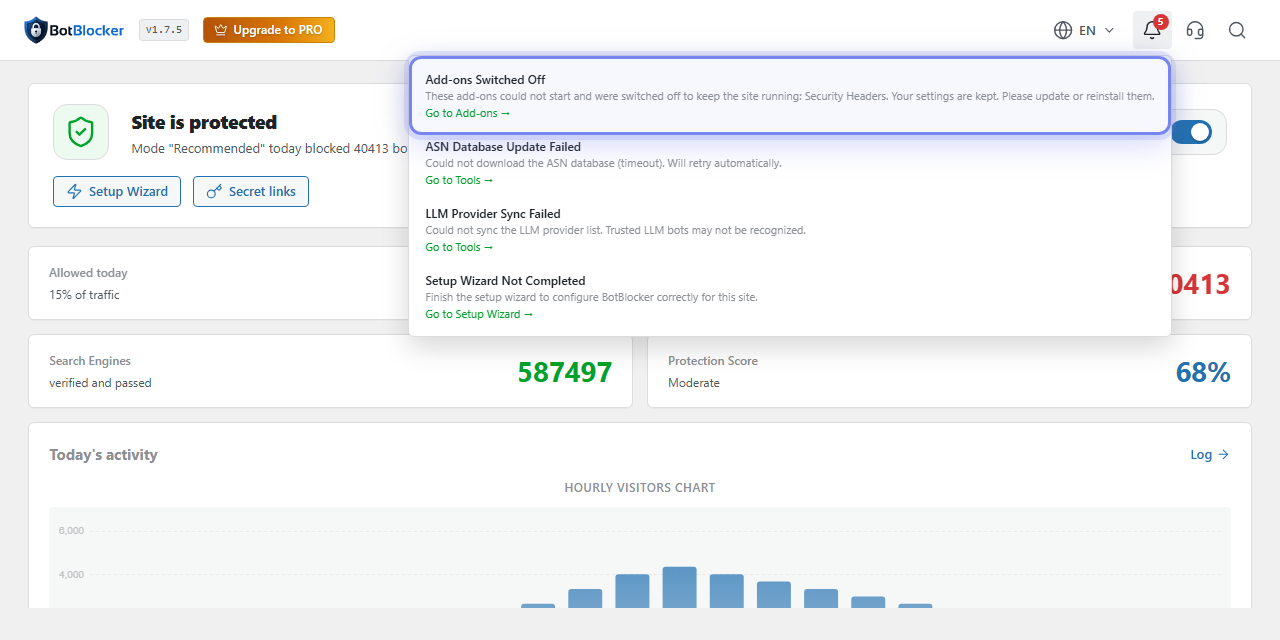
The alert tells you which add-on was switched off.
To turn the add-on on again, update or reinstall it on the Add-ons page, and then activate it.
If something goes wrong after you turn on an add-on
- You see the Add-ons Switched Off alert? BotBlocker switched off the add-on to protect your site. See BotBlocker switches off a broken add-on for you.
- The add-on does not activate, or its card shows Incompatible? The add-on needs a different BotBlocker version. Update BotBlocker, and then try again.
- The card shows Requires PRO? The add-on needs a PRO license to be installed or updated. An add-on that is already installed can still be turned on and configured without a license. See Licensing.
- Something on your site stopped working? Open the add-on's settings and turn off its main switch. If the problem stays, deactivate the add-on on the Add-ons page. Your add-on settings stay saved.
- The add-on locked you out of the admin area? This can happen with add-ons that change the login address or check requests early, such as Hide Admin or Early Init. Use your emergency recovery link, and then read the add-on's page.
- You need the exact fix? The end of each add-on's page lists its common problems and how to fix them.