Verification overview
Give doubtful visitors a quick way to prove they are human, instead of blocking them.
Some visitors are clearly fine, and some are clearly bots. Many are somewhere in between: a visitor who opens pages a bit too fast, or a browser that looks a bit unusual. If BotBlocker blocked all of them, it would also block real people. If it let all of them in, bots would get through.
Verification is the middle path. BotBlocker shows a short check page. A real person passes it in a moment and continues to the page they wanted. A simple bot fails and stops there. After a visitor passes, BotBlocker remembers them, so they are not checked again on every page.
The goal of a check. A check is not impossible for a bot to solve. It is expensive to solve. Each pass costs the bot operator time, computing power, and money, and a block means paying again from a new address. Simple bots fail at once. For advanced bots, your site soon costs more than it is worth, so they ignore it and move on. Real visitors pass in a second.
The settings live on the pages linked below.
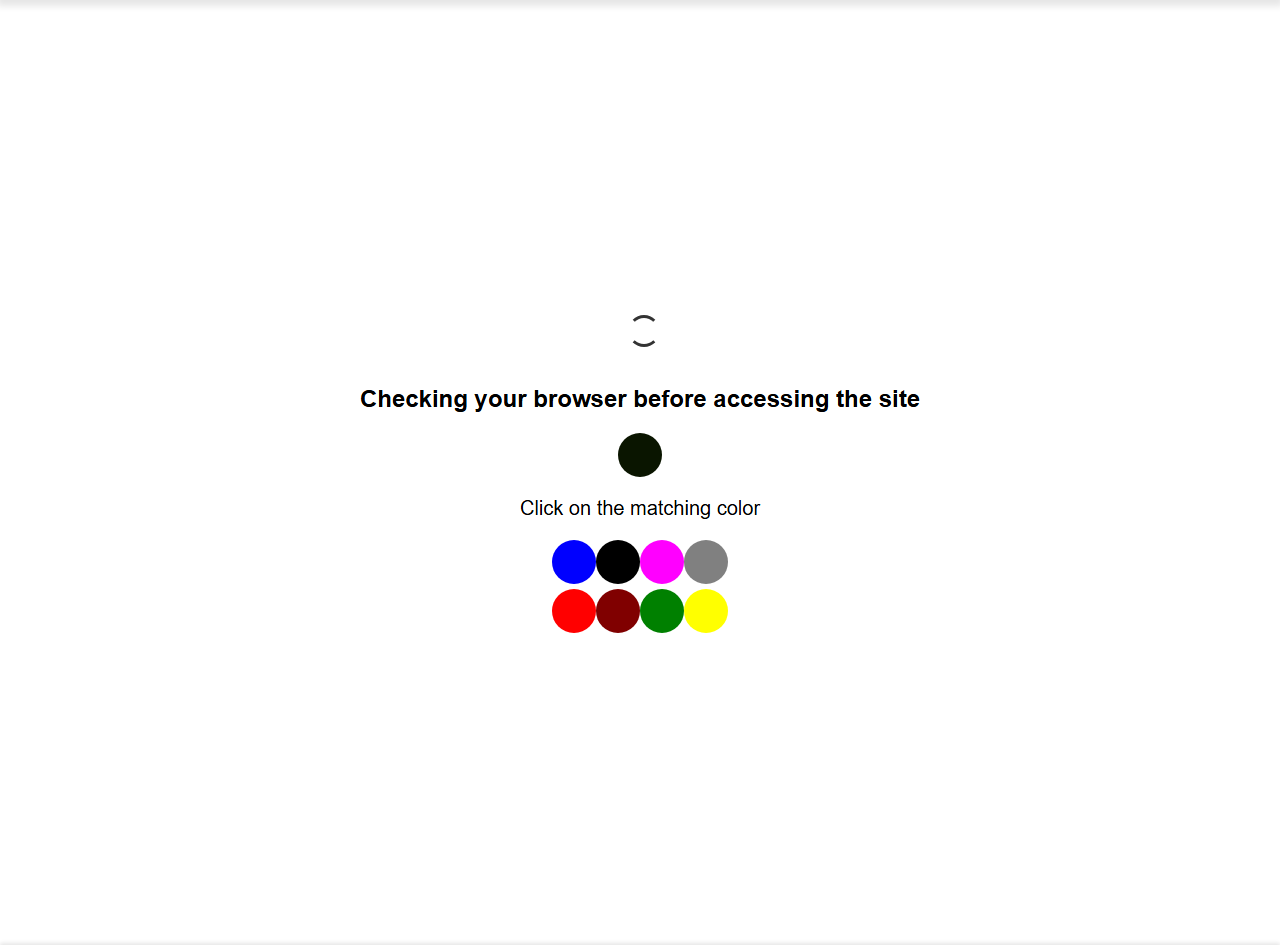
The check page in Color Buttons mode. You choose the mode on BotBlocker → Settings → Access Control → Captcha.
What the visitor sees
The visitor sees a BotBlocker check page instead of the page they asked for. The page shows the task for the mode you selected. At the bottom, it shows details about the connection, such as the IP address. That is useful when a visitor sends you a screenshot of a problem.
When the visitor passes, BotBlocker sends them on to the page they wanted. When the visitor fails, BotBlocker blocks their IP address for a short time (200 seconds by default, see Blocks and responses).
When a visitor gets a check
BotBlocker asks for a check when a rule says "not sure" instead of "block". For example:
- A new visitor who has no BotBlocker pass cookie yet. Every new visitor goes through the check once. With the default silent mode, most of them never notice.
- A visitor who crossed the check limit in Rate limiting.
- A visitor with a middle score in the Behavioral Analysis add-on.
- A visitor who used up the Hits Per User limit in Where protection applies and must prove themselves again.
Some decisions are always a block, never a check. Examples are addresses you blocked yourself, and visitors who crossed the block limit in rate limiting.
Logged-in administrators, editors, moderators, and shop managers are never checked. So to see the check page yourself, log out or use a private window.
Three kinds of checks
BotBlocker's own checks. They run on your own server and need no account. They go from invisible (the default) to a button, a color, a picture, a moving shape, a small math problem, or a hold gesture. See Challenge modes and Image challenge.
Google reCAPTCHA. Version 2 is a visible checkbox that you select as the mode. Version 3 is an invisible score that works on top of any mode. Both need keys from Google. See reCAPTCHA.
Add-on providers. The hCaptcha and Turnstile add-ons add their own mode to the same mode list. To switch providers, you only change the mode.
After the visitor passes
BotBlocker gives the browser a cookie. While the cookie is valid, the visitor is not checked again. The cookie lifetime and other details are on Cookies and sessions.
The cookie belongs to one browser, not to one person. A visitor who deletes cookies, opens a private window, or uses another browser gets a new check. That is normal.
After a certain number of page requests, the visitor must pass the check again. This limit is Hits Per User (500 by default) in Where protection applies. It stops a bot that passed the check once from using that pass forever.
Check it once on your server
BotBlocker works on almost every host. But it cannot know every server setup in advance. Some hosts block background requests, strip cookies, keep a cached copy of the check page, or run without the graphics library that the picture modes need. So after you install BotBlocker or change the Captcha Mode, go through the check once yourself:
- Log out, or open a private window. Logged-in administrators are not checked.
- Open your site. The check page must show the task correctly.
- Complete the check. You must arrive on the page that you opened.
- Open a few more pages. You should not see the check again.
If one of these steps fails, read When something goes wrong.
When something goes wrong
- A visitor cannot pass the task? Choose a simpler mode in Challenge modes, like Button or Hold Button.
- The check page appears on every page? The browser does not keep the cookie, or a cache stores the check page. See Cookies and sessions and Cache backends.
- The visitor sees a block page, not a check? That was a block decision, not a check. Look up the visitor's IP address in your reports to find the reason.
- It fails only in one browser? Privacy browsers, strict extensions, and testing tools can fail checks that normal browsers pass. Test with an ordinary browser on an ordinary network before you change a setting.