Privacy and data
Know what BotBlocker stores about your visitors, how long it keeps it, and how to delete it.
To protect a site, BotBlocker has to look at every request: an IP address, a browser string, a page. Keeping some of that is what makes protection work.
Everything BotBlocker stores is listed below: what it is, where it lives, how long it stays, and how to remove it. Use it to answer a visitor's data request. What goes to outside services is on a separate page, External services that receive data.
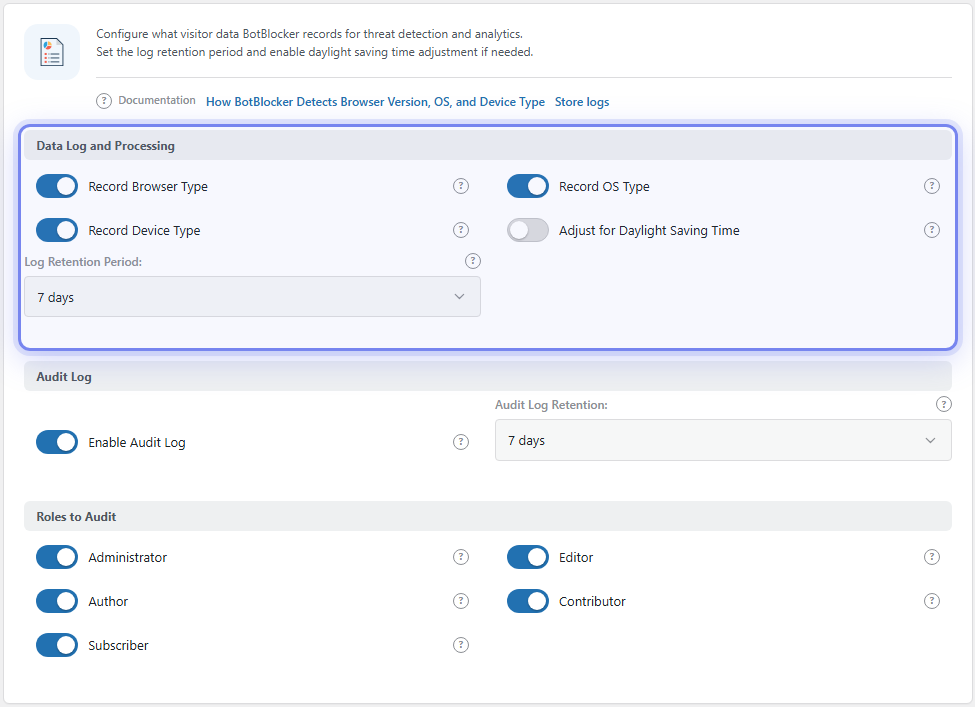
The Data Log and Processing group. Open it from BotBlocker → Settings → Data → Data Log & Processing.
Most data stays in your own database
BotBlocker keeps its records in its own tables in your WordPress database. A few generated PHP files live in a BotBlocker folder under your uploads directory. Nothing is copied to the vendor unless a feature that needs an outside service is on, such as Cloud validation or a captcha provider.
Visitor request records
When logging is on, each examined request in an active logging category becomes a row. A row can hold the IP address, the host name from a reverse DNS lookup, the user agent, the browser, operating system, and device, country and network, the referrer, the requested page, the screen and window sizes from the browser check, an ad-blocker signal, the captcha or Cloud result, and the decision.
The daily cleanup deletes these rows when they are older than the Log Retention Period: (7 days by default, see Notifications and reports). Rows for requests judged suspicious are first copied into a separate table used for Cloud reporting, then deleted from the main table.
Statistics
Counters and daily summaries store totals such as requests and blocks per day. They hold numbers, not the details of one visitor. They stay until you clear visitor data or uninstall the plugin.
The verification cookie
When a visitor passes a check, BotBlocker sets a cookie so the next pages do not check them again. Its name and lifetime come from Cookie Name and Cookie Lifetime. With Session Token Verification on, the cookie holds a session token, and BotBlocker keeps a matching short-lived row in the database. Those rows expire and are removed by themselves. See Cookies and sessions.
Rules and bans
Allow and block rules name an IP address, a range, a pattern, a country, or a network, plus the action. A rule is permanent or has an expiry time. Automatic bans last for Block Time (seconds): and Repeat Block Time (seconds): (see Blocks and responses) and a scheduled task removes them when they expire. Permanent rules stay until you delete them.
Reverse DNS cache
BotBlocker stores the host name it found for an IP address, so it does not look it up again for every request. Entries last for PTR Cache Lifetime. Allow rules made from a verified crawler's host name last for PTR Rule Lifetime. See Reverse-DNS cache.
Fingerprints and reputation
BotBlocker can link a browser fingerprint to an IP address, with first and last seen times and counts of allowed and blocked requests. These rows follow the same retention as the visitor records. The Behavioral Analysis add-on also keeps a penalty level per IP address and network range for a number of days.
Audit log
The audit log stores actions of your own WordPress users: who did what, their role, IP address, user agent, and request path. It is deleted after the Audit Log Retention: (7 days by default). See Traffic and audit logs.
Settings and generated files
The settings, a random salt (used to make cookie values impossible to guess), and short-lived cache values (transients) are in the WordPress options table. The generated PHP files in uploads hold settings, rule snapshots, and the list of temporary bans, so BotBlocker can read them fast. They contain IP addresses from your rules, but they are not a copy of the visitor log. They are part of every backup of your uploads folder.
Cookie notice
If you use the Cookie Alert add-on, the visitor's choice is stored in a first-party cookie, so the notice does not appear on every page.
A few things leave your site
Some checks need an outside service: BotBlocker Cloud, Google reCAPTCHA, hCaptcha, Cloudflare Turnstile, and the AI comment check. The Telegram and Pusher add-ons send summary statistics, and the Malware Scanner downloads files from WordPress.org. Reverse DNS lookups go to your server's DNS resolver. Activation, support messages, and deactivation feedback go to the vendor. The full list, with the exact data for each, is in External services that receive data.
Deleting data
BotBlocker cannot delete the records of one named visitor. You delete whole data sets, wait for expiry, or uninstall. The buttons are on BotBlocker → Tools → Maintenance, see Tools and maintenance.
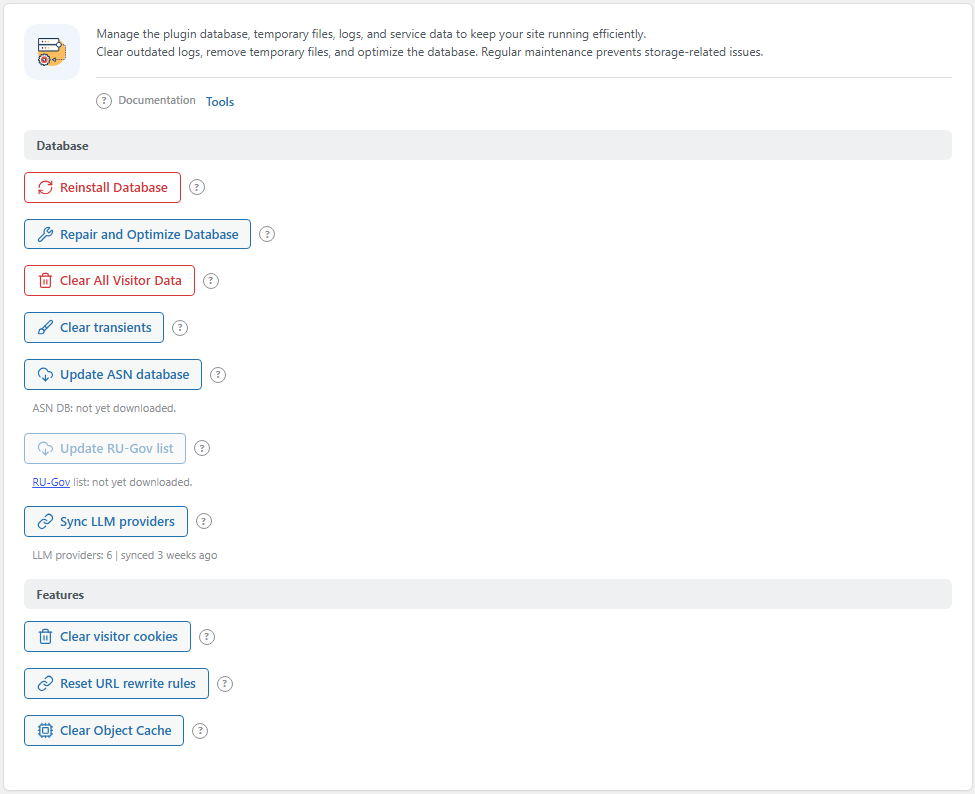
The Database and Features groups. Open them from BotBlocker → Tools → Maintenance.
- Clear All Visitor Data (Database group) empties the visitor log and the statistics. Rules, bans, and settings stay. You cannot undo it.
- Clear visitor cookies (Features group) changes the salt. All existing verification cookies stop working, so every visitor is checked once more on their next visit. On a busy site this causes a short rise in checks.
- Clear transients (Database group) removes short-lived cache values. It does not touch the visitor records.
- Reinstall Database (Database group) empties the rules and settings tables and rebuilds them from defaults. Your bans, custom rules, and settings are lost. Make a database backup first.
- To delete one rule, open it in the Rules screens and delete it. The log of what already happened stays.
- To keep less, lower the Log Retention Period: and Audit Log Retention:. The next daily cleanup uses the new value.
- To remove everything, uninstall the plugin in WordPress. Uninstall drops BotBlocker's tables, deletes its options and transients, lets each active add-on remove its data, deletes the generated files in uploads, and removes the loader file that BotBlocker installs outside its plugin folder.
On a WordPress network, each site keeps its own records. Clearing data on one site does not touch the others.
Clearing data on your site cannot recall data that was already sent to an outside service. What those providers keep is set by your account with them and their terms.
Settings
These switches decide how much device detail each log row keeps. They are on BotBlocker → Settings → Data → Data Log & Processing. They affect new records only.
Data Log and Processing
Record Browser Type
Default: On
Stores the browser name and version, taken from the user agent. Turn it off to keep less detail about each visitor. The rest of the row, including the full user agent, is still stored, and the browser top list in reports becomes empty.
Record OS Type
Default: On
Stores the operating system, taken from the user agent. Turning it off removes this field from new rows and from the reports.
Record Device Type
Default: On
Stores the device type: PC, Phone, Tablet, TV, or Box. It is the least identifying of the three fields, and it powers the device charts in the reports.
The other settings that decide how long data lives are on their own pages: Log Retention Period:, Enable Audit Log, Audit Log Retention:, Cookie Lifetime, Session Token Verification, Block Time (seconds):, Repeat Block Time (seconds):, PTR cache, and PTR Rule Lifetime.
Common problems
- The visitor log is empty. Check the Log Retention Period: and the categories on BotBlocker → Settings → Data → Logging. A short retention or switched-off logging explains missing rows.
- Data is back after I cleared it. These are new requests. Turn off the categories you do not want to record.
- Visitors are checked again after I cleared cookies. This is expected and settles once each browser passes a check. If it never settles, the cookie is not saved or read, often because of page caching. See Cookies and sessions.
- BotBlocker cannot write its generated files. Make sure the BotBlocker folder under uploads is writable. An alert appears in the bell when files were missing, see Alerts.
- The audit log stays empty. Turn on at least one role under Roles to Audit.