reCAPTCHA
Use Google reCAPTCHA as the visitor check, or as an invisible extra score on top of any check.
Many visitors know Google's "I'm not a robot" checkbox. If you want that familiar check on your site, BotBlocker can use it. BotBlocker supports two versions of reCAPTCHA, and they do different jobs:
- reCAPTCHA v2 is a visible check. The visitor clicks a checkbox, and sometimes solves a picture puzzle. You select it as your Captcha Mode.
- reCAPTCHA v3 is invisible. Google gives each visitor a score from 0.0 (bot) to 1.0 (human), and BotBlocker rejects visitors with a low score. It works together with any Captcha Mode.
reCAPTCHA is a Google service. The visitor's browser loads it from Google's servers, and your server sends each answer to Google to check it. See External services and privacy.
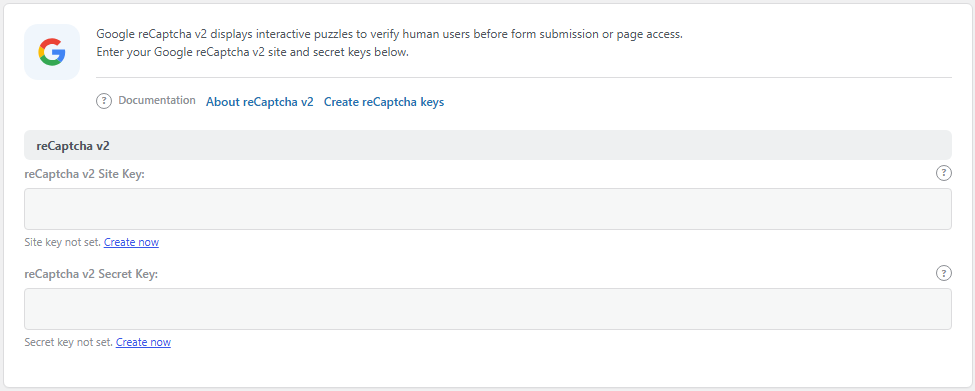
The reCaptcha v2 panel. Open it from BotBlocker → Integrations → reCaptcha v2.
Get your keys from Google
Each version needs its own pair of keys: a site key (public) and a secret key (private). You create them for free in the Google reCAPTCHA admin console. The panels show a Create now link while a key is missing.
When you create the keys:
- Choose the correct type: "Challenge (v2)" with the "I'm not a robot" checkbox for v2, or "Score based (v3)" for v3. Keys of one version do not work for the other.
- Add every domain that visitors use, for example both
example.comandwww.example.com. Add your staging domain too, or create separate keys for it. - Copy both keys into the matching panel in BotBlocker and save.
Use v2 as your visible check
The quickest way: open BotBlocker → Integrations → reCaptcha v2, paste both keys, and click Use reCAPTCHA v2 in the Check page section. This saves the keys and switches the check page to reCaptcha v2 in one step. The section shows which check visitors see now.
After you save both v2 keys, two modes become available on BotBlocker → Settings → Access Control → Captcha (Challenge modes):
- reCaptcha v2 - "I am not a robot": the visitor solves the checkbox, then clicks a button to continue.
- reCaptcha v2: the visitor solves the checkbox, and the page continues by itself.
Without both keys, these two modes are greyed out. If you remove the keys later, BotBlocker switches the mode back to Button when you save the settings.
If Google says that the answer is wrong, the visitor fails the check. BotBlocker blocks the visitor's IP address for the Block Time from Blocks and responses.
If Google cannot check the answer, BotBlocker does not block the visitor. It shows the Button check instead, and the visitor clicks the button to continue. This happens when your server cannot reach Google, Google sends a server error, or your reCaptcha v2 Secret Key is wrong. If Log Manual Verification Requests is on, the log entry for that visit shows CAPTCHA provider error and the reason. A wrong secret key sends every visitor to the Button check, so test the check after you save new keys.
Use v3 as an invisible extra score
To turn it on, open BotBlocker → Integrations → reCaptcha v3, paste both keys, and click Turn on reCAPTCHA v3 in the Background check section. This saves the keys and turns on Enable reCaptcha v3 protection in one step. Your check page stays as it is.
reCAPTCHA v3 runs during BotBlocker's normal browser check, before any task is shown. Google returns a score, and BotBlocker compares it with your reCaptcha Threshold Level:
- Score above the threshold: the visitor continues with the normal checks.
- Score at or below the threshold: BotBlocker rejects the visitor.
- No answer from Google: BotBlocker counts the score as 0, so the visitor is rejected.
- No score in the visitor's browser: if Google's script gives no score within 5 seconds, for example because the site key is wrong, the check page continues without the v3 score. The visitor gets your other checks only.
The visitor never sees anything. That is good for the experience, but a rejected person also cannot tell why. Start with the default threshold and watch your reports.
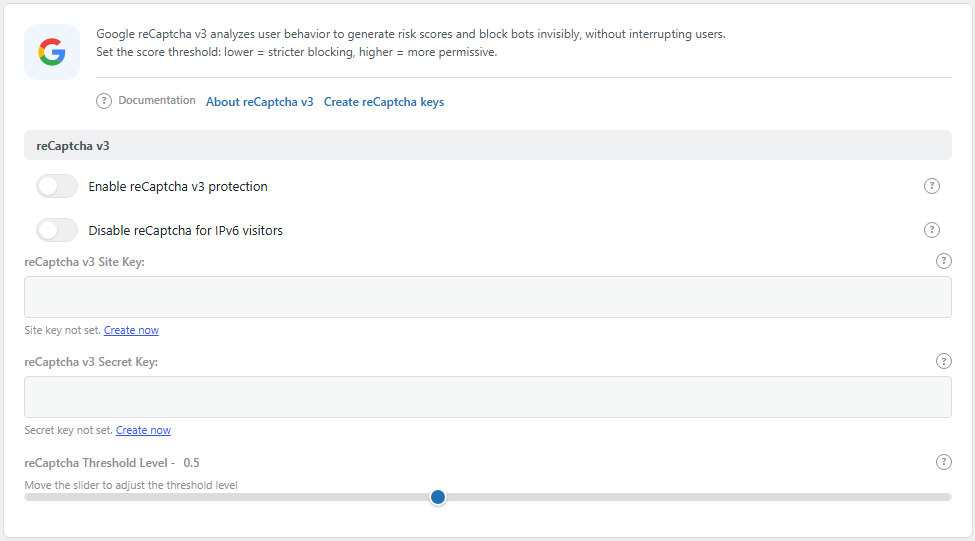
The reCaptcha v3 panel. Open it from BotBlocker → Integrations → reCaptcha v3.
Countries where Google is blocked. BotBlocker does not use v3 for visitors from a fixed list of countries where Google services are often unreachable or restricted (for example China, Iran, and Russia). Those visitors get your normal checks only.
Settings
reCaptcha v2
The keys for the visible checkbox check.
reCaptcha v2 Site Key:
Default: empty
The public key. The visitor's browser sends it to Google to show the checkbox. It must be a v2 key made for the domain that visitors use. A key for another domain shows an error in the checkbox.
reCaptcha v2 Secret Key:
Default: empty
The private key. Your server uses it to ask Google if the visitor's answer is valid. Do not share it or show it in screenshots. If it leaks, create new keys in the Google console.
reCaptcha v3
The invisible score check. The two switches stay greyed out until both v3 keys are saved.
Enable reCaptcha v3 protection
Default: Off
Turns the v3 score check on or off.
- On: every visitor who gets BotBlocker's browser check also gets a Google score. Low scores are rejected.
- Off: no v3 score. Your v3 keys stay saved but are not used.
Save both v3 keys first, then turn this on.
Disable reCaptcha for IPv6 visitors
Default: Off
Skips the v3 score for visitors who connect over IPv6.
- On: IPv6 visitors do not get a v3 score. If your captcha mode is a reCaptcha v2 mode, IPv6 visitors get the Button - "I am not a robot" challenge instead of Google's checkbox. All your other checks still apply.
- Off: IPv6 visitors are scored like everybody else.
The panel says that Google does not support IPv6 scoring. If you see real IPv6 visitors being rejected, turn this on.
reCaptcha v3 Site Key:
Default: empty
The public key for the v3 score. It must be a v3 key made for the domain that visitors use. Use separate keys for staging and for the live site.
reCaptcha v3 Secret Key:
Default: empty
The private key. Your server uses it to get the score from Google. Keep it private, like the v2 secret key.
reCaptcha Threshold Level
Default: 0.5
The lowest score that is still good enough. The slider goes from 0.1 to 1.0 in steps of 0.1. A visitor with a score at or below this value is rejected.
- Lower number: more tolerant. Fewer real people are rejected, but more bots get through.
- Higher number: stricter. More bots are stopped, but more real people are rejected too.
Change it in small steps (0.1 at a time) and check your reports after each change. On a shop or a site with forms, a too-strict value turns real customers away without any message.
When something goes wrong
- The checkbox shows "Invalid domain for site key"? The key was made for another domain. Add your domain (with and without
www) in the Google console. - Visitors solve the checkbox, then see the Button check? Google could not check the answer. Your reCaptcha v2 Secret Key is wrong, or your server cannot reach
www.google.com. The log entry shows the reason. Copy both keys again from the Google console. - The reCaptcha v2 modes are greyed out? Save both v2 keys on BotBlocker → Integrations → reCaptcha v2 first.
- The v3 switches are greyed out? Save both v3 keys first.
- The check page waits about 5 seconds before it continues? The browser got no v3 score from Google, so v3 is not protecting your site. Check that the reCaptcha v3 Site Key is a v3 key made for your domain.
- Real visitors are rejected after you turned on v3? Lower reCaptcha Threshold Level, or check that your server can reach
www.google.com. If Google does not answer, every visitor gets a score of 0. - It works on staging but not on the live site? The keys are registered for the wrong domain. Use keys that include the live domain.
- You need the site to work right now? Turn off Enable reCaptcha v3 protection, and set Captcha Mode to a local mode in Challenge modes. Your keys stay saved.
Related pages
- Challenge modes
- Verification overview
- hCaptcha and Turnstile, other external checks