Files that run without showing up in Plugins
See the hidden files that run on every page, and take control of them.
Some files run on every page of your site, but they never show on the Plugins screen. You cannot switch them off there. Hosts use them for their own tools. Attackers like them for the same reason: nobody looks there.
This add-on shows these hidden files in one clear list. It tells you what each file does, marks the files that look strange, and lets you switch a file off safely to test it.
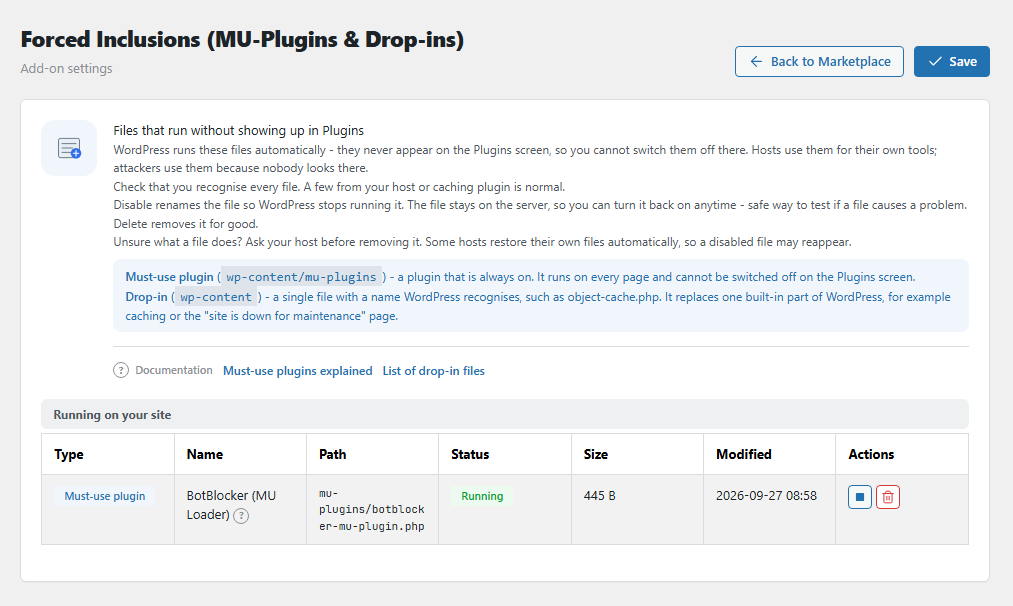
The Forced Inclusions file list. Open it from BotBlocker → Add-ons.
Two kinds of hidden files
- Must-use plugin. A plugin in the
wp-content/mu-pluginsfolder. It is always on and runs on every page. - Drop-in. One file in
wp-contentwith a name that WordPress knows, for exampleobject-cache.php. It replaces one built-in part of WordPress, such as the cache or the "site is down for maintenance" page.
A few files from your host or your caching plugin are normal. An empty list is also normal: it means nothing runs this way.
It explains each file
For each file, the list shows its Type, Name, Path, Status, Size, and Modified date. Compare the date with your own changes. A file that changed on a day when you did nothing needs a look.
For known drop-ins, a note tells you three things: what the file does, who usually puts it there, and what happens if you turn it off. For example, if you turn off advanced-cache.php, page caching stops and the site gets slower.
For known host files, the note names the host, for example WP Engine, Kinsta, SiteGround, or GoDaddy. Leave these files alone, unless your host's support tells you otherwise.
It marks what needs a closer look
Two markers help you decide where to be careful.
High impact means that turning the file off can take your site offline or make it much slower. These are:
db.php, which can replace the whole database layer.sunrise.php, which connects custom domains on a multisite network. A multisite network is one WordPress installation that runs many sites.- Known must-use plugins from hosting companies.
Needs attention means that something about the file looks unusual. Point at the marker to read why. The add-on checks for 4 signs:
- A must-use plugin with no "Plugin Name" header. Real plugins almost always have one. Run a malware scan on it.
- A must-use plugin smaller than 200 bytes. A tiny file can be a loader that pulls in hidden code from another place.
- A folder with the same name next to the file. It can hold files that this list does not show.
- A multisite-only drop-in on a site that is not a multisite network. It does nothing there, so find out who put it there.
The panel also warns you if the mu-plugins folder was moved to another place. This is unusual. If you did not do it, an attacker may have moved it to hide files. Confirm it with your host.
Turn off, turn on, or delete
Each file in the list has three actions.
Turn off. The add-on gives the file a new name without the .php ending, for example object-cache.bbcs-disabled-…. WordPress loads these files only by their exact name, or only when the name ends in .php. So from the next page load on, WordPress does not load the file anymore. The file itself stays on the server, unchanged. Turn on gives it its original name back.
This makes turning off a test that you can undo. For example, to find out if a caching drop-in causes a problem, turn off object-cache.php, look at the site, and turn it on again.
Two cases where turning off does not work as expected:
- Another file loads it by name. Some plugins load a file directly. When that file is gone, WordPress shows an error instead of the page. Turn the file on again to fix this.
- The server keeps old code in memory. Some servers keep PHP code in a memory cache (OPcache) and do not check files for changes. Then the old code runs until the cache is cleared or PHP restarts. Your host can do this.
Delete. Removes the file from the server. This cannot be undone.
The add-on asks for confirmation before each action. For a file with a high impact, it asks once more.
Turned-off files show in their own group, Turned off (still on the server). This group is the list of files that your site does not load now.
Protection of turned-off files
A turned-off file still contains its code, and sometimes passwords or keys. So the add-on protects it:
- Only the file owner on the server can read it.
- On Apache and IIS servers, the add-on adds a rule that blocks browser access to all turned-off files.
- nginx servers do not read these rules. On nginx, the host can block browser access to files that contain
.bbcs-disabled-in their name.
When your site will not let you change files
Some sites block all file changes with a setting in wp-config.php (DISALLOW_FILE_MODS). Then the list is read-only, and the panel tells you so. You can still see everything. To change a file, ask your host, or use your hosting file manager.
When a change goes wrong
- Site broke after you turned a file off? Open this panel, turn the same file on again, and reload your site.
- Still broken after you turned it on? That file was not the cause. Look at what else changed before the problem started.
- The file came back after you turned it off? Some hosts put their files back automatically. Ask your host before you fight it.
- WordPress or a plugin asks you to install its drop-in again? The plugin needs that file. Turn the file on again.
- The action fails with a permissions message? Your server does not allow the change. Ask your host to check the file permissions.
- You deleted a file that you need? Install again the plugin that owns it, or ask your host for a copy.