Malware Scanner
Find hidden malicious code in your files and database before it hurts your site.
Bots are not the only danger. Malicious code can get onto your site in two ways:
- An attacker gets in and leaves something behind: changed code, a hidden redirect, or spam links in your posts.
- A plugin or theme brings it with an update. Sometimes the developer's account or website is hacked, or a plugin is sold to a new owner with bad intentions. Then a normal update installs malicious code on thousands of sites at once. You did nothing wrong, and you trusted the update. This is called a supply chain attack.
In both cases, you usually cannot see the problem on your pages. Your visitors and search engines see it first.
The Malware Scanner looks for these traces and gives you a clear report. It checks your WordPress files, your plugins and themes, your uploads, and your database. Each finding comes with a plain explanation, so you know what the scanner saw and why it matters.
A finding is a signal, not a final verdict. Your own edits or a vendor patch can also look unusual. Read the explanation before you act.
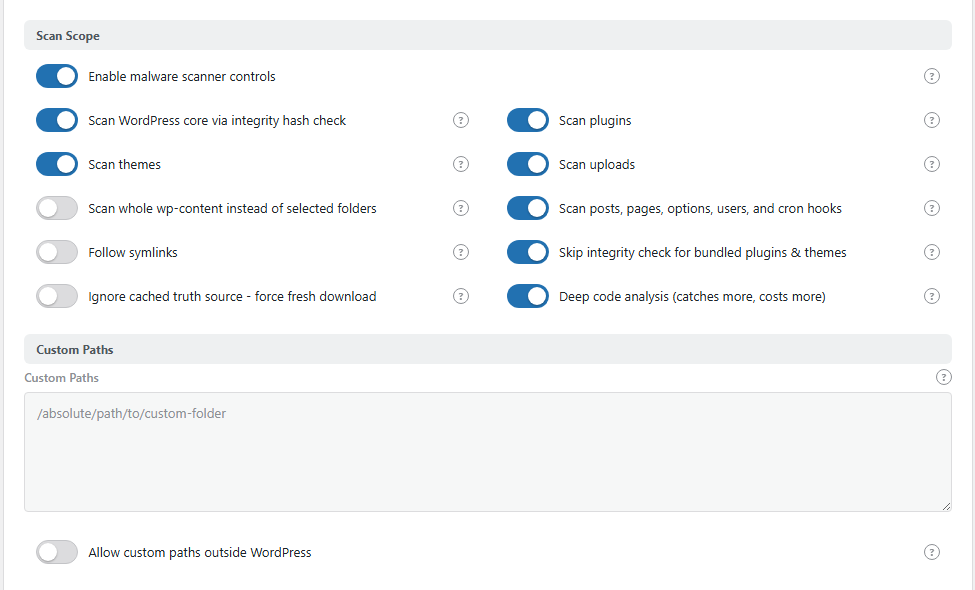
The Scan Scope and Custom Paths settings of the Malware Scanner. Open it from BotBlocker → Add-ons.
How it works
Malicious code can stay unnoticed for months, because nothing looks different on your pages. The scanner looks for it in several ways.
1. It compares your site with the originals. The scanner downloads the original code of WordPress and of your plugins and themes from WordPress.org, in the exact versions that you use. Then it compares your site with these originals. Anything that was changed, added, or removed shows in the report. The scanner does not guess here: it shows you exactly what is different from the official code.
2. It looks for code that acts like malware. Not everything has an original to compare with. Your uploads, your custom code, and premium plugins do not. So the scanner reads this code, and also every file that step 1 found changed or added, and looks for known signs of malicious code. Attackers often disguise their code, so it looks harmless. With Deep code analysis on, the scanner removes the disguise first, and then checks the code.
3. It checks your database. Attackers also hide things in the database, where no file scan can see them: spam links in posts, redirects in your site settings, extra administrator accounts, or tasks that run by themselves in the background.
4. It gives you a clear report. Each finding explains what the scanner saw, how serious it is, and how sure the scanner is. You decide what to do. See How to read a result.
A scan runs in the background, so you can leave the page and come back later. You can also let the scanner run by itself on a schedule, so you learn about a problem early.
Settings
The default values are safe for most sites. Change a setting only when you know what problem you want to fix.
Scan Scope
Here you select what the scanner checks.
Enable malware scanner controls
Default: On after activation
The main switch. When it is off, no scan starts, by hand or on the schedule. Your settings stay saved, so you can turn it on again later.
Scan WordPress core via integrity hash check
Default: On
Compares your WordPress core files with the official originals. It finds changed, added, and missing core files. This is the most reliable check the scanner does. Keep it on.
Scan plugins
Default: On
Checks your plugin files, with the originals where they exist and with the bad-code patterns. Plugins are the most common way in for attackers. Keep it on.
Scan themes
Default: On
The same check for your themes, active and inactive. An old theme that you do not use can still be attacked.
Scan uploads
Default: On
Checks the wp-content/uploads folder. Attackers often hide code there, with a harmless name, next to your images.
Scan whole wp-content instead of selected folders
Default: Off
Scans the whole wp-content folder: plugins, themes, uploads, and every other folder in it, for example the folders of cache or backup plugins. The Scan plugins, Scan themes, and Scan uploads switches have no effect while this is on. The folders in Excluded Path Segments are still skipped.
The scan takes longer. Turn it on when you suspect a file outside the usual places.
Scan posts, pages, options, users, and cron hooks
Default: On
Checks your database: posts, pages, site settings, users, and scheduled tasks. See step 3 in How it works.
Follow symlinks
Default: Off
A symbolic link (symlink) points from one folder to another place on the server. When this is off, the scanner skips symlinks.
Turn it on only if your host uses symlinks for real site files. The scan takes longer, and it can go to folders outside your site.
Skip integrity check for bundled plugins & themes
Default: On
WordPress comes with some plugins and themes, for example Akismet and the default "Twenty" themes. These copies often differ a little from the versions in the official directory. The comparison then shows false alarms.
When this is on, the scanner skips the comparison with the originals for these bundled items. It still looks for added files and bad code in them.
Ignore cached truth source - force fresh download
Default: Off
To compare your site with the originals, the scanner must download the original code of WordPress, your plugins, and your themes. It saves (caches) this download, and uses it again in the next scans. This makes scans faster and puts less load on your server.
When this is on, the scanner ignores the saved copy and downloads everything again at each scan. Turn it on for one scan if the report still shows old versions after an update. Then turn it off again, because every scan becomes slower.
Deep code analysis (catches more, costs more)
Default: On
Attackers often disguise their code, so it looks harmless to a simple search. With this on, the scanner first removes the disguise, and then checks the real code. This makes the scanner much more accurate.
The trade-off: each check needs more processor time and memory. Keep it on if your server has enough resources. If a scan puts too much load on your server, turn it off. Know that the protection is then weaker: the scanner can miss disguised attacker code.
Custom Paths
Custom Paths
Default: empty
More folders to scan. Enter one full path per line, for example /home/site/public_html/custom-app. Use it if your site keeps code outside the usual WordPress folders.
Paths outside your WordPress folder are ignored, unless you turn on the next setting.
Allow custom paths outside WordPress
Default: Off
Lets your custom paths point outside the WordPress folder. It is off, so nobody can use the scanner to read any place on your server.
Turn it on only when you know exactly which folder you add.
Limits
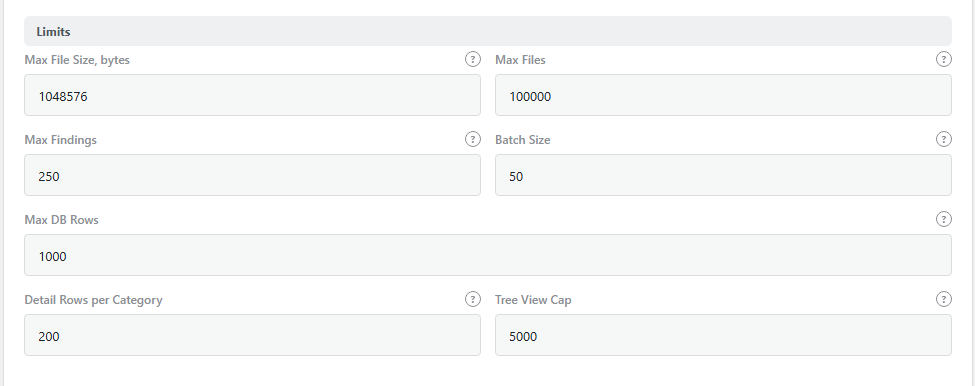
The Limits settings.
Limits keep a scan safe on any server. The defaults suit most sites.
Max File Size, bytes
Default: 1048576 (1 MB)
The scanner skips files larger than this. Normal PHP files are much smaller. You can use from 1024 (1 KB) to 10485760 (10 MB).
- Lower number: faster scans, but a large bad file is not read.
- Higher number: use it if your site has large generated PHP files. Each large file needs more memory.
Max Files
Default: 100000
The scan stops after this many files. So a very large site cannot make a scan run for hours. The highest value is 200000.
If the report says that the scan stopped at this limit, raise the number, or scan fewer folders.
Max Findings
Default: 250
The scan stops when it has this many findings. This keeps a scan short on a badly damaged site. The highest value is 5000.
The files and the database share this limit. After an attack, raise the number and scan again, so that you see every affected place before you clean up.
Batch Size
Default: 50 files per step
How many files each background step checks. You can use from 1 to 500.
- Lower number: easier on slow or shared hosting. The scan takes longer.
- Higher number: faster scans on a strong server. On a weak server, a step can time out.
Max DB Rows
Default: 1000
How many database rows the scanner checks in each area (posts, options, users, and so on). It checks the newest rows first. The highest value is 10000.
For example, with 1000, the scanner checks your 1000 newest posts and pages. On a large blog, raise the number to check older posts too.
Detail Rows per Category
Default: 200
How many findings the flat results list shows in each category. If there are more, switch to the tree view to see all of them. You can use from 10 to 2000.
Tree View Cap
Default: 5000
How many findings the tree view (the results grouped by folder) keeps for each results card. It keeps the page fast on a large site. You can use from 100 to 50000.
Scheduled Scan
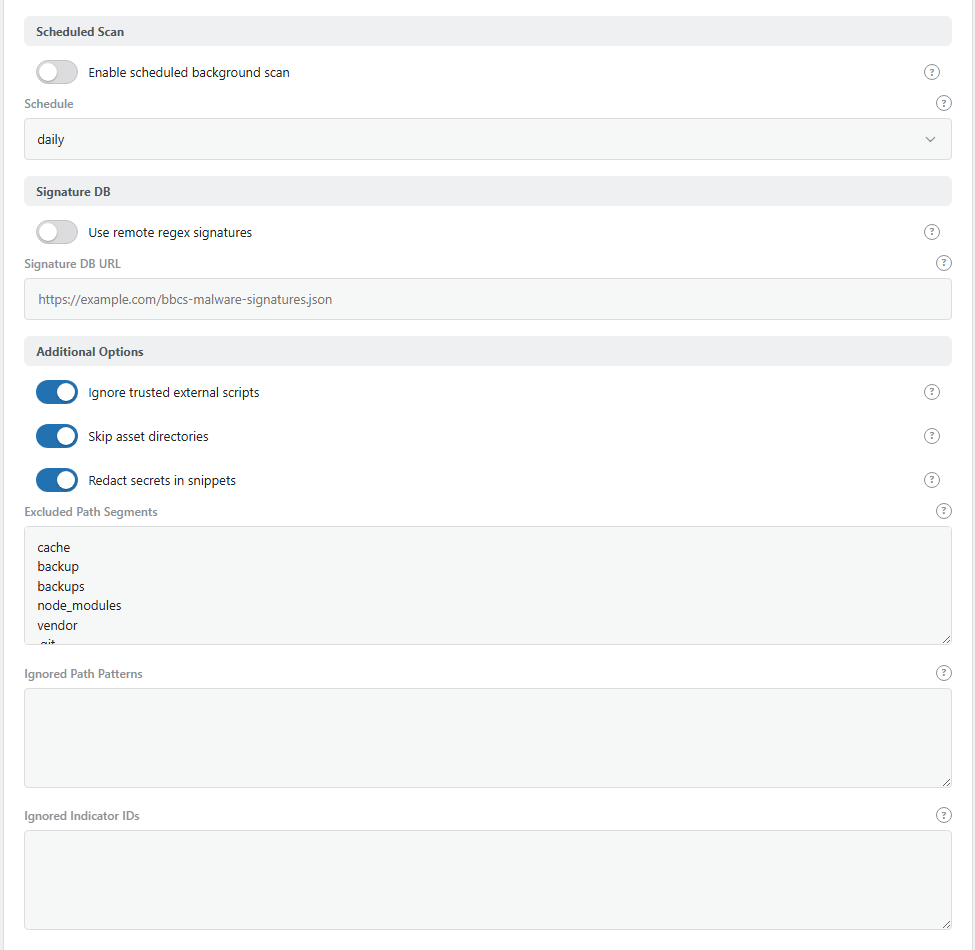
The Scheduled Scan, Signature DB, and Additional Options settings.
Enable scheduled background scan
Default: Off
Starts scans by itself on the schedule below. Turn it on after you are happy with the result of a manual scan.
Schedule
Default: daily
How often the automatic scan starts: hourly, daily, weekly, or every_five_days.
Daily fits most sites. Use hourly only for a short time after an attack, because each scan puts load on the server.
Scheduled scans use WordPress scheduled tasks. These run only when someone visits your site. On a site with very few visitors, add a real cron job at your host. The commands are in BotBlocker → Settings → Data → Cron Jobs.
Signature DB
Use remote regex signatures
Default: Off
A signature is a pattern of known bad code. The scanner has a built-in list. When this is on, it also downloads extra signatures from the address below. So it can know about new malware sooner.
The scanner downloads the list at most once every 5 days. Before it uses a signature, the scanner checks it. It drops signatures that are broken, and signatures that are built in a way that can make a scan hang.
Signature DB URL
Default: empty
The address of the extra signature list. Only secure https:// addresses are accepted. While it is empty, nothing is downloaded.
Use only a list from a source that you trust.
The list must be a JSON file of 1 MB or less, with this structure:
{
  "version": "1.0",
  "signatures": [
    {
      "id": "webshell-eval",
      "category": "webshell",
      "severity": "critical",
      "score": 95,
      "regex": "/\\beval\\s*\\(\\s*\\$_(?:GET|POST|REQUEST)/i",
      "description": "Eval with request input - direct code execution risk",
      "confidence": "confirmed"
    }
  ]
}| Field | Required | Allowed values | If missing or wrong |
|---|---|---|---|
version |
No | Any text. It shows in the status. | Empty |
signatures |
Yes | A list of signatures | Nothing is loaded |
id |
Yes | Letters, numbers, - and _. The scanner adds db- in front. |
The signature is dropped |
regex |
Yes | A PHP regular expression, with delimiters, up to 2048 characters | The signature is dropped |
severity |
No | critical, high, medium, low |
medium. Any other value drops the signature. |
score |
No | 1 to 100. Higher is more dangerous. | 50 |
category |
No | A group name, for example webshell |
signature-db |
description |
No | The text that the finding shows | "Remote malware signature match." |
confidence |
No | confirmed, high, medium, low, review |
medium |
Additional Options
Ignore trusted external scripts
Default: On
A script tag that loads code from another site can be a sign of an attack. But your site also loads scripts from well-known services, for example analytics, payments, and content networks. When this is on, the scanner does not report script tags from these known services.
Skip asset directories
Default: On
Skips every file in a folder named assets. These folders usually hold scripts, styles, and images for the browser. Matches there are mostly false alarms.
Turn it off for a full check after an attack. An attacker can also hide a file in an assets folder.
Redact secrets in snippets
Default: On
Each finding shows a small extract of the code. When this is on, the scanner hides values that look like passwords, keys, or tokens in the extract. Keep it on if you plan to share a report with someone.
Excluded Path Segments
Default: cache, backup, backups, node_modules, vendor, .git, .svn
Folder names that the scan never enters, one per line. The name can be at any level. For example, cache skips wp-content/cache and also wp-content/plugins/shop/cache.
Add the names of your own backup or cache folders. Remember that vendor is on the list: code in plugin vendor folders is not scanned.
Ignored Path Patterns
Default: empty
File patterns with wildcards, one per line. For example, wp-content/cache/* or *.log. The scanner hides comparison findings (changed, added, or missing files) for matching files.
This is the bulk version of the Ignore button on a single file in the results.
Ignored Indicator IDs
Default: empty
Each bad-code pattern has an ID, which you see in the finding. Put an ID here, one per line, and the scanner does not report this pattern again, in any file.
Use it only for a pattern that you checked and know is harmless on your site. Write down why you added each ID.
How to read a result
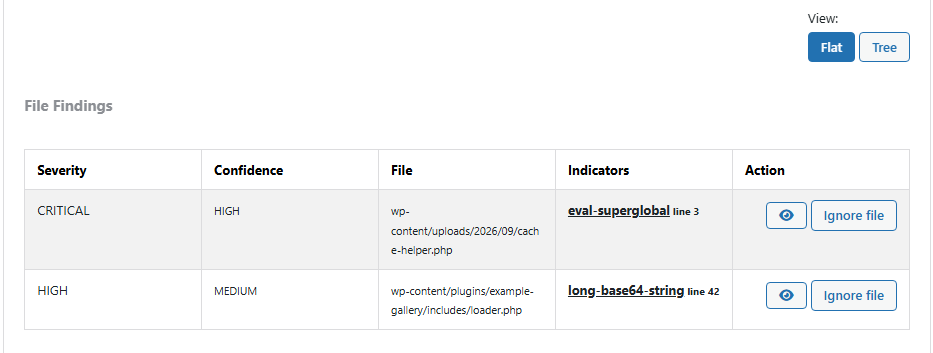
The results of the latest scan.
First, check that the scan finished, and how many files it checked. Then read each finding.
- Severity goes from low to critical. It tells you how bad the problem can be.
- Confidence tells you how sure the scanner is.
A critical finding with high confidence needs your attention today. A low-confidence note can wait for your next review.
The extract shows the code that matched. Read it before you decide. To check a file yourself, or to give it to a specialist, download a sample from the results.
When a scan finds something
- Not sure the file is bad? Do not delete it yet. Compare it with a fresh copy of the same plugin or theme version, or ask the developer or your host.
- The finding is your own change? Click Ignore on the file, or add its ID to Ignored Indicator IDs.
- The file is really bad? First back up your files and database. Then replace the file with a fresh copy from the official source. Do not try to edit the bad code out.
- You found an attack? Assume that the attacker saw everything on your site, not only the bad files. Do these steps in this order:
- Remove the bad code: replace the affected files with fresh copies, and delete unknown administrator accounts and scheduled tasks.
- Update WordPress, all plugins, and all themes. Delete the plugins and themes that you do not use. An old plugin is often the way in.
- Change the passwords of all administrators, and ask your other users to change theirs.
- Change the passwords of your database, hosting panel, FTP or SSH, and email accounts. The database password is in
wp-config.php, which the attacker could read. - Replace the security keys in
wp-config.phpwith new ones from WordPress.org. This logs out everyone, the attacker too. - Create new API keys for the services that your site uses, for example payment, email, or cloud storage.
- Scan again. Then check your log and your audit log for the attacker's addresses, and block them.
- Tell your host. They can check the server for traces outside WordPress.
- Many false alarms in bundled plugins or themes? Keep Skip integrity check for bundled plugins & themes on.
- The scan stops early? Look at the report. Raise Max Files or Max Findings, or scan fewer folders.
- The scan never finishes on shared hosting? Lower Batch Size, and run the scan at a quiet time.
- Scheduled scans do not run? Your site has too few visitors. Add a real cron job at your host.
A clean scan is not a guarantee. It tells you that the places you scanned looked normal at that moment. That is still very useful.
Scan abilities for automation
The add-on can publish abilities for the WordPress Abilities API. Each one is off by default and has its own switch in the add-on settings. The master switch on BotBlocker → Integrations → WP Abilities API must also be on. The Integrations tab lists them and links back here.
Get malware scan status (botblocker/get-scan-status) and Get integrity status (botblocker/get-integrity-status) only read.
Run a malware scan
Default: Off
Publishes botblocker/run-malware-scan. It starts a background malware scan. A scan uses server power, so publish this only if you really want to start scans from outside the Dashboard, for example on a schedule from your own tool.
Get malware scan results
Default: Off
Publishes botblocker/get-scan-results. It returns the status and findings of the last malware scan. It only reads, so it is the safer of the two scanner abilities.