Rate limiting
Slow down the visitors who move faster than any person can read.
A person opens a page, reads it, and then clicks the next link. A scraper, a password-guessing script, or a spam tool does not read. It sends request after request as fast as your server answers. This fast traffic copies your content, fills your forms with junk, and uses server power that your real visitors need.
Rate limiting is a speed limit for your site. BotBlocker counts how many requests each visitor sends in the last few minutes. When a visitor goes too fast, BotBlocker first shows a verification check. When the visitor goes much too fast, BotBlocker blocks the address for some minutes. Real people almost never reach these limits, so they do not see a difference. Fast bots stop at the limit.
The limit also works against bots that spread their requests over many addresses. With Subnet Aggregation, BotBlocker looks at a whole group of nearby addresses together, so a bot network cannot hide by making each address a little slower.
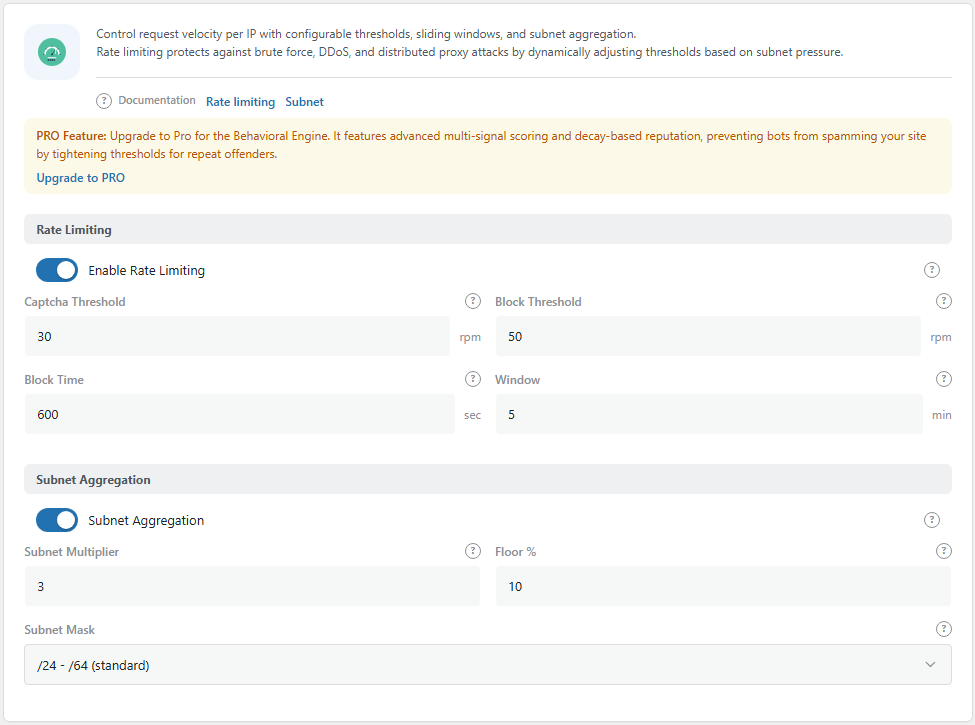
The Rate Limiting panel. Open it from BotBlocker → Settings → Traffic → Rate Limiting.
It measures speed in requests per minute
BotBlocker keeps a short record for each address: how many requests it sent in each minute of the Window. The default window is 5 minutes. To get the speed, BotBlocker adds all requests in the window and divides the total by the window length. The result is RPM, requests per minute.
An example with the default values:
- A visitor sends 120 requests in the last 5 minutes. The speed is 120 ÷ 5 = 24 RPM. This is below the Captcha Threshold (30 RPM), so nothing happens.
- The visitor continues and reaches 150 requests in 5 minutes. The speed is 30 RPM. The visitor now gets a verification check.
- A bot ignores the check and reaches 250 requests in 5 minutes. The speed is 50 RPM. This is the Block Threshold, so BotBlocker blocks the address.
Because the window moves forward every minute, old requests fall out of the count. A visitor who slows down comes back under the limit without any action from you.
Who is not counted
Rate limiting runs after the other allow rules, so it does not touch the traffic that BotBlocker already trusts:
- Visitors who passed a check. They are still counted, but against a separate, higher limit. A real person who solved one check can browse fast, while a script that keeps the cookie cannot flood the site. Read Cookies and sessions to learn how long the cookie lasts.
- Allowed addresses and good bots. Addresses on your allow list, verified search engines, and known AI crawlers are handled before rate limiting. Read IP lists and Bot detection signals.
- Your own server and bypassed users. Internal site requests and the administrator bypasses in Where protection applies skip the checks.
What happens when a visitor hits the limit
At the Captcha Threshold, BotBlocker shows its verification page. A real person passes it and continues. After that, the visitor is counted against the passed-visitor thresholds, which are higher.
At the Block Threshold, BotBlocker refuses the request with the status code 429 Too Many Requests. It also adds a temporary block rule for the address to your IP rules, with the note Rate Limit Block. The rule ends after the Block Time (10 minutes by default). If the same address comes back while the rule is active, BotBlocker extends the same rule. It does not make a new one.
You can see these rules in your IP lists. If you blocked a real person by mistake, delete the rule there, and the address can come back at once. Read IP lists.
It watches whole networks, too
A simple speed limit per address has a weak point. A bot network can send its requests from 20 addresses in the same range. Each address stays slow, so no single one reaches the limit.
Subnet Aggregation fixes this. BotBlocker also counts the requests of the whole group of nearby addresses (the subnet). The default group is a /24 range for IPv4 (256 addresses) and a /64 range for IPv6. When the whole group is busy, BotBlocker lowers the limits for each address in that group.
This is how it works with the default values:
- The group limit is the Block Threshold × the Subnet Multiplier: 50 × 3 = 150 RPM for the whole subnet.
- While the subnet is far below 150 RPM, the normal limits stay almost the same.
- When the subnet sends 75 RPM (half of its limit), each address in it is blocked at about 37 RPM instead of 50, and gets a check at about 22 RPM instead of 30.
- When the subnet reaches 150 RPM, the limits drop to their lowest point. The Floor % controls this point: 10% of 50 = 5 RPM for a block, and half of that for a check.
The pressure grows slowly at first and fast near the group limit. So a normal office with a few busy people does not feel it. A bot network that floods the site from one range does.
It works together with Behavioral Analysis
Rate limiting only sees speed, and it forgets a visitor after the window ends. The Behavioral Analysis add-on builds on the same request counter. It gives each busy visitor a score for bot-like behavior, and it remembers repeat offenders for hours or days. An address that was blocked here gets a lower limit the next time.
The add-on needs rate limiting. If Enable Rate Limiting is off, the add-on cannot be turned on. The Rate Limiting panel shows a note about the add-on, with a link to its settings or to the add-on list.
Rate limiting is also different from Hits Per User in Where protection applies. Hits Per User counts page views for each visitor in a day. Rate limiting counts speed in the last few minutes.
Settings
The default values fit most sites. Change them when your reports show a clear problem: real visitors who get checks, or fast bots that still get through. Change one value at a time and watch the result for a day.
Rate Limiting
These settings set the speed limit for each address.
Enable Rate Limiting
Default: On
Turns the speed limit on or off. When it is off, the other values on this panel do nothing, and the Behavioral Analysis add-on cannot run.
- On: BotBlocker counts requests and reacts at the thresholds.
- Off: no speed limit. The other protection continues as before.
Keep it on. Turn it off only for a short test, for example when you want to know if rate limiting causes a problem that you see.
Captcha Threshold
Default: 30 rpm
The speed at which a visitor gets a verification check. This is the soft reaction: a real person solves the check and continues. At 30 RPM with a 5-minute window, a visitor must send 150 requests in 5 minutes to see the check.
- Lower number: bots meet the check sooner. Fast real users, for example on a store with many product filters, can also see it.
- Higher number: fewer real people see a check, but slow bots get more requests through.
Keep it below the Block Threshold. If both have the same value, visitors are blocked without a chance to prove that they are human.
Block Threshold
Default: 50 rpm
The speed at which BotBlocker blocks the address for the Block Time. There is no check at this point. The visitor gets a 429 answer and a temporary rule in your IP lists. This value is also the base for the subnet limits below.
- Lower number: bots are blocked sooner. The risk of blocking a fast real user grows.
- Higher number: more room for busy pages and fast users. A bot that ignores the check page can send more requests before the block.
Keep a clear gap to the Captcha Threshold, so real people meet the check first.
Passed Visitor Block Threshold
Default: 300 rpm
The speed at which a visitor who already passed the check is blocked. Passed visitors are counted too; this limit is higher so normal browsing is never interrupted. It never goes below the Block Threshold.
Passed Visitor Captcha Threshold
Default: 150 rpm
The speed at which a passed visitor meets the verification page again. Keep it below the passed visitor block threshold and above the normal Captcha Threshold.
Block Time
Default: 600 seconds (10 minutes)
How long a blocked address stays blocked. When the time ends, the rule ends too.
- Shorter time: a mistake ends sooner. Use a short time while you tune the thresholds.
- Longer time: a bot that comes back right after the block stays out longer.
Be careful with long times on shared networks. One bad device in an office or on a mobile network can block everyone behind the same address. For long-term memory of bad visitors, use the Behavioral Analysis add-on instead of a very long block time.
Window
Default: 5 minutes
How many recent minutes BotBlocker uses to measure speed. The speed is always the total requests in the window divided by its length.
- Shorter window: BotBlocker reacts fast to a sudden burst. But a person who opens many pages quickly for one minute can also reach the limit.
- Longer window: short bursts become average and are forgiven. A slow and steady bot is still caught, but it takes longer.
For example, with a 1-minute window, 30 requests in one minute causes a check. With a 5-minute window, the same 30 requests give only 6 RPM.
Subnet Aggregation
These settings count a group of nearby addresses together. They catch bot networks that spread their requests over many addresses.
Subnet Aggregation
Default: On
Adds the speed of the whole subnet to the calculation. When the subnet is busy, the limits for each address in it go down. Sites that updated from an old BotBlocker version can have this switch off, so check it.
- On: BotBlocker catches distributed traffic that stays below the limit on each address.
- Off: each address is measured alone. A bot network that spreads its requests can get through.
If a real office, school, or mobile network gets checks while each person behaves normally, raise the Subnet Multiplier first. Turn this off only if that does not help.
Subnet Multiplier
Default: 3
How much traffic a whole subnet may send before its limits go down. The group limit is the Block Threshold × this number. With the defaults, 50 × 3 = 150 RPM for the whole subnet.
- Lower number: the limits go down sooner. BotBlocker catches small bot networks, but busy shared networks feel it too.
- Higher number: more room for offices, schools, and mobile networks with many real people.
Floor %
Default: 10%
The lowest point that the limits can fall to under subnet pressure, as a part of the Block Threshold. With the defaults, the block limit never goes below 5 RPM (10% of 50), and the check limit never goes below 2.5 RPM. This makes sure that a real person in a busy network always has some room.
- Lower number: stricter. In a flooded subnet, almost every request causes a check or a block.
- Higher number: more room for real people in a flooded subnet, but also for the bots in it.
The Behavioral Analysis add-on uses the same floor for its penalty levels.
Subnet Mask
Default: /24 - /64 (standard)
How large a subnet is. The first number is for IPv4 addresses, the second for IPv6. Read more about CIDR notation if you want the details. You can pick one of five sizes:
- /28 - /64 (small subnet): 16 IPv4 addresses. Fewer innocent neighbors share the limit, but a bot network across a wider range is harder to see.
- /24 - /64 (standard): 256 IPv4 addresses, or one normal IPv6 network. This fits most sites.
- /20 - /64 (large ISP range): 4096 IPv4 addresses. A bot network spread across a large provider range is easier to see, but more innocent neighbors share the limit.
- IPv6 /56 (ISP site): groups IPv6 visitors by /56, the size that many providers give to one customer site. IPv4 visitors are grouped by /24.
- IPv6 /48 (large allocation): groups IPv6 visitors by /48, a large block for a whole organization. IPv4 visitors are grouped by /24.
When something goes wrong
- Real visitors see a check while they browse? Look at which pages they used. Stores, search pages, and pages with many images send many requests. Raise the Captcha Threshold a little, or use a longer Window.
- A whole office, school, or mobile network gets checks or blocks? Raise the Subnet Multiplier, or choose a smaller Subnet Mask. Turn off Subnet Aggregation only as the last step.
- A real person is blocked right now? Open your IP lists and delete the rule with the note Rate Limit Block for that address.
- Visitors are blocked and never see a check? Make sure that the Block Threshold is clearly higher than the Captcha Threshold.
- Fast bots still get through? Lower the Captcha Threshold a little, and check that Subnet Aggregation is on. For bots that come back again and again, add the Behavioral Analysis add-on.
- An integration or monitor stops working? Some services send many requests from one address. Add the service address to your allow list in IP lists. Also read Responses and API access, because a preflight problem can look similar.
- All visitors seem to share one address? A CDN or proxy in front of your site can hide the real addresses. Then everyone shares one limit. Read Hosting and compatibility.