Login brute-force protection
Stop password-guessing tools at your login page before they find the right password.
Every WordPress site has its login form at the same well-known address. Automated tools know this. They send one password after another, taken from lists of common and leaked passwords, and one correct guess is enough to take over an account. Even when they fail, they load your server and fill your logs with noise.
BotBlocker counts the failed sign-ins from each IP address. When one address fails too many times in a short time, BotBlocker blocks that address for a while. If the same address comes back and fails again, the next block is longer. A real person who mistypes a password once or twice never notices any of this.
This protection is on by default, and the default values suit most sites. You only need to change them if you see a specific problem.
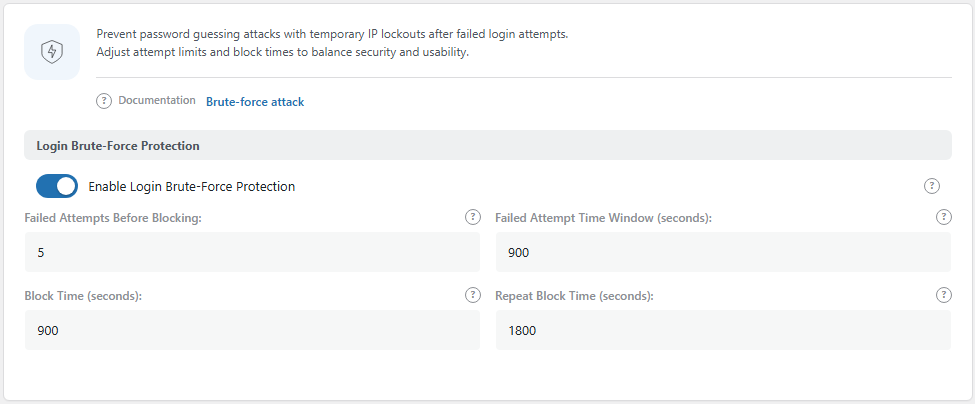
The Login Brute-Force Protection panel. Open it from BotBlocker → Settings → Access Control → Login Brute-Force.
It counts failed sign-ins per address
BotBlocker listens to the standard WordPress "failed login" event. Each time a sign-in fails, BotBlocker adds 1 to the counter for the visitor's IP address. The counter does not care which username was tried. Ten wrong passwords for ten different usernames count as 10 failures from one address.
The count lives inside a time window. The window starts with the first failure. If the window ends before the address reaches the limit, the count starts again from 1 at the next failure. With the default values, an address can fail 4 times in 15 minutes and nothing happens. The 5th failure in that window triggers a block.
A successful sign-in clears the record. When a person finally types the correct password, BotBlocker deletes the counter for that address, and also forgets any earlier block for it. So an honest typo does not bring the next person on that network closer to a block.
What happens when an address reaches the limit
BotBlocker adds a temporary block rule for that IP address to your IP rules, with the comment "Login brute force block (auto)". The rule has an end time, and it removes itself when that time comes. You do not need to clean anything up.
The block covers the whole site, not only the login page. It is a normal IP block rule. While it lasts, the blocked address gets the BotBlocker block page on every page of your site. This stops the attacking tool completely, but it also means that a real person who was blocked cannot read your site either until the block ends.
You can see every active login block on BotBlocker → Rules, in the IPv4 or IPv6 list. Look for the comment "Login brute force block (auto)". To end a block early, delete that rule. See IP lists and proxies for how the lists work.
Repeat offenders wait longer
After a block, BotBlocker remembers the address for a while. If the address reaches the limit again during that time, it gets the Repeat Block Time instead of the normal Block Time. By default, that is 30 minutes instead of 15.
The memory lasts twice as long as the Repeat Block Time. With the default values, that is 1 hour. A guessing tool that starts again right after its first block ends is quickly stopped for longer. A person who got blocked once by mistake and comes back the next day starts fresh.
Here is an example with the default values:
- At 10:00, a tool starts to guess passwords. At the 5th failure, BotBlocker blocks its address for 15 minutes.
- At 10:15, the block ends. The tool tries again and fails 5 more times.
- BotBlocker sees that this address was blocked within the last hour. It blocks it again, this time for 30 minutes.
Shared networks count as one address
Many real people can share one public IP address: an office, a school, a hotel, a café Wi-Fi, or a mobile carrier. Their failures add up on one counter. If three colleagues in one office each mistype their password twice, the office can reach the limit together, and then all of them are blocked.
If you often get complaints from one location, raise Failed Attempts Before Blocking a little. Do not turn the protection off.
It works together with other login protection
Brute-force protection slows down the guessing. Two-factor authentication makes a correct guess useless without the phone. Use both for admin accounts. The add-ons that protect the login are listed in Account security overview.
Settings
All settings are in one group. The defaults (5 failures in 15 minutes, then 15 or 30 minutes of block) are a good balance for most sites.
Login Brute-Force Protection
Controls when a guessing address is blocked, and for how long.
Enable Login Brute-Force Protection
Default: On
Turns failed-login counting and automatic blocking on or off.
- On: BotBlocker counts failures and blocks guessing addresses, as described on this page.
- Off: BotBlocker does not count failed sign-ins. Guessing tools can try as many passwords as they want, only limited by your other protection.
Keep it on. Turn it off only if another security plugin already blocks failed logins and you want that plugin to be the only one in charge. Two tools that block the same thing make it hard to find out who blocked a person.
Failed Attempts Before Blocking:
Default: 5
How many failed sign-ins from one address, inside the time window, cause a block. The lowest value is 1.
- Lower number: guessing tools are stopped sooner, but people who mistype their password are blocked sooner too.
- Higher number: more room for honest mistakes and shared networks, but a tool can try more passwords before it is stopped.
Do not set it to 1 or 2. That blocks people for a single typo, and it does not make the site much safer than 5.
Failed Attempt Time Window (seconds):
Default: 900 (15 minutes)
How long BotBlocker keeps adding failures together. The window starts at the first failure. When it ends, the count starts over.
- Shorter window: only fast bursts of guessing are caught. A slow tool that tries one password every few minutes can stay below the limit.
- Longer window: slow guessing is caught too, but old typos stay in the count longer.
Block Time (seconds):
Default: 900 (15 minutes)
How long the first block lasts. Remember that the block covers the whole site for that address.
- Shorter block: a person who was blocked by mistake can come back sooner.
- Longer block: a guessing tool loses more time, but so does a real person on a shared network.
Repeat Block Time (seconds):
Default: 1800 (30 minutes)
How long the block lasts when the same address reaches the limit again soon after an earlier block. This value also sets how long BotBlocker remembers the earlier block: twice this time (1 hour by default).
Keep it higher than Block Time. If both values are the same, a tool that comes back pays no extra price for it.
When something goes wrong
- You are blocked from your own site? Wait until the block ends (15 minutes by default). Or use another network, for example your phone's mobile data, and delete the "Login brute force block (auto)" rule on BotBlocker → Rules. If you cannot reach the dashboard at all, use the links in Emergency recovery secrets.
- A colleague or customer says the whole site is blocked? Ask for their public IP address. Find the rule with the comment "Login brute force block (auto)" for that address on BotBlocker → Rules and delete it.
- People from one office or school are blocked again and again? They share one address. Raise Failed Attempts Before Blocking, for example to 10.
- You see many failed logins in your logs but few blocks? The guessing may be slow. Make Failed Attempt Time Window longer, for example 3600 (1 hour). Also look at the Hide Admin add-on.
- Nobody is ever blocked? Check that Enable Login Brute-Force Protection is on, and that protection is not paused on the Dashboard (Pause protection).