Services and infrastructure overview
Connect BotBlocker to the services around your site, only where it helps you.
BotBlocker protects your site alone, with no outside service. But your site does not live alone. It may use a CDN, a memory cache, a payment provider, or a Google CAPTCHA. BotBlocker can work together with these services. Then it gets more information, answers faster, or starts earlier.
Each connection solves one need, and has its own page with the details. None of them is necessary for basic protection. Each one adds something to look after: an account, a key, a file outside the plugin folder, or one more service that can fail. So turn one on when you have a clear reason.
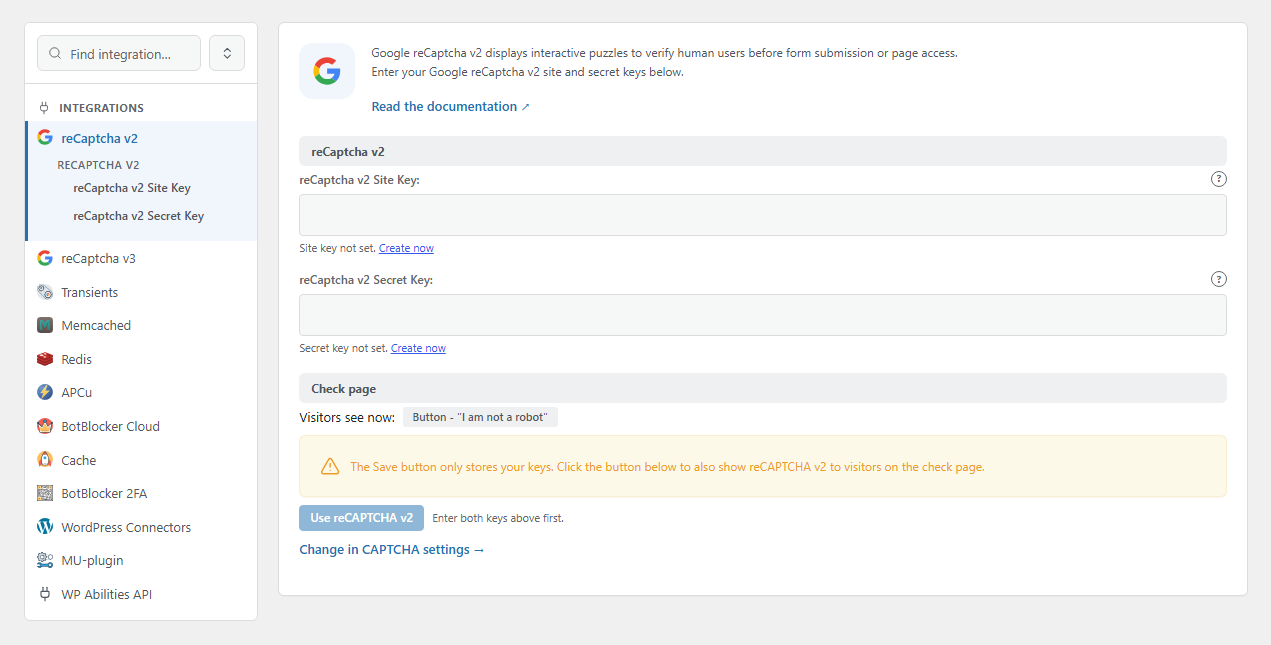
The Integrations page. Open it from BotBlocker → Integrations, then select a panel in the list on the left.
Find the right connection
| I want to... | Open this | Read this |
|---|---|---|
| Get shared threat data and check visitors against BotBlocker's cloud | BotBlocker → Integrations → BotBlocker Cloud | Cloud API |
| Use Google reCAPTCHA for the visitor check | BotBlocker → Integrations → reCaptcha v2 or reCaptcha v3 | reCAPTCHA |
| Use hCaptcha or Cloudflare Turnstile for the visitor check | BotBlocker → Add-ons | hCaptcha, Turnstile |
| Store BotBlocker data in a faster cache | BotBlocker → Integrations → Transients, Memcached, Redis, or APCu | Cache backends |
| Keep a page cache from mixing checked and unchecked visitors | BotBlocker → Integrations → Cache | Cache backends |
| Add two-factor sign-in to WordPress accounts | BotBlocker → Integrations → BotBlocker 2FA | Two-factor authentication |
| Refuse known bad visitors before the other plugins load | BotBlocker → Integrations → MU-plugin | Early phase and MU mode |
| Refuse known bad visitors before WordPress starts | BotBlocker → Settings → System → Early Phase | Early Init, Early phase and MU mode |
| Let payment callbacks reach the shop | BotBlocker → Settings → Access Control → Payment Gateways | Payment callbacks |
| See the real visitor address behind a CDN or proxy | BotBlocker → Rules → Proxy | IP lists and proxies |
| Use the TLS fingerprint that a proxy sends | BotBlocker → Settings → Detection → TLS Fingerprinting | TLS fingerprinting |
| Let AI assistants and other tools use BotBlocker actions | BotBlocker → Integrations → WP Abilities API | WordPress abilities and connectors |
| Show BotBlocker in the WordPress connectors list | BotBlocker → Integrations → WordPress Connectors | WordPress abilities and connectors |
| Send reports to Telegram or a dashboard | BotBlocker → Add-ons | Telegram Reports, Pusher Digest |
| Put the ban list into the server firewall | BotBlocker → Add-ons | Firewall Export |
The WP Abilities API panel appears only when your WordPress version supports the Abilities API.
What each kind of connection adds
The connections fall into four groups. Knowing the group helps you guess what can go wrong.
- Outside services (BotBlocker Cloud, reCAPTCHA, Telegram) send data over the internet. They need an account or a key, and your host must allow outgoing connections. If the service is slow or down, what BotBlocker does depends on the settings of that connection. For the cloud, see Cloud API. Read Privacy and external services before you connect one.
- Caches (Transients, Memcached, Redis, APCu) make BotBlocker faster. Transients use the WordPress database. Memcached, Redis, and APCu need the matching PHP extension on your server. The panel shows whether it is present.
- Early layers (MU-plugin, Early Init) put a small file outside the plugin folder, so BotBlocker can act before the rest of WordPress. Your server must allow BotBlocker to write that file. The panel shows whether the file is present.
- Your own infrastructure (proxy, CDN, TLS fingerprint) gives BotBlocker better information about each visitor. It works only when the settings match your real setup.
When something goes wrong
- You do not know which connection causes a problem? Turn off the connections you added last, one at a time, and test after each change.
- A panel shows a red status, such as "missing" or an absent extension? Read the page for that connection. It lists the exact thing to check. Often your host must install an extension or allow a file write.
- An outside service fails? Check your account and key on the service's own site, then the status on the panel.
- You cannot tell if BotBlocker is involved at all? Pause protection with the pause switch and test again.
- You shared a screenshot or log for support? Remove license keys, API keys, and secrets from it first.