Image challenge
A picture puzzle that people solve in a second and simple bots cannot.
When BotBlocker is not sure about a visitor, it shows a challenge on the check page. The image challenge is one of the modes you can choose. The visitor sees one distorted picture at the top and eight pictures below it. They click the picture that matches the top one. That is all.
The top picture is changed each time: its colors are shifted, its brightness and contrast change, random lines are drawn over it, and it is blurred. A person still sees the match at once. A script that compares files cannot, because the picture is new every time.
Two settings belong to this mode alone. You choose the mode itself in Challenge modes, where it is called BotBlocker Image Captcha.
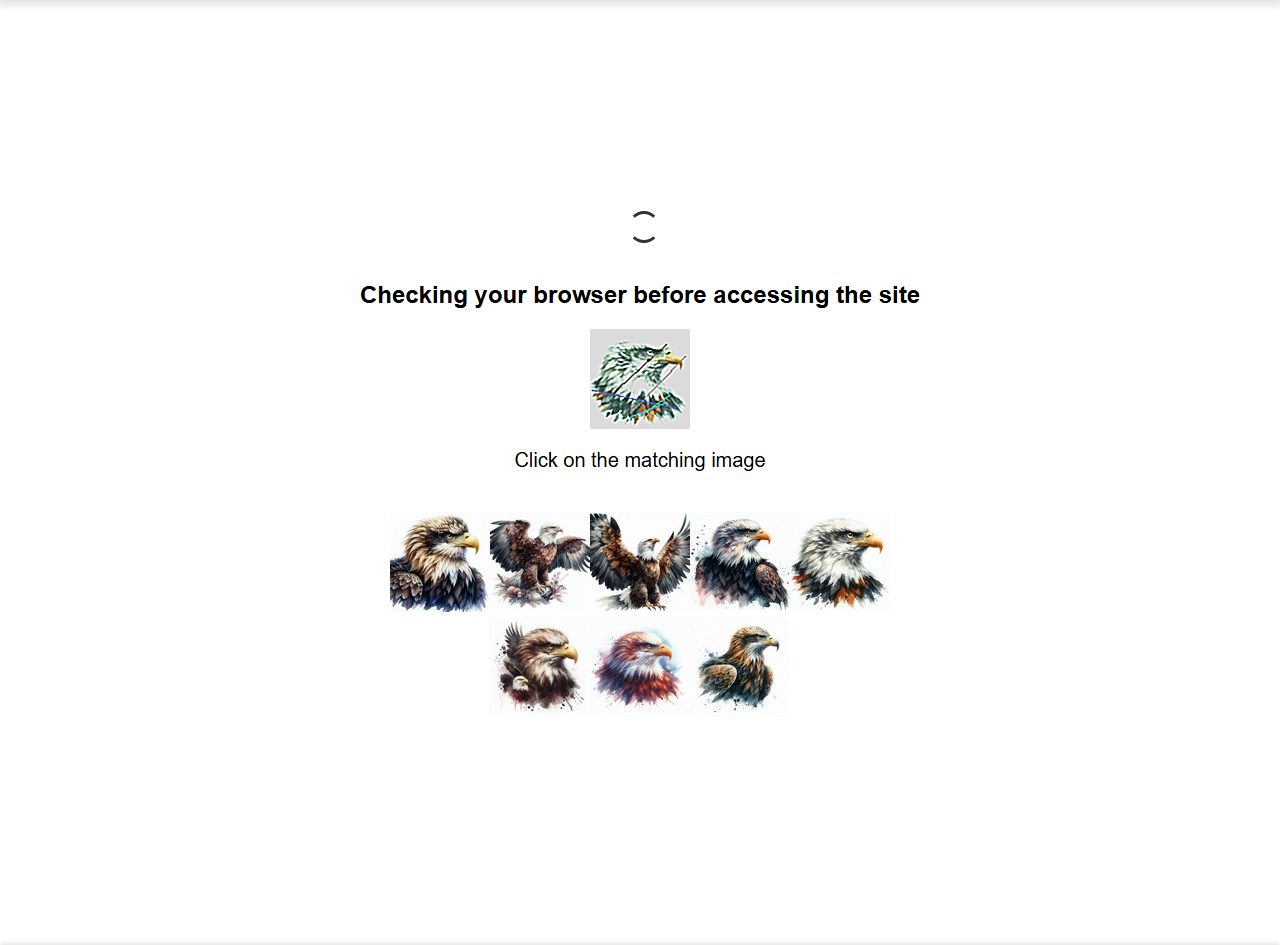
The image challenge on the check page. Its settings are in BotBlocker → Settings → Access Control → Captcha, in the BotBlocker Captcha group.
Your server needs the GD library
BotBlocker draws the distorted picture on your server with the PHP GD library, with JPEG support. Most hosts have it. If yours does not, the Captcha panel shows a warning, and the image mode cannot work. Visitors then get the simple button challenge instead. Ask your host to enable GD, or choose a mode that does not need it.
When to choose it, and when not
The image challenge is a good middle ground. It is harder for bots than a simple button, and it is easy for people who can see.
But it is purely visual. Visitors with poor vision may not be able to solve it. If accessibility is important for your site, a button or hold challenge, or silent verification, is a better choice. You can also use an outside service with the Cloudflare Turnstile or hCaptcha add-ons.
The visitor has a time limit to answer. It is set by Captcha Timeout (seconds) (default: 30). See Challenge modes.
Settings
Both settings are active only when Captcha Mode is BotBlocker Image Captcha. With any other mode, the two fields are grey and cannot be changed.
Image Captcha Pack:
Default: Eagle
Chooses the set of eight pictures. The sets are Eagle, Horse, Raccoon, Dog, and Cat. They only change the pictures. They do not make the challenge easier or harder.
Pick the animal that fits your site, or the one your visitors find easiest. The pictures are made on your server with the GD library. After a change, open the check page once in a private window and solve the challenge, to see that your server draws them correctly. See Verification overview.
Image Delivery Mode:
Default: Inline Base64 (Recommended)
Decides how the eight pictures reach the browser.
- Inline Base64 (Recommended): the pictures are built into the check page itself. The page loads in one request, and nothing extra can fail.
- Separate Requests (Legacy): the page loads each picture with its own request to your server. This is the older method. It means more requests for every challenge, and each one can be slowed or blocked by a firewall or proxy.
Keep Inline Base64 (Recommended). Do not use Separate Requests (Legacy).
If the pictures do not appear
- The panel warns about the GD library. Ask your host to enable GD with JPEG support. Until then, visitors get the button challenge.
- Some of the eight pictures are empty. You may use Separate Requests (Legacy). A firewall, a security rule at your host, or a proxy may block those extra requests. Switch to Inline Base64 (Recommended).
- The challenge fails with "timeout". The visitor took longer than the Captcha Timeout. Raise the timeout on the Challenge modes page.
- The image settings are grey. Captcha Mode is not BotBlocker Image Captcha. Select it first.