Tools
One place to check your site's health, read the error log, and save or move your BotBlocker setup.
Sooner or later, every site needs a little service work. A plugin shows an error, a support team asks for your log file, or you want to copy a well-tuned setup to a new site. Usually you look for these tools in many different places. BotBlocker puts them together on one page.
The Tools page has three tabs. WordPress Core opens the WordPress diagnostics and handles the debug log. BotBlocker saves your settings and rule lists to a file and loads them back. Maintenance refreshes and clears stored data. It has its own page: Maintenance actions.
When the Privileged Session Manager add-on is active, a fourth tab, Sessions, appears. It lists active logins of trusted users and lets you revoke them.
Most buttons here only read or download. A few buttons replace or delete data, and you cannot undo them. For those, make a backup first.
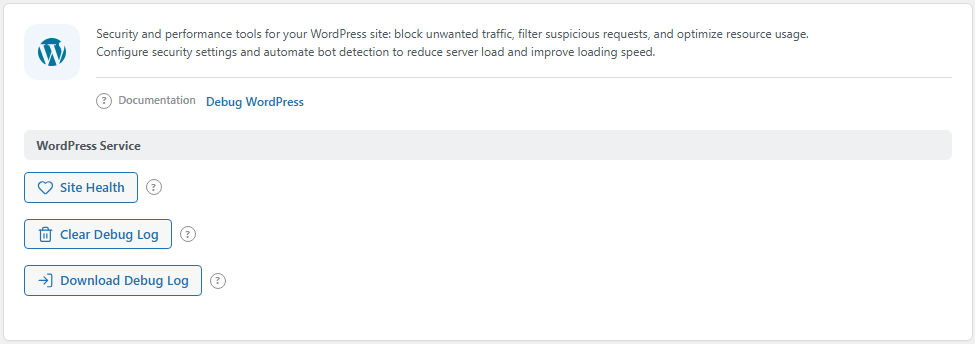
The WordPress Core tab. Open it from BotBlocker → Tools → WordPress Core.
Who can use these tools
Only a user who can manage BotBlocker can use the buttons. On a normal site, this is an administrator. On a multisite network, it is the network administrator. Other users get a "not enough permissions" message.
WordPress Service: check the site and its log
The WordPress Service group on the WordPress Core tab gives you fast access to the tools that WordPress itself provides. BotBlocker does not change them. It only puts them where you can find them.
The debug log is the file where WordPress writes PHP warnings and errors. WordPress writes it only when debugging is on in wp-config.php. BotBlocker looks for the file at the path in WP_DEBUG_LOG, or at wp-content/debug.log when no custom path is set.
Site Health
This button opens the Site Health screen of WordPress. There you see your PHP version, the database, the server settings, and problems with plugins or themes. Open it when an update fails, when a plugin reports a server problem, or before you change a lot of protection settings.
Download Debug Log
This button downloads the debug log as wordpress_debug.log. You can read it on your computer or send it to your host or a developer. It does not change the file. If debugging is off, or WordPress did not write anything yet, there is no file to download.
Clear Debug Log
This button empties the debug log. Old entries go away, so new errors are easy to see. BotBlocker asks you to confirm first, because you cannot undo it. If the old entries can help to find a problem, download the log before you clear it.
BotBlocker Settings: save and move your setup
The BotBlocker Settings group on the BotBlocker tab saves your whole BotBlocker setup to one file. Use it before a big change, as a copy you can go back to. Use it also to move a finished setup to another site, so you do not have to build it again.
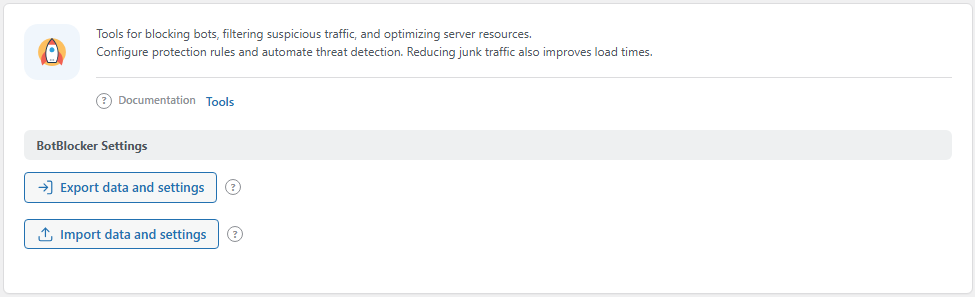
The BotBlocker tab. Open it from BotBlocker → Tools → BotBlocker.
Export data and settings
This button builds a ZIP file and downloads it. The file contains:
- your BotBlocker settings,
- your search-engine rules,
- your path rules,
- your general rules,
- your IPv4 and IPv6 address rules,
- your country rules.
It does not change anything on the site. The export is a copy of your setup, not a full site backup. It does not contain visitor records, statistics, the audit log, or downloaded data such as the ASN database or the LLM provider list. Your server needs the PHP zip extension for this. Without it, BotBlocker shows an error.
Import data and settings
This button reads a ZIP file that you made with Export data and settings. It replaces the matching settings and rule lists on this site with the ones from the file. After that, BotBlocker builds its rule files again, so the new rules work at once. Your visitor records stay as they are.
An import replaces. It does not merge. If you changed a rule after you made the export, the import removes that change. So export the current setup first, and then import. BotBlocker refuses a ZIP file that contains files it does not expect. Use only files that BotBlocker made, and do not edit them.
The file also brings the license settings of the site that made it. PRO controls in the file stay on only if that license allows them. Otherwise the import turns them off.
It works together with the other tools
- To clear old data or refresh downloaded lists, go to Maintenance actions.
- To look at what happened on the site before you delete anything, go to Traffic and audit logs.
- If you lose access to the admin area, use Emergency recovery secrets.
When something goes wrong
- Download Debug Log says the file is missing? Debugging is off, or WordPress did not write an error yet. Turn on
WP_DEBUGandWP_DEBUG_LOGinwp-config.php, and try again after the problem happens. - Clear Debug Log fails? WordPress must be able to write to the log file. Ask your host to check the file permissions.
- Export fails with a ZIP error? The PHP
zipextension is missing. Ask your host to turn it on. - Import is refused? Use the original file from Export data and settings. Do not unpack it, edit it, or pack it again.
- Settings look old after an import? This is expected. The import replaced your settings with the ones in the file. Import your newest export to go back.
- A button does nothing? Reload the page and sign in again as an administrator. The buttons need a fresh admin session.