Cron Jobs Manager
See every background task on your site, and stop the ones you do not want, in one click.
WordPress does many small jobs in the background. It checks for updates, cleans old data, and sends scheduled mail. These jobs are called "cron jobs". Plugins add their own jobs too. Some are slow or noisy. Some stay behind after you remove the plugin.
Usually you cannot see these jobs at all. The Cron Jobs Manager shows all of them on one screen. You can switch off one job, and switch it on again later, with its old timing.
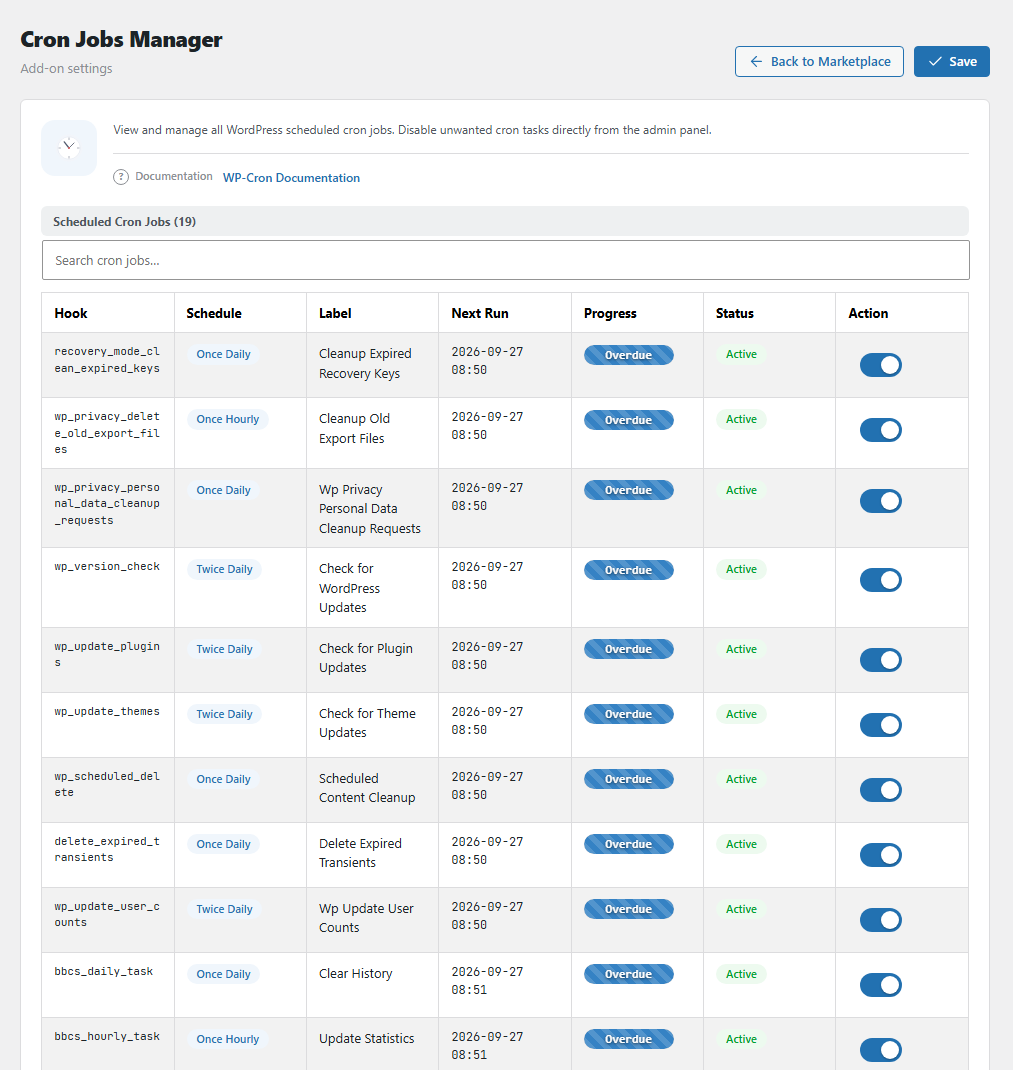
The Cron Jobs Manager task list. Open it from BotBlocker → Add-ons.
Everything on one list
There is no setup. When the add-on is active, the table Scheduled Cron Jobs shows every job, sorted by the next run time. The number next to the title tells you how many jobs there are.
On a site with many plugins, the list is long. Use the search box above the table to find a job by name.
| Column | What it tells you |
|---|---|
| Hook | The technical name of the job. If you do not know what owns it, search the web for this name. |
| Schedule | How often the job repeats, for example "Once Daily". "Single event" means it runs only one time. |
| Label | A readable name. BotBlocker knows the names of the WordPress and BotBlocker jobs. For other jobs, it makes the hook name easier to read. |
| Next Run | The date and time of the next run. |
| Progress | A bar that fills up until the next run, and the time left. Overdue means the time has passed, but the job did not run yet. |
| Status | Active or Disabled. |
| Action | The switch for this job. |
Switching a job off
When you switch a job off and save:
- The add-on writes down the job's timing: the next run time and how often it repeats.
- It removes the job from the WordPress schedule, so it does not run.
- The job stays in the list, dimmed, with the status Disabled. So you always know what you stopped.
The switch works for the whole hook. If a plugin has the same job several times (for example, with different settings), all of them stop.
A plugin cannot bring the job back. Many plugins schedule their job again on each page load. The add-on stops this: while the job is switched off, it removes the job each time WordPress saves the schedule.
Switching a job on again
Switch it on and save. The add-on puts the job back with its old timing. If the old run time is already in the past, the job is Overdue and runs at the next chance.
What it does not do
- It does not run a job by hand. For that, use the task list in BotBlocker → Settings → Data → Cron Jobs.
- It does not change when jobs run. WordPress still decides that.
- It does not make WordPress cron more reliable. WordPress runs scheduled jobs only when someone visits your site. On a quiet site, jobs can run late.
When a job causes trouble
- Your site is slow at the same times every day? Look for a job with a matching Next Run. Switch it off for a day and see if it helps.
- You do not know a job? Search the web for its Hook name before you switch it off. Jobs from backup, shop, or membership plugins can keep your data correct.
- A removed plugin left a job behind? Switch the job off. It does nothing useful without its plugin.
- Something stopped working after you switched a job off? Switch the same job on again and save.
- Many jobs show Overdue? WordPress cron does not run often enough. Open BotBlocker → Settings → Data → Cron Jobs and add the cron command at your host.
- BotBlocker's own jobs? Keep them on. They clean old data and send your reports.