IP lists and proxies
Allow or block a known address in seconds, and make sure BotBlocker sees the real visitor behind your CDN.
Sometimes you already know the address. An attacker shows up in your logs again and again. Or your office, your monitoring service, or your payment provider must always get through. You do not need to wait for the automatic checks to find a pattern. An entry on the IPv4 List or IPv6 List gives the answer at once.
The Proxy tab solves a different problem. When your site is behind a CDN such as Cloudflare, a load balancer, or a proxy, each connection comes from that service, not from the visitor. The Proxy tab tells BotBlocker which networks it can trust to report the real visitor address. If this list is wrong, all IP rules, rate limits, and logs use the wrong address.
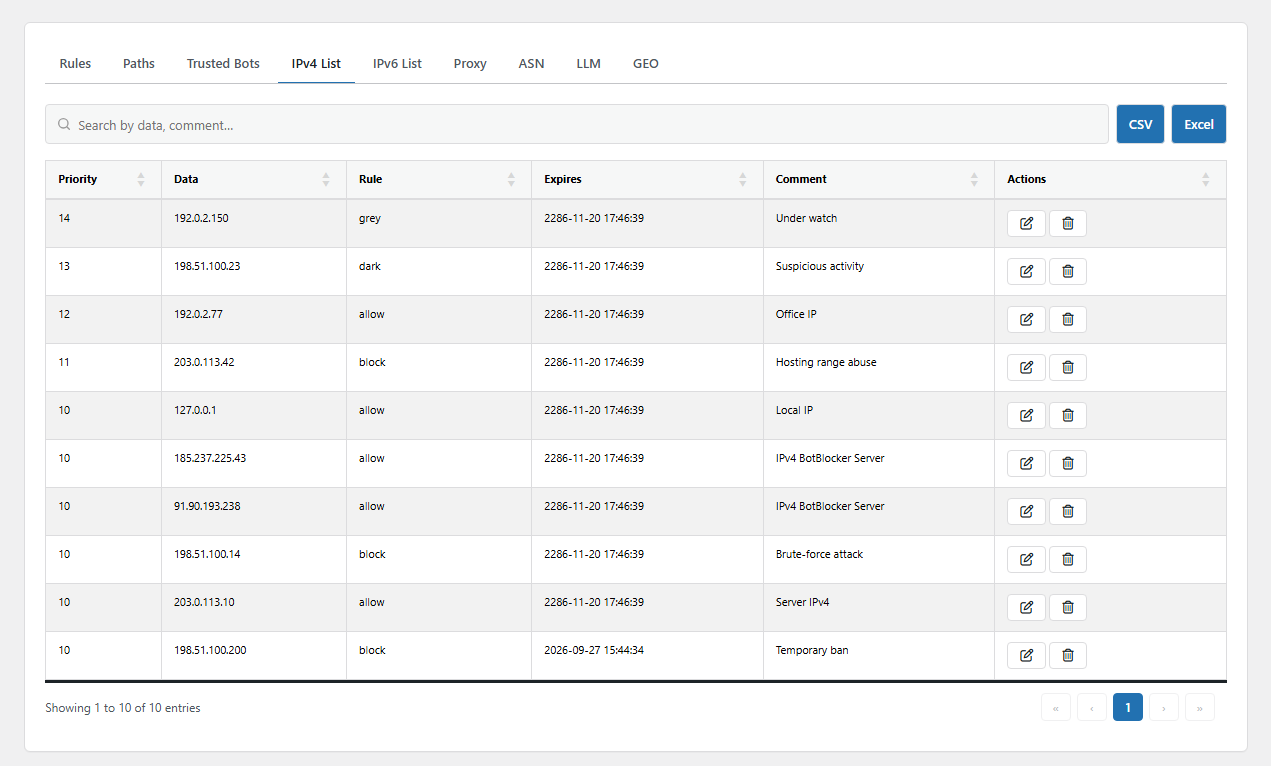
The IPv4 List tab. Open it from BotBlocker → Rules → IPv4 List.
One address or a whole range
Each entry on the IPv4 or IPv6 list is one address or a range in CIDR notation. For example, 192.168.1.1 is one address, and 192.168.1.0/24 is the 256 addresses from 192.168.1.0 to 192.168.1.255. IPv6 works the same way, for example 2001:db8::/32. IPv4 entries go on the IPv4 List, and IPv6 entries go on the IPv6 List. An entry on one list never affects visitors of the other address type.
Each entry has one of two actions:
- Allow: the visitor goes through without more checks. BotBlocker gives the visitor its cookie, and rate limiting does not count the request. Use it for your office, your server tools, and services you trust.
- Block: BotBlocker refuses the request and shows the block page.
The IP lists come early in the check order. Only TLS fingerprinting, payment callbacks, AI crawlers, and trusted bots come before them. An Allow entry does not cancel a bad TLS fingerprint. So an IP entry wins over ASN, Rules, and Paths entries. The full order is in Rules and IP lists. If more than one entry covers the same address, the entry with the lowest priority number wins.
Temporary by design
Every IP entry has an end date. The dialog sets it to one day from now, which is right for a short ban during an attack. For a longer rule, move the date forward. When the date passes, the entry stops working, and the table marks it as Attention. The next time that address visits, BotBlocker deletes the old entry and treats the visitor as suspicious for this one request.
BotBlocker adds entries too
You are not the only one who writes to these lists. BotBlocker adds entries on its own:
- Failed checks. A visitor who fails the check page gets a Block entry with the comment "CAPTCHA fail". It lasts for the Block Time, and longer for a repeat failure. See Blocks and responses.
- Your own address. BotBlocker can save the addresses of administrators as Allow entries. See Auto-save administrator IPs.
- Behavioral Analysis. The Behavioral Analysis add-on adds temporary blocks with the comment "Behavioral Engine Block".
The comment shows who added an entry. Some entries for your own server are read-only, so you cannot delete them by mistake.
Block known attackers even earlier
An IP block in the normal plugin still lets WordPress start for each visit. On a busy site under attack, that costs server time. Two add-ons move your IP lists to an earlier point:
- Early Init checks the lists before WordPress starts. The MU layer is a lighter option. See Early phase and MU mode.
- Firewall Export turns your ban list into a file for your web server or firewall, so blocked addresses never reach PHP.
How the Proxy tab works
Your server sees the address of the machine that connects to it. Behind a CDN, that is a CDN server. The CDN puts the real visitor address in a forwarding header, such as CF-Connecting-IP or X-Forwarded-For.
Anybody can send such a header. So BotBlocker reads it only when the connection comes from a network on the Proxy tab. Each entry names a network and the header that this network uses. A connection from any other network is judged by its own address, and BotBlocker ignores its forwarding headers.
A fresh installation already has entries for the published ranges of Cloudflare, Amazon Web Services, and Google Cloud. If your site uses a different CDN or a load balancer, add its ranges from the provider's documentation.
Settings
The IPv4 List and IPv6 List tabs have the same fields. The Proxy tab has different fields.
IPv4 List
These fields are in the Add IPv4 Rule dialog.
Priority
Default: 50
The position of the entry in the check order, from 1 to 100. BotBlocker uses the entry with the lowest number when several entries cover the same address. Give an Allow entry for a trusted service a low number, so that a broad block range does not win over it. BotBlocker's own "CAPTCHA fail" blocks use priority 1.
IP Address
One IPv4 address, such as 192.168.1.1, or a range in CIDR notation, such as 192.168.1.0/24. The action applies to every address in the range. Make the range only as wide as necessary. A /16 range has 65,536 addresses, and many of them can belong to real people.
Rule
Default: Allow
The action for a matching visitor: Allow or Block.
- Allow: the visitor skips all checks, including rate limiting. An Allow entry on a wide range trusts everybody in it.
- Block: the visitor gets the block page.
Expires
Default: one day from now
The date and time when the entry stops working. You must fill in this field. For a permanent entry, set a date far in the future.
Comment
A note about the entry: who the address belongs to, or why you blocked it. This helps you tell a real attacker from a mistake later.
IPv6 List
The Add IPv6 Rule dialog has the same fields and defaults as the IPv4 list. Only the address format is different, for example 2001:db8::1 or 2001:db8::/32. Many home and mobile connections get a whole IPv6 range, and the last part of the address changes often. So a block on one IPv6 address is easy to avoid. A /64 range usually covers one connection.
Priority
Default: 50
The position of the entry in the check order, from 1 to 100. The lowest number wins, as on the IPv4 list.
IP Address
One IPv6 address, such as 2001:db8::1, or a range in CIDR notation, such as 2001:db8::/64.
Rule
Default: Allow
The action for a matching visitor: Allow or Block, as on the IPv4 list.
Expires
Default: one day from now
The date and time when the entry stops working. You must fill in this field.
Comment
A note about why the entry exists.
Proxy
These fields are in the Add Proxy Rule dialog.
Network Mask
The network of your CDN, proxy, or load balancer, in CIDR notation, for example 173.245.48.0/20. Add only networks that you know belong to your provider. Copy them from the provider's published list.
HTTP Header
Default: HTTP_CF_CONNECTING_IP
The header that carries the real visitor address for this network. The choices are HTTP_CF_CONNECTING_IP, HTTP_X_FORWARDED_FOR, HTTP_X_REAL_IP, HTTP_CLIENT_IP, HTTP_FORWARDED, HTTP_VIA, HTTP_TRUE_CLIENT_IP, HTTP_FASTLY_CLIENT_IP, and HTTP_X_PROXYUSER_IP. Select the header that your provider documents. For Cloudflare, it is HTTP_CF_CONNECTING_IP.
The network and the header must belong together. If you trust a header from a network that you do not control, a visitor can send a false address and hide behind it.
Role
Default: Site edge
Tells BotBlocker what the network is. Site edge means your traffic really passes through it, so the header may carry the visitor address: a CDN, a load balancer, or your hosting proxy. Crawler network means the network belongs to a search engine or a cloud provider. Its requests come from that network itself, so BotBlocker keeps the connection address and never uses the header. Google crawler networks ship in this role.
If you are not sure, leave the role as Site edge only for networks you pay for or control. A crawler network that is treated as a site edge can make a search engine look like the person who requested the check.
Some shipped site edges are marked shared internally: the AWS and CloudFront ranges. BotBlocker still reads the visitor address from them, but an automatic ban targets the shared edge for a short time instead of an asserted visitor address that any tenant of that cloud could claim. You cannot mark a row as shared in the dialog; administrator-added edges are always trusted to report their own visitor.
Comment
The name of the provider, for example "Cloudflare IPv4". This keeps the list easy to read.
When something goes wrong
- A trusted service is refused? Search for its address on the correct list. Check that the entry is switched on, has not expired, and uses Allow. Then look for a block range with a lower priority number that covers the same address.
- A blocked address still gets in? The site may be behind a proxy that is missing from the Proxy tab. Then BotBlocker sees the proxy address, not the visitor. Add the proxy network with the correct header.
- All visitors show the same address, or strange addresses? Check the Proxy tab. A missing CDN range makes every visitor look like the CDN. A range you do not control lets visitors send a false address. Fix the entry and test again.
- A real visitor is blocked with the comment "CAPTCHA fail"? They failed the check page. Delete the entry to let them in at once. If this happens often, read Verification.
- You locked yourself out? Use the links in Emergency recovery secrets.