Rules and IP lists
Make the decisions that only you can make, and BotBlocker applies them to every visit.
BotBlocker decides most visits on its own. But some decisions need your knowledge of the site. A payment provider must always reach its callback path. A network sends nothing but spam. A partner tool has a User-Agent that looks like a bot. A rule is where you write such a decision down.
Each rule pairs a subject with an action. The subject is what BotBlocker looks for: a User-Agent, a referrer, a path, an address, a country, a network, or a crawler. The action is what BotBlocker does when it finds it: let the visitor through, send them to the check page, or refuse them. Rules act before the automatic checks, so they are strong. Add them with care, write a comment for each one, and give temporary rules an end date.
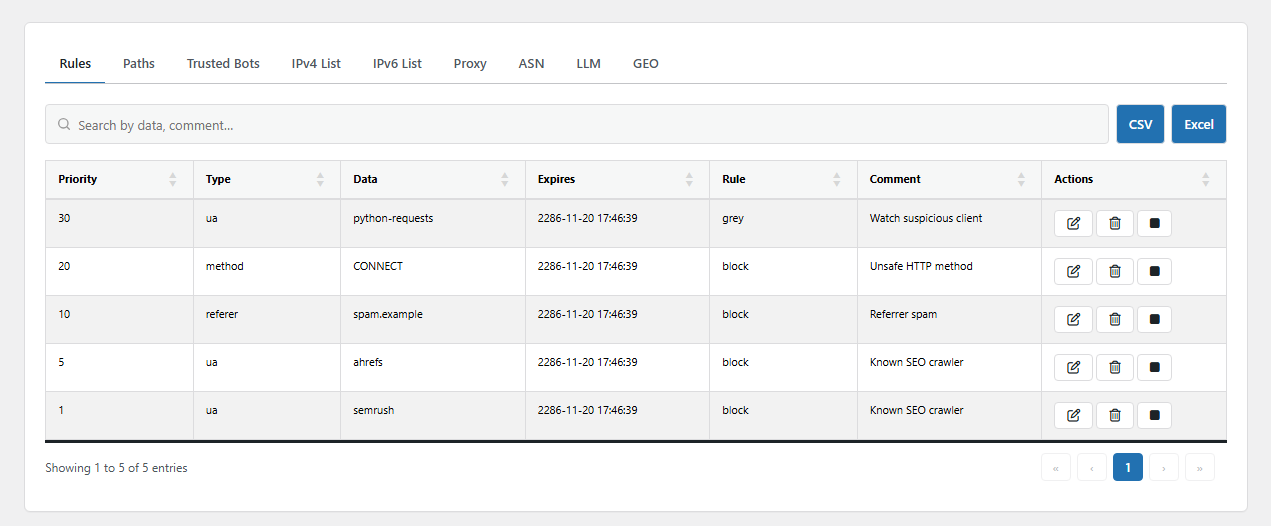
The Rules and IP Lists page. Open it from BotBlocker → Rules.
One page, nine lists
The page has one tab for each kind of rule. The Rules and Paths tabs are covered here; the other tabs have their own pages:
| Tab | What it holds | Read more |
|---|---|---|
| Rules | General rules that match a User-Agent, referrer, language, country, network name, and more | This page |
| Paths | Rules that match a part of the requested URL | This page |
| Trusted Bots | Search engines and other crawlers that you allow after a check of their origin | Trusted bots and AI crawlers |
| IPv4 List, IPv6 List | Single addresses and address ranges | IP lists and proxies |
| Proxy | The CDN and proxy networks that may report the real visitor address | IP lists and proxies |
| ASN | Whole networks, by their network number | Country and ASN rules |
| LLM | AI crawlers that BotBlocker keeps up to date for you | Trusted bots and AI crawlers |
| GEO | Blocked countries | Country and ASN rules |
All tabs work the same way. Add Rule opens a dialog for a new entry. The pencil button in a row edits the entry. Toggle On/Off switches an entry off without deleting it, so you can switch it on again later. Delete removes it. Export saves the list of the open tab to a JSON file, and Import loads such a file. An import adds only the entries that are missing, so you can run it twice without duplicates. Export a list before you make a large change. Then you have a copy to go back to.
The panel next to the tabs shows a Quick Guide and a Table overview. The overview counts the entries in each list as Active, Disabled, or Attention. Attention marks entries whose end date has passed. They no longer match anybody.
The five actions
Each rule has one of these actions:
- Allow: the visitor goes through, and BotBlocker stops checking this request. The visitor also gets the BotBlocker cookie, so the next pages open without a check. Rate limiting does not count this request.
- Gray: BotBlocker marks the visitor as suspicious and continues with the normal checks. The later checks are stricter for a gray visitor.
- Dark: BotBlocker sends the visitor to the check page. A visitor who already passed the check continues without a new one. See Cookies and sessions.
- Block: BotBlocker refuses the request. The visitor gets the block page with the status code from Blocks and responses.
- Permanently Ban: the same as Block, but without an end date. BotBlocker saves the entry as Block that never expires.
The order of the checks
BotBlocker does not check all lists at the same time. It checks them one after the other, and the first list that makes a decision wins. The order is:
- TLS fingerprinting, if it is on. A bad fingerprint sends the visitor to the check page, and no Allow rule later in this list cancels it.
- Payment callbacks with a full bypass. See Payment callbacks. A partial bypass goes through the lists below. Only the check page is skipped.
- AI crawlers on the LLM tab.
- Crawlers on the Trusted Bots tab.
- The IPv4 List or IPv6 List.
- The ASN tab.
- The Rules tab.
- The Paths tab.
- Rate limiting, and after it, all automatic checks.
So an Allow on the IP list wins over a Block on the Paths tab. Inside one tab, the priority decides. It is a number from 1 to 100, and BotBlocker checks the lowest number first. Give a narrow, important rule a low number. Give a broad fallback rule a high number.
Country blocks on the GEO tab are different. They act in an early layer, before this order starts. See Country and ASN rules.
How a rule on the Rules tab matches
A rule on the Rules tab compares its Data with the full value of the visitor. It is not a search for a part of the text. For example, a User Agent rule with the data curl/8.4.0 matches a visitor whose User-Agent is exactly curl/8.4.0. It does not match curl/8.5.0. This makes these rules safe, but also narrow. If you want to catch a part of a User-Agent, a path, or a crawler name, use the Paths tab or the Trusted Bots tab. Both of them look for a part of the text.
PTR rules are an exception to the "full value" rule. BotBlocker compares them with the last two or three parts of the visitor's reverse DNS name. For a visitor from crawl-1.example.com, the data example.com matches.
A fresh BotBlocker installation already has some Block rules of the type AS Name on this tab. They block a few networks that are known for spam and bot traffic. You can switch them off if you have a reason.
Settings
The Rules tab and the Paths tab each have their own dialog. Their fields are below.
Rules
These fields are in the Add Generic Rule dialog on the Rules tab.
Type
Default: User Agent
This is what BotBlocker compares with the Data. The choices are User Agent, PTR, Referer, Language, URI, HTTP Accept, Page, AS Name, AS Number, Country, Script Name, Yandex.Metrica ID, and Google Analytics ID. Referer compares the host name of the page that sent the visitor. Country uses the two-letter code, for example DE. The two analytics types compare the visitor ID that those tools store in a cookie.
To act on a whole network, the ASN tab is usually easier than the AS Name or AS Number type here. It shows network names from the BotBlocker database. See Country and ASN rules.
Priority
The position of the rule in the check order, from 1 to 100. BotBlocker checks the lowest number first, and the first match wins. Use a low number for a rule that must win over other rules on this tab.
Data
The value to match, in the format of the selected Type. BotBlocker compares it with the full value of the visitor, so copy the value exactly, for example from the visitor log in Traffic and audit logs. A small difference, such as a different version number in a User-Agent, stops the match.
Comment
A note for you and for the next person who manages the site. Write why you added the rule and where you saw the problem. Months later, this note tells you whether the rule is still necessary.
Rule
Default: Allow
The action for a matching visitor: Allow, Gray, Dark, Block, or Permanently Ban. The section The five actions explains each one.
Permanently Ban ignores the Expires field. If you want a block that ends by itself, select Block and set an end date.
Expires
Default: one day from now
The date and time when the rule stops. You must fill in this field. After this time, the rule no longer matches, and the list marks it as Attention. For a rule that must stay, set a date far in the future, or select Permanently Ban for a block.
Paths
These fields are in the Add Path Rule dialog on the Paths tab. A path rule has no end date. It stays until you switch it off or delete it.
Priority
The position of the rule in the check order, from 1 to 100. BotBlocker checks the lowest number first. An Allow rule for an important path, such as a webhook, needs a low number, so that a broader path rule does not win.
Rule
Default: Allow
The action for a matching path: Allow, Gray, Dark, Block, or Permanently Ban. On this tab, Permanently Ban is the same as Block, because path rules never expire.
An Allow path rule lets every visitor of that path through, also bots. BotBlocker skips rate limiting and all later checks for it. Use it for callback and API paths that machines must reach, not for normal pages.
A Block or Dark rule on a callback path can break a payment or a webhook. See Payment callbacks.
Path (URL)
Default: empty
The part of the path to look for. BotBlocker searches for this text anywhere in the requested path. It ignores upper and lower case, and it ignores the query string (the part after ?). For example, /my-webhook/ matches /my-webhook/ and /shop/my-webhook/order. Use a text that is unique to the page you mean. A short text such as /a matches far too many pages.
Comment
A note about why the path rule exists, for example the name of the service that calls this path.
When something goes wrong
- A real visitor is refused, and you do not know why? Open the visitor log. It shows the rule that made the decision, for example "BLOCK By rule" or "BLOCK by IP rule". See Traffic and audit logs. Then search for that entry on the correct tab.
- A rule does not work? Check that it is switched on and that its end date has not passed. On the Rules tab, check that the Data is the full, exact value. Then check the order: a list earlier in the order, or a rule with a lower priority, can win first.
- A payment or a webhook stops after you add a rule? Look at the Paths tab for a Block or Dark rule on that path, and read Payment callbacks.
- A service stops after you delete a rule? It was probably an Allow rule. Add it again with a comment, then test the service.
- You locked yourself out? Use the recovery links in Emergency recovery secrets. Do not edit the database by hand.