Cloud API
Get a second opinion on each suspicious visitor from a network that watches many sites.
Your site only knows what it has seen itself: its own visitors, its own rules, its own history. A new botnet or a fresh block of hosting addresses looks harmless the first time it arrives. BotBlocker Cloud collects what many BotBlocker sites see, so it can recognize such traffic before your site has met it.
When the site is connected and Cloud Validation is on, BotBlocker sends details of a visitor to the Cloud during its automatic check. It uses the answer as a second layer on top of the local checks. If the Cloud is slow or down, the local checks decide alone, and nothing breaks for your visitors.
One site's attack protects every site
- Sites report. Each BotBlocker site sends the addresses that it judged suspicious to BotBlocker Cloud.
- The Cloud learns. BotBlocker Cloud puts these reports into one shared database of bad addresses and networks.
- Every PRO site is protected. When a new botnet or a new range of addresses attacks one site, the Cloud marks it. Every site with a PRO license then gets a "bad" answer for those addresses, often before the attack reaches it.
The more sites are connected, the faster the Cloud sees a new attack. Your site adds to this protection, and it gets protection back from all the others. What is sent is listed in External services that receive data.
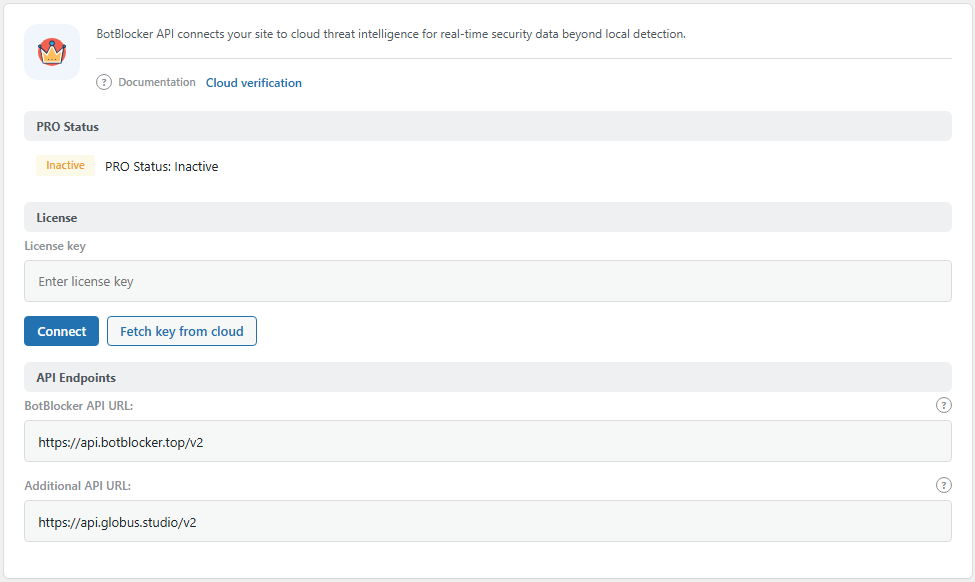
The BotBlocker Cloud tab. Open it from BotBlocker → Integrations → BotBlocker Cloud.
Connecting the site
The connection lives on BotBlocker → PRO, and also on the BotBlocker Cloud tab of BotBlocker → Integrations. Paste your license key and press Connect. When the connection works, PRO Status shows Active, the button changes to Disconnect, and a Usage group shows the requests remaining and days remaining. Press Refresh status (on the Integrations tab: Refresh PRO status) to update those numbers. Plans and features are described in Licensing.
Your server must be able to make outbound HTTPS requests. If a host firewall or proxy blocks them, the Cloud cannot work, and no setting in BotBlocker changes that. When the connection fails, the license runs out, or requests run low, an alert appears in the bell menu, see Alerts.
What the Cloud answer does
Connecting alone does not send visitor data. The Cloud check runs only when Cloud Validation is on (BotBlocker → Settings → System → Advanced Protection, see Strict checks).
The Cloud is asked during the automatic browser check, after the local checks have passed. BotBlocker sends the IP address, host name, user agent, referrer, languages, screen and time zone details, and a few other signals; the full list is in External services that receive data. The Cloud replies with a status and a score. The reply is kept for one day, so the Cloud is not asked again for every page.
- Good: the visitor passes, as usual.
- Bad, or a score of 5 or more: the automatic check fails, so the visitor does not get the verification cookie.
- Gray (unclear): the automatic check fails as well.
- No answer (timeout or connection error): nothing changes. The local checks decide, as they do without the Cloud.
The bad and gray rules apply while Block Unresponsive Clients in the same panel is On (default: Off). When it is Off, BotBlocker asks the Cloud but ignores its bad and gray answers. See Strict checks.
BotBlocker knows two Cloud addresses. It tries the preferred one first and moves to the next one if it fails, and it pauses an address that keeps failing for a short time.
Settings
The license is on BotBlocker → Integrations → BotBlocker Cloud. Force Cloud Validation and Block on Cloud API Errors are on BotBlocker → Settings → System → Advanced Protection. Cloud API Timeout is on BotBlocker → Settings → System → Cookie Settings, in the Cache Compatibility group.
License
License key
Default: Empty
The key that identifies your site to BotBlocker Cloud. It is filled in when you connect or fetch the key. Treat it like a password: keep it out of screenshots, forum posts, and support messages that others can read.
Account details
When you connect, BotBlocker stores five more account values. They are not shown as fields and you cannot edit them. To change them, press Disconnect and connect again, which writes fresh values.
- Account type: the kind of Cloud service the account uses.
- Account email: the email the Cloud account belongs to. BotBlocker also sends license expiry warnings to this address.
- API password: the value the account uses to sign in. It is secret, because it also helps protect the verification cookies.
- Secret API key: the secret used to sign Cloud requests. Keep it private.
- Service tier: your plan level. It decides which Cloud features you can use, for example Force Cloud Validation needs the Ultimate plan.
If you think the password or secret key was exposed, disconnect and connect again.
Failure behavior
These switches decide how much you trust the Cloud answer.
Force Cloud Validation
Default: Off
Asks the Cloud earlier in the check, before the ad-blocker and anti-detect checks. With this switch on, a low reCAPTCHA v3 score no longer fails the visitor by itself; the Cloud answer decides instead. It works only with Cloud Validation on and the Ultimate plan. The switch is locked on other plans.
- On: the Cloud has the main say. A Cloud outage affects more visitors.
- Off: local checks go first and the Cloud confirms at the end.
Block on Cloud API Errors
Default: Off
Decides what happens when the Cloud answers, but with a status BotBlocker does not know. With this switch on, BotBlocker deletes the stored reply and fails the automatic check. With it off, the visitor passes. It works only while Block Unresponsive Clients is on. This is a PRO setting.
- On: protects against a broken or faked answer, but a Cloud fault turns into failed checks for real visitors.
- Off: a strange answer never blocks anyone. Keep this while you test the connection.
Timing
Cloud API Timeout
Default: 5 seconds
How long BotBlocker waits for the Cloud. You can choose 2, 3, 5, 7, 10, or 15 seconds. When time runs out, the check follows the "no answer" rule above.
- Lower number: a slow Cloud delays the check page less, but more checks end without an answer.
- Higher number: a slow outbound connection has more time, but visitors wait longer on the check page.
Raise it only when your host's outbound connection is slow, not to hide an outage.
When something goes wrong
- PRO Status shows Inactive. Paste your license key and press Connect. If the license expired, renew it.
- The connection fails. Ask your host whether outbound HTTPS requests to the BotBlocker Cloud addresses are allowed.
- Real visitors fail the check while the Cloud has problems. Turn off Block on Cloud API Errors and Force Cloud Validation.
- The check page is slow. Lower Cloud API Timeout, then watch whether the delay goes away.
- Force Cloud Validation is locked. It needs the Ultimate plan and Cloud Validation on.