Firewall Export
Stop known bad visitors at the door, before they even reach WordPress.
BotBlocker blocks bad visitors inside WordPress. That works well, but WordPress must start for each visit before BotBlocker can say no. Your web server sees each visitor first, and it cannot read the BotBlocker ban list.
Firewall Export closes that gap. It turns your ban list into a ready-made file for your web server or firewall. Then known attackers are refused at the server. Your site does less work, and it stays calm during an attack.
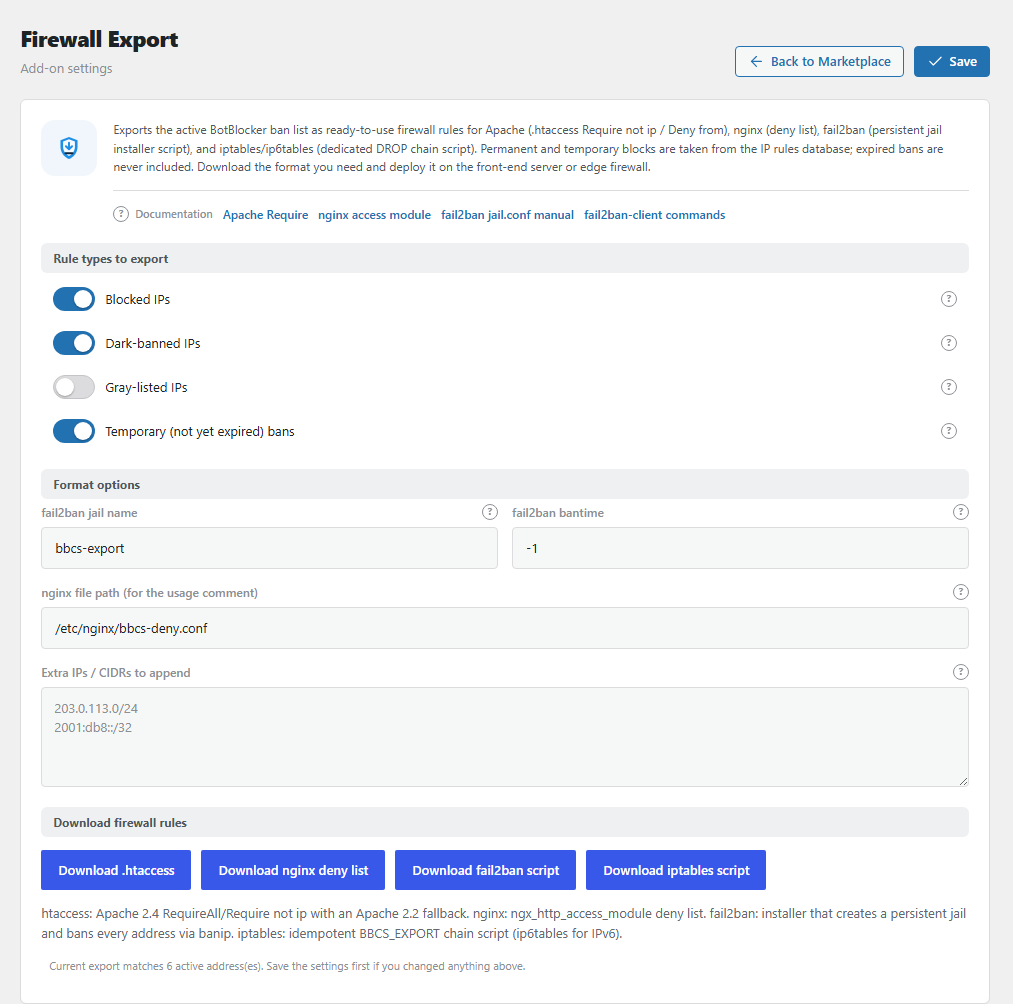
The Firewall Export panel. Open it from BotBlocker → Add-ons.
Four files for four kinds of servers
At the bottom of the panel, in the group Download firewall rules, you pick one download. Each one contains the same addresses, in a different format:
| Button | File name | For |
|---|---|---|
| Download .htaccess | bbcs-banlist.htaccess |
Apache web servers. The file works with old and new Apache versions. |
| Download nginx deny list | bbcs-banlist.nginx.conf |
nginx web servers. One deny line for each address. |
| Download fail2ban script | bbcs-fail2ban-export.sh |
Servers with fail2ban, a common ban tool. The script makes a jail (a named ban list), reloads fail2ban, and bans each address. |
| Download iptables script | bbcs-iptables-export.sh |
A plain Linux firewall. The script makes its own chain (a separate rule group) BBCS_EXPORT for IPv4 and BBCS_EXPORT6 for IPv6, and fills it with drop rules. |
Each file starts with a short note: the date, the number of addresses, and how to install it. The two scripts must run as root (the administrator of the server).
You can run a script again after each new export. It does not add a second copy of an address. But the two scripts work differently:
- iptables script: it empties its chain first, then fills it with the new list. So an address that is not in the new file is no longer blocked.
- fail2ban script: it only adds bans. An address that is not in the new file stays banned in fail2ban until its bantime ends, or until you remove it yourself (
fail2ban-client set bbcs-export unbanip <address>). With the default bantime-1, that is never.
Which bans go into the file
BotBlocker has different kinds of IP rules. You decide which kinds go into the export. BotBlocker then takes all matching rules that are on and not expired, and adds your own extra addresses. It removes duplicates and bad entries.
Some rules never go into the file:
- Allow rules. Trusted addresses are never exported.
- Disabled rules. A rule that you switched off stays out.
- Expired bans. A ban whose time is over stays out.
Permanent bans are always in the file if their kind is selected. The Temporary switch only controls the bans that have an end time.
It is a snapshot, not a live link
An export is a copy of your ban list at one moment. It does not update itself.
- A new ban in BotBlocker is not in the file until you export again.
- A ban you remove in BotBlocker stays active on the server until you install a new file. With fail2ban, you must also unban the address in fail2ban.
- A temporary ban stays in the file after its end time. The file does not know about time.
Example: a bot gets a 24-hour ban on Monday. You export on Monday and install the file. On Wednesday, BotBlocker has forgotten the ban, but your server still blocks that address. Export again from time to time, for example once a week, or after an attack.
Settings
The default values fit most sites. You usually only choose the kinds of bans and then download. Save the settings before you download. The download uses the saved values, not what is on the screen. The panel shows how many addresses the saved settings give.
Rule types to export
Blocked IPs
Default: On
Adds the addresses with a normal block rule. These are the visitors that BotBlocker refuses with a block page.
This is the main part of the export. Keep it on.
Dark-banned IPs
Default: On
Adds the addresses with a dark rule. BotBlocker does not block these visitors outright. It sends them to the check page, so a real person can still pass.
A server file cannot show a check. It can only say yes or no. So with this switch on, all these visitors are refused at the server, and real people among them lose their chance to pass the check. Keep it on only if your dark rules are for networks that you do not want at all. If you use dark rules for "maybe bot, maybe human" networks, turn it off.
Gray-listed IPs
Default: Off
Adds the addresses with a gray rule. BotBlocker does not block these visitors. It only marks them as suspicious, and the later checks are stricter for them. Many of them get in.
If you turn this on, all these visitors are refused at the server, with no chance to pass. Keep it off unless you are sure that nobody on the gray list is a real visitor.
Temporary (not yet expired) bans
Default: On
Adds the bans that have an end time and are still active. For example, a 15-minute block from rate limiting that started 5 minutes ago.
- On: the file contains the current attackers. This is what you want during an attack.
- Off: the file contains only permanent bans. Use this if you export seldom, so short bans do not stay on your server for weeks.
Remember: after you install the file, a temporary ban stays on the server until you export again.
Format options
fail2ban jail name
Default: bbcs-export
The name of the jail that the fail2ban script makes. BotBlocker changes the name to small letters and removes all characters except letters, numbers, -, and _. If nothing is left, it uses bbcs-export.
Keep the default, unless you already have a jail with this name. The script writes over the jail files with the same name.
fail2ban bantime
Default: -1 (until someone removes the ban)
How long fail2ban keeps each address banned. -1 means "forever, until someone removes it". You can also write a time, for example 24h, 7d, or 3600 (seconds).
If you type a value that fail2ban cannot use, BotBlocker uses -1.
The script never bans the server itself (127.0.0.1 and ::1).
nginx file path (for the usage comment)
Default: /etc/nginx/bbcs-deny.conf
This only changes the help note at the top of the nginx file. The note shows the line that loads the file. It does not change where the file goes. Set it to the place where you really keep the file, so the note is correct for you.
Extra IPs / CIDRs to append
Default: empty
Your own addresses or ranges. They go into every export, together with the ban list. A range (CIDR) is a group of addresses, for example 203.0.113.0/24 for 256 addresses.
You can put one entry on each line, or separate them with spaces, commas, or semicolons. Both IPv4 and IPv6 work. BotBlocker silently drops entries that are not a valid address or range. It also removes duplicates.
Example: an attacker network keeps coming back from 198.51.100.0/24. Add that line here, save, and download again.
Be careful: an address here is refused at the server, and BotBlocker cannot let it in again. Never add your own address.
Before you install a file
A broken server file can take your whole site down. So:
- Download the format that fits your server.
- Open the file and read it once. Look for your own address.
- Keep a copy of the file that you replace.
- Install the new file. For nginx, run
nginx -tfirst to test it, then reload. - Open your own site and check that it loads.
If something goes wrong
Visitors refused by the server never reach BotBlocker. So they are not in your BotBlocker log. This is normal.
- Your site stops loading after you install the file? Put back the old file and reload the web server. Then look for the error in the new file.
- You locked yourself out? Remove your address from the installed file on the server. Then remove the ban in BotBlocker, so it does not come back with the next export.
- An address you unbanned is still blocked? The old file still has it. Export again and install the new file. With fail2ban, a new file is not enough: also run
fail2ban-client set bbcs-export unbanip <address>(use your jail name). - An extra address is missing from the file? Save the settings, then download again. Also check that the address is written correctly.
- The file says "No active bans matched"? No rule fits your switches. Turn on more rule types, or add extra addresses.
- IPv6 visitors still get through? Check that your server also uses the IPv6 part of the file.