Challenge modes
Choose what a doubtful visitor must do to prove that they are human.
When BotBlocker is not sure about a visitor, it does not block them at once. It shows a short check page instead. A real person passes it in a second or two and continues to the page they wanted. A simple bot cannot pass it and stops there.
The Captcha Mode decides what that check looks like. It can be completely invisible, a single button, or a small puzzle. An easy check keeps your visitors happy. A harder check stops more clever bots, but it also costs real people more time. The right choice depends on who visits your site.
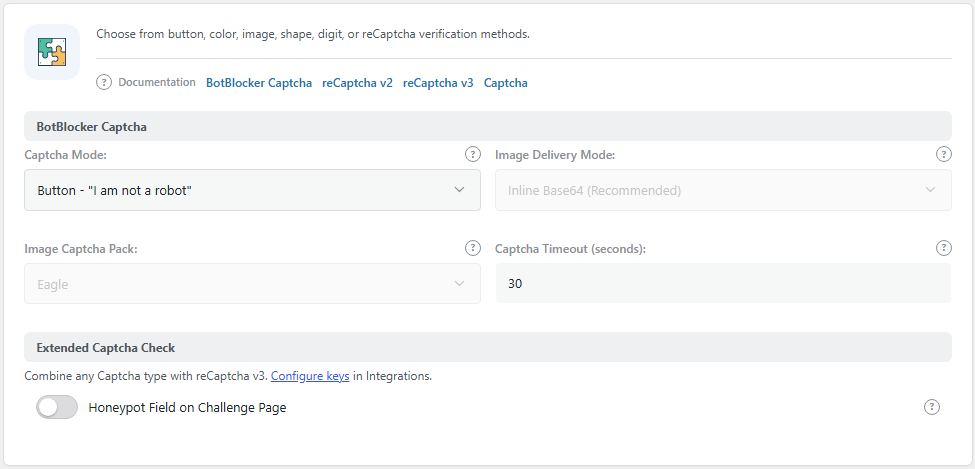
The BotBlocker Captcha panel. Open it from BotBlocker → Settings → Access Control → Captcha.
The modes at a glance
All modes need JavaScript in the browser. The browser check runs first in every mode, and each task sends its answer back with JavaScript. The Needs column shows only what a mode needs on top of that.
| Mode | What the visitor does | Needs |
|---|---|---|
| Silent Auto-Verify (No Captcha) | Nothing. The check runs in the background. | Nothing extra |
| Button - "I am not a robot" | Clicks one button. | Nothing extra |
| Color Buttons | Clicks the button with the same color as a sample square. | GD library on the server |
| BotBlocker Image Captcha | Clicks the picture that matches a blurred sample picture. | GD library |
| reCaptcha v2 - "I am not a robot" | Solves Google's checkbox, then clicks a button. | reCAPTCHA v2 keys |
| reCaptcha v2 | Solves Google's checkbox. The page continues by itself. | reCAPTCHA v2 keys |
| Dynamic Shape Captcha | Clicks the correct shape among moving shapes. | Nothing extra |
| Dynamic Digit Captcha | Solves a small moving math problem, like "12 + 7", and clicks the answer. | Nothing extra |
| Hold Button Captcha | Holds down a bar and lets go when the fill is in the green zone. | Nothing extra |
When the hCaptcha or Turnstile add-on is active, it adds its own mode to this list.
The default is invisible
A new installation uses Silent Auto-Verify (No Captcha). The visitor sees the check page for a moment, the browser proves itself in the background, and the visitor continues. Most people never notice. Simple bots that do not run JavaScript fail.
This is a good start for most sites. Move to a visible mode only when bots get through the silent check. For silent mode, the timeout does not apply. If the background check fails twice, the visitor sees "Access denied."
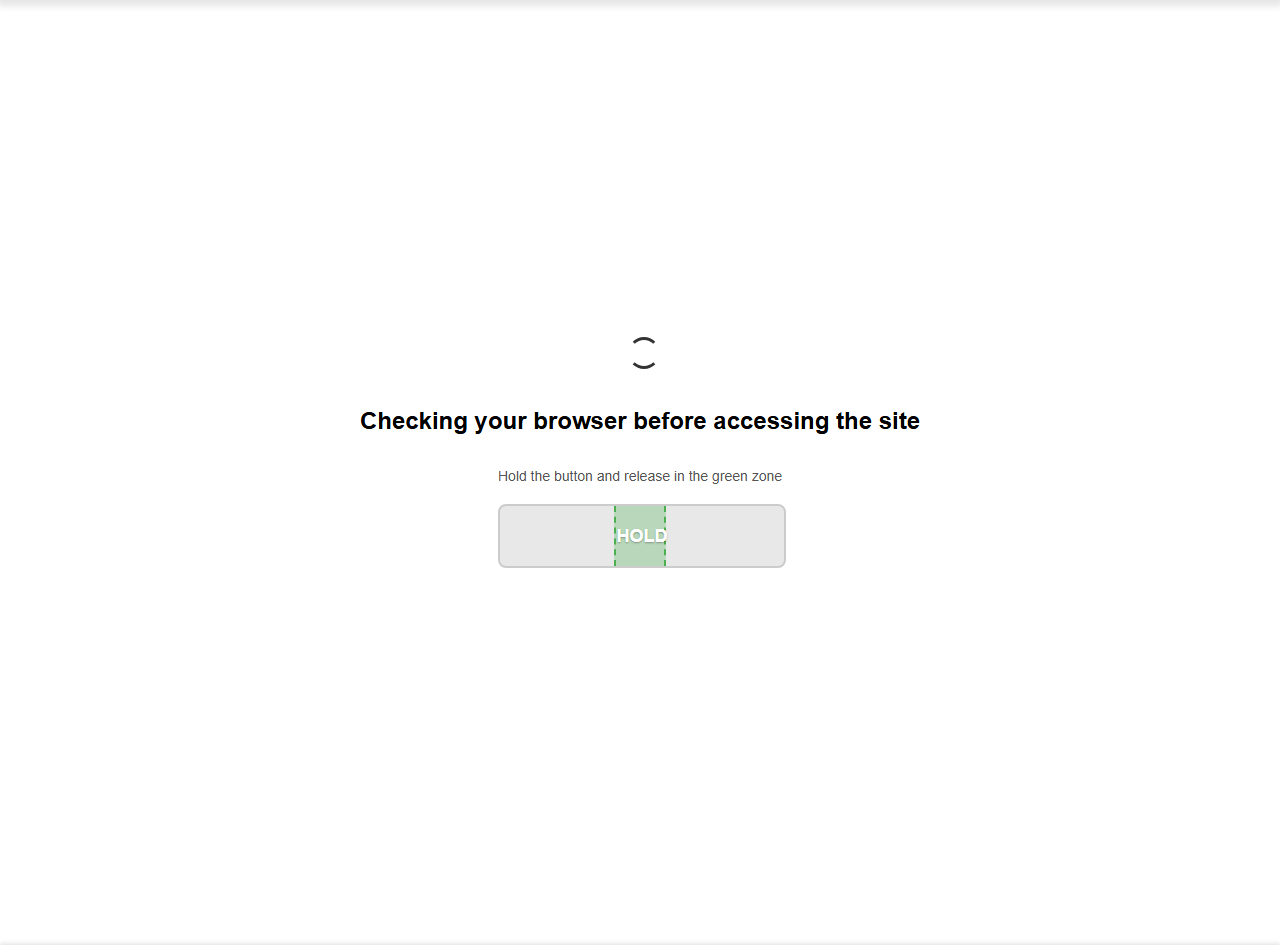
The Hold Button Captcha task. It works the same with a mouse or a finger.
How to pick a mode
- Shops, booking forms, landing pages: keep the check as light as possible. Use Silent, Button, or Hold Button.
- Sites with a lot of scraping or fake sign-ups: a puzzle is fine. Try Color Buttons, Dynamic Shape, or Dynamic Digit.
- Visitors who know Google's checkbox: use a reCaptcha v2 mode. It sends visitor data to Google, so see reCAPTCHA first.
- Many visitors on phones: Hold Button and Button are the easiest on a small touch screen.
Some modes depend on your server or on Google: the picture modes need the GD library, and the reCAPTCHA modes need working keys. So after you change the mode, open your site once in a private window and complete the check. Logged-in administrators are not checked, so you do not see the page while you are logged in. See Verification overview.
What happens when a visitor fails
A wrong answer costs more than a failed try. BotBlocker blocks the visitor's IP address for the Block Time from Blocks and responses (200 seconds by default). If the same address fails again within 24 hours, the block uses the Repeat Block Time (400 seconds by default).
In Hold Button Captcha, the visitor gets 3 tries. The block comes only after the 3rd failure.
Missing keys or libraries
BotBlocker protects you from a mode that cannot work:
- No GD library on the server: Color Buttons and BotBlocker Image Captcha cannot draw their images. The panel shows a warning, and visitors get reCaptcha v2 instead if its keys are saved, or Button if not.
- No reCAPTCHA v2 keys: the two reCaptcha v2 modes are greyed out in the list. The panel shows a Configure now link to the keys.
- Add-on mode without an active add-on or keys: the panel shows a warning. If the add-on is not active, visitors get the simple button check until you activate it.
Add reCAPTCHA v3 on top
Under the settings, the Extended Captcha Check note tells you that you can combine any mode with Google reCAPTCHA v3. reCAPTCHA v3 gives each visitor a score in the background, and BotBlocker rejects visitors with a low score. See reCAPTCHA.
Settings
BotBlocker Captcha
The check that doubtful visitors see. The image options in this panel (Image Delivery Mode and Image Captcha Pack) are explained in Image challenge.
Captcha Mode:
Default: Silent Auto-Verify (No Captcha)
The task that a visitor must do on the check page. All visitors who get a check see the same mode. See the table above for what each mode does and what it needs.
Pick the lightest mode that still stops your bots. A mode that confuses real people costs you visitors and customers.
Captcha Timeout (seconds):
Default: 30
How much time the visitor has to finish the task. If the answer comes later, it counts as a failure. This does not apply to the silent mode.
- Lower number: less time for a bot to work on the task, but slow readers and slow phones fail more often.
- Higher number: more forgiving for real people.
30 seconds suits most sites. Do not go much lower: a failure also means a short IP block.
Honeypot Field on Challenge Page
Default: Off
Adds a hidden trap field to the check page, and checks how fast the answer is sent. Real people never see the field and never fill it. Simple bots often fill every field they find, or answer faster than a person can.
- On: an extra quiet check that costs the visitor nothing.
- Off: no trap field.
Some password managers and accessibility tools fill hidden fields. If real people suddenly fail the check after you turn this on, turn it off again.
When something goes wrong
- Real visitors cannot pass the check? Switch to a simpler mode, like Button or Hold Button, and test again.
- The check page appears again and again? The browser does not keep the BotBlocker cookie. See Cookies and sessions, and check that your cache or CDN does not store the check page (Cache backends).
- Visitors see a block page after one wrong click? That is expected: a wrong answer blocks the address for a short time. Lower Block Time in Blocks and responses if it is too long for you.
- Color or image mode shows a simple button instead? Your server has no GD library. Ask your host to enable it, or pick another mode.
- The reCaptcha v2 modes are greyed out? Save the reCAPTCHA v2 keys first. See reCAPTCHA.