Bot detection signals
Stop simple bots at the door, before they cost your site any work.
Many bots are cheap scripts. They do not try hard to look like a browser. Some send no browser name at all. Some send no language. Some invent a previous page that is not even a real web address. A real browser never makes these mistakes, so these small details are an easy way to catch the lazy part of bot traffic.
The Bot Detection panel collects these quick checks. Each check looks at one detail of the request and refuses the visit when the detail is clearly wrong. The checks are fast because they only read the request. They do not need the visitor to run any code first.
Five of these checks are on from the start and they are safe for most sites. The others are stricter. They make a policy decision about your audience, so you turn them on only when you have a reason.
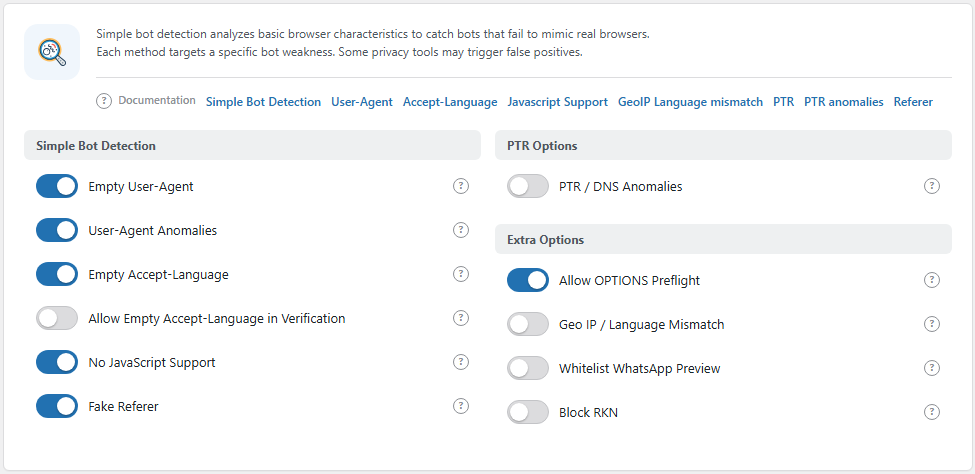
The Bot Detection panel. Open it from BotBlocker → Settings → Detection → Bot Detection.
Each check reads one detail of the request
Every request that reaches your site carries a few standard details. These checks read four of them:
- The User-Agent: the name the browser gives itself, for example "Chrome on Windows".
- The Accept-Language header: the languages the visitor prefers.
- The Referer header: the page that sent the visitor to you.
- The reverse-DNS name (PTR record) of the visitor's IP address.
A missing or broken detail is a strong sign of a simple script. A normal detail proves nothing, because a better bot can copy it. That is why these checks are only the first layer. Visitors who pass them still meet the browser checks, rate limiting, and the other protection layers.
A failed check is a refusal, not a question
Most protection in BotBlocker sends a doubtful visitor to the check page, where a real person can prove they are human. The checks on this panel are different. When one of them fails, BotBlocker shows the "access denied" page at once, and the visitor gets no chance to verify.
This is fine for clear mistakes that no real browser makes. It is also the reason to be careful with the stricter checks. A traveler who fails the language check cannot click a button to get in.
Every refusal is written to the log with a reason code, for example "Empty UA" (code 50) or "Black UA" (code 54). Open BotBlocker → Reports to see which check refused a visitor. See Log and reports.
It works together with other features
- Trusted bots and allow rules come first. Search engines, allowed IP addresses, and your own admin sessions are handled before these checks. So a check here does not refuse Googlebot or you. See Trusted bots and IP lists.
- In-App Browser Mode can soften three checks. When a visitor taps your link in an app such as Instagram, the app opens the page in its own built-in browser. That browser can fail the language, referer, and "fake bot" checks. In-App Browser Mode sends these visitors to the check page instead of the denied page.
- Behavioral Analysis catches what these checks miss. A bot with perfect headers can still act like a machine. The Behavioral Analysis add-on watches how the visitor moves through your site.
- Network rules live elsewhere. Proxy, IPv6, Cloudflare, and hosting checks are on the Connection types page.
Settings
The panel has three groups. Simple Bot Detection holds the basic header checks. PTR Options holds the reverse-DNS check. Extra Options holds the policy checks.
Simple Bot Detection
These checks catch scripts that do not copy a complete browser. Most of them are on by default.
Empty User-Agent
Default: On
Refuses a request that has no User-Agent, or a User-Agent that contains only spaces or control characters. Every normal browser sends one, so this check almost never affects real people.
The usual victims are your own tools: an uptime monitor, a curl command, or a custom script that you forgot to give a name. If one of your services stops working after you install BotBlocker, look for code 50 ("Empty UA") in the log. The better fix is to give the tool a User-Agent, or to add its IP address to an allow rule. Turn the check off only if you cannot do either.
User-Agent Anomalies
Default: On
Compares the User-Agent with BotBlocker's built-in list of bot and tool signatures. The list includes common scraping libraries, command-line clients, and anti-detect tools. When the User-Agent matches, the request is refused with code 54 ("Black UA").
This check catches a large part of simple bot traffic, so keep it on. If it refuses a tool you trust, allow that tool by its IP address instead of turning the whole check off. Note that In-App Browser Mode never rescues code 54.
Empty Accept-Language
Default: On
Refuses a request that sends no language preference, or a preference that BotBlocker cannot read as a two-letter language code. Normal browsers always send this header. Many simple scripts do not.
Some privacy tools remove the header on purpose, for example the Tor Browser in its safest mode. If that audience matters to you, you have two choices:
- Keep this check on. Visitors without a language are refused (code 52).
- Turn it off, and use the next setting. Visitors without a language go to the check page instead. There they either pass or solve a challenge.
Allow Empty Accept-Language in Verification
Default: Off
Controls what happens on the check page to a visitor who sends no language. When it is off, a missing language makes the automatic check fail, so the visitor must solve the challenge. When it is on, the missing language alone does not fail the check, and the check page shows the site's default language.
This setting only matters when Empty Accept-Language is off. When that check is on, a visitor without a language is refused before they reach the check page.
- On: privacy-focused visitors can pass the check like everyone else.
- Off: they can still get in, but only after a challenge.
Fake Referer
Default: On
Refuses a request whose Referer is not a valid web address, for example a value with no https:// part or no host name. Scripts often fill this header with random text. A real browser sends a complete address or nothing.
A missing Referer is fine. Privacy settings and many apps remove it, and BotBlocker does not refuse a visit for that. Only a broken value counts, and only for visitors that BotBlocker has not already classified.
Keep it on. If a partner service or app sends a strange Referer, you see code 58 in the log. In-app browsers are the usual case, and In-App Browser Mode can rescue them.
Hide User Enumeration
Default: On
Hides the public list of users from visitors who cannot manage users. Without it, /wp-json/wp/v2/users and ?author=1 answer with your login names, which is the first step of many password attacks.
- On: the REST user list, author archives, author feeds, the users sitemap and oEmbed author fields answer only to administrators and other roles that can list users.
- Off: WordPress default behavior.
Turn it off only if a plugin or a public author page needs anonymous access to the user list.
Hide PHP Version
Default: On
Removes the X-Powered-By header with your PHP version. A known PHP version makes it easier to pick an exploit. Set expose_php = Off on the server as well; the header is not the only place where the version can appear.
PTR Options
PTR / DNS Anomalies
Default: Off
Refuses the visit when the reverse-DNS name of the IP address exists but cannot be trusted (code 60): the name is an IP address itself, is not a valid hostname, or the forward record of that name does not point back to the visitor's address.
A missing reverse name is not an anomaly and never blocks. Normal home and mobile connections often have no reverse name, and so do cheap cloud machines. The check stays off by default; turn it on only after your log shows that most traffic with a mismatched reverse name is unwanted. The lookup and its cache are explained in Reverse-DNS cache.
In-App Browser Mode never rescues code 60.
Extra Options
These checks refuse visitors by policy, not by evidence of a bot. Read each one before you turn it on.
Geo IP / Language Mismatch
Default: Off
Compares the visitor's first language with the country of their IP address. BotBlocker has a map of the languages that are normal for each country. If the language is not on the list for that country, the visitor is refused (code 57).
This hurts real people. A French speaker on holiday in Spain, an expat, a person on a VPN, or a phone set to English in Germany all fail it. Use it only if your site serves one country and you accept that loss. In-App Browser Mode can rescue in-app visitors who fail it.
Whitelist WhatsApp Preview
Default: Off
When someone shares your link in WhatsApp, WhatsApp visits the page to build a preview card. By default, that visit goes through the normal checks, and the preview can fail.
When you turn this on, BotBlocker lets a request through as a trusted bot if its User-Agent has the real WhatsApp format (WhatsApp/ followed by a four-part version number). A request that only says "WhatsApp" without that format is refused as a fake bot (code 7).
Know the cost. Anyone can copy the WhatsApp User-Agent, and the allowance works on the whole site. Turn it on only when link previews in WhatsApp really matter to you.
Block RKN
Default: Off
Refuses IP addresses on the RKN list (code 62). RKN is the Russian state agency that controls internet content. The list holds addresses linked to that agency. BotBlocker downloads the list when you first turn the setting on.
This is a policy choice, not bot detection. Use it if you do not want that agency to see your site. Otherwise, leave it off.
The same group also holds Allow OPTIONS Preflight (default: on). It is not a detection check. It is explained in Responses and API access.
When something goes wrong
- A monitor, cron service, or script of yours is refused. Look for code 50 or 54 in BotBlocker → Reports. Give the tool a User-Agent, or allow its IP address in IP lists.
- Visitors who open your link inside an app (for example, a link tapped in Instagram or Facebook) are refused. These apps show the page in their own built-in browser, which looks unusual to BotBlocker. Look in the log for codes 7, 57, or 58. Then turn on In-App Browser Mode.
- Travelers or VPN users complain. Turn off Geo IP / Language Mismatch.
- Privacy-browser users complain. Turn off Empty Accept-Language and turn on Allow Empty Accept-Language in Verification.
- WhatsApp shows no preview for your links. Turn on Whitelist WhatsApp Preview, and read its warning first.
- Many unrelated visitors are refused. Find the reason code in the log first. The cause is often a network rule on Connection types or a browser check on Browser checks, not this panel.