Blocks and responses
Decide what a refused visitor sees, what machines read, and how long a block lasts.
When BotBlocker refuses a request, it does not send the page. It sends a short block page with an HTTP status code. People read the page. Machines read the code: search engines, payment providers, uptime monitors, and apps. So the code matters as much as the text.
These settings choose two codes, one for the check page and one for the block page. They also set how long a block lasts after a visitor fails the check page. The defaults fit almost every site. Change them only when a real service needs it.
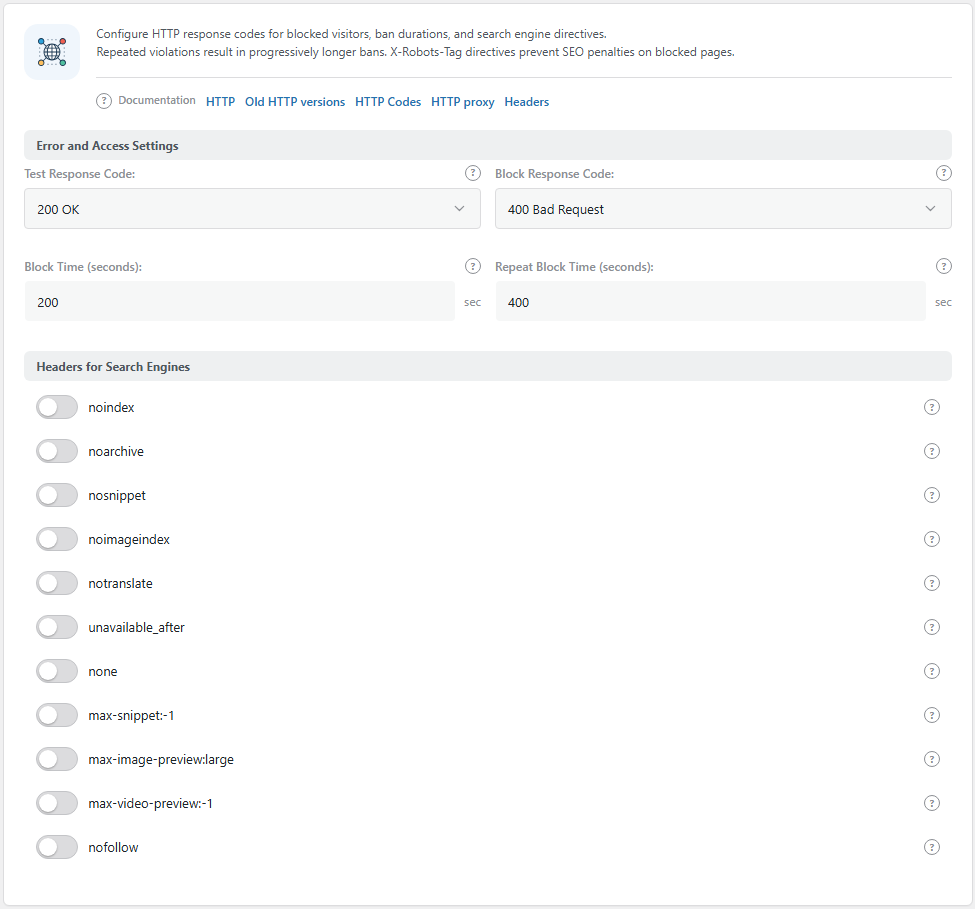
The Error and Access Settings group. Open it from BotBlocker → Settings → System → Error & Access.
Two pages, two codes
BotBlocker sends two kinds of special pages:
- The check page. A visitor that BotBlocker is not sure about gets a short check before the real page. The Test Response Code goes with this page. The default is
200 OK, because the check page is a normal page that the browser must show and run. - The block page. A visitor that BotBlocker refuses gets the block page. The Block Response Code goes with this page. The default is
400 Bad Request.
Both pages also tell search engines not to index them, with an X-Robots-Tag header. So a block page never appears in search results.
How long a block lasts
A visitor who fails the check page, for example a bot that clicks the wrong answer, is blocked for a short time. BotBlocker adds a Block entry for their address to the IP lists with the comment "CAPTCHA fail". The entry lasts for the Block Time: 200 seconds by default.
If the same address failed the check before, in the last 24 hours, the block lasts for the Repeat Block Time instead: 400 seconds by default. So a bot that tries again and again waits longer each round, while a person who made one mistake can try again after about three minutes.
The same happens with every check type, also with hCaptcha and Turnstile. If the check provider itself has an error, BotBlocker does not block the visitor. It shows a simpler check instead.
These two times do not apply to your own Block rules, which have their own end dates, or to rate limiting, which has its own block time.
Settings
Error and Access Settings
Test Response Code:
Default: 200 OK
The status code of the check page. Keep 200 OK. With another code, some browsers, apps, and caches do not show or run the check page correctly, and real people cannot pass.
Change it only when a specific tool needs it and you have tested the result.
Block Response Code:
Default: 400 Bad Request
The status code of the block page. You can select from the common codes, for example 403 Forbidden, 404 Not Found, 410 Gone, 429 Too Many Requests, or 503 Service Unavailable.
Each code tells machines something different:
- 403 Forbidden says clearly "you are not allowed". Monitoring tools often report it as a problem.
- 404 Not Found and 410 Gone say "nothing here". Search engines may drop the page from the index if their own crawler gets this code by mistake.
- 429 Too Many Requests and 503 Service Unavailable say "try again later". Good bots slow down and come back.
If you are not sure, keep 400 Bad Request.
Block Time (seconds):
Default: 200 seconds
How long a visitor is blocked after the first failed check.
- Lower number: a person who made a mistake can try again sooner. Good while you tune your protection.
- Higher number: bots wait longer before they can try again. Good during a steady attack.
A very short time hardly slows down a bot. A very long time makes a mistake feel like a permanent ban to a real person.
Repeat Block Time (seconds):
Default: 400 seconds
How long a visitor is blocked after a second failed check within 24 hours. Keep it longer than the Block Time. That is what makes repeated failures cost more.
If many people share one address, for example in an office or on a mobile network, one bot can make all of them wait. If you see this, make this time shorter.
Headers for Search Engines
The same screen also has the Headers for Search Engines group. It sets the X-Robots-Tag rules for search engines. It is explained in Search and referrer behavior.
When something goes wrong
- A payment, app, or API stops after you change a code? Set the Block Response Code back to
400 Bad Request, then read Payment callbacks. - Your uptime monitor reports the site as down? It is probably blocked and reads the block code. Allow the monitor's address on the IP lists.
- Real people cannot pass the check page? Make sure the Test Response Code is
200 OK. - A real visitor is blocked with "CAPTCHA fail"? Delete the entry on the IPv4 or IPv6 list to let them in at once. If it happens often, read Verification.
- A visitor is blocked again and again? The block time is not the cause. Look in the visitor log for the rule that refused them. See Traffic and audit logs.