Two-factor authentication
Make a stolen password useless: after the password, BotBlocker also asks for a code from the user's phone.
A password is one secret. People reuse passwords, and passwords leak in data breaches on other sites. When an attacker has the correct password, WordPress cannot tell them apart from the real owner. The attacker simply logs in.
Two-factor authentication (2FA) adds a second proof. After the correct password, the user must also type a 6-digit code from an authenticator app on their phone, such as Google Authenticator. The code changes every 30 seconds, and only that phone can make it. A password alone is no longer enough.
You choose which user roles must use 2FA. Start with the accounts that can do the most damage: administrators, and the people who publish or manage orders. The feature is off by default, so nothing changes until you turn it on.
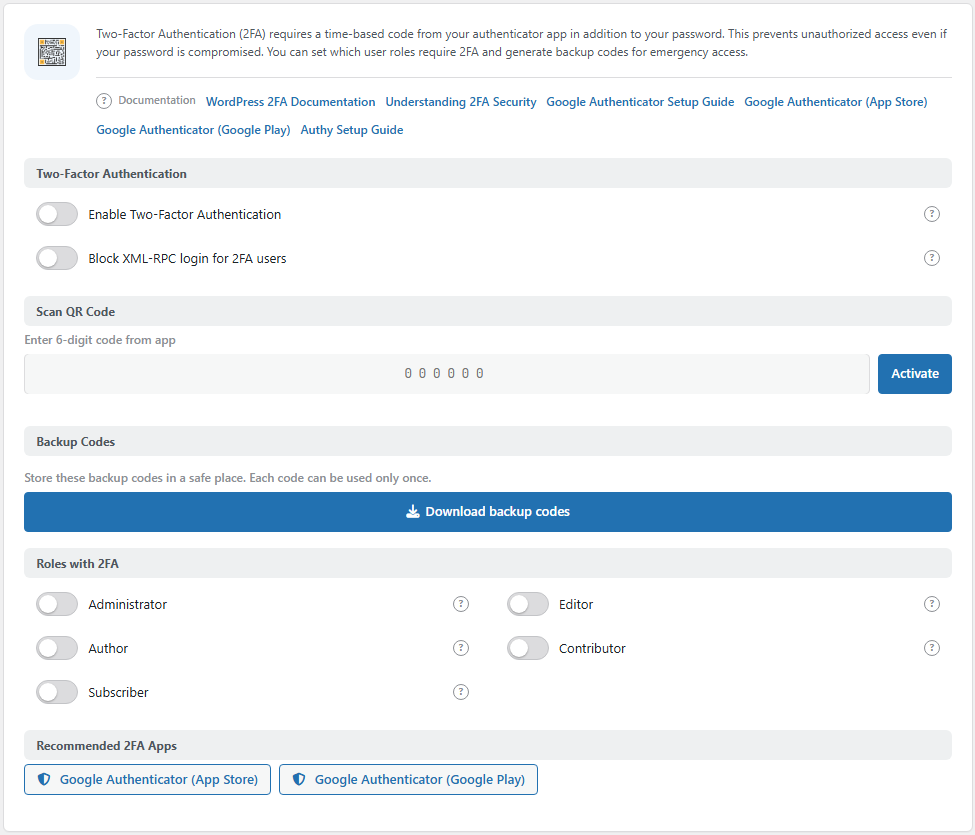
The BotBlocker 2FA panel. Open it from BotBlocker → Integrations → BotBlocker 2FA.
What a protected user sees
The first time. A user in a protected role signs in with the password as usual. Then BotBlocker shows a setup screen with a QR code. The user scans it with an authenticator app, types the 6-digit code that the app shows, and the setup is done. At this moment BotBlocker gives the user 10 backup codes. The user cannot reach the dashboard until the setup is complete.
Every time after that. After the password, BotBlocker shows a short screen that asks for a code. The user types the current 6-digit code from the app, or one of the backup codes. A checkbox, Remember this device for 30 days, lets the user skip the code on that browser for 30 days.
After too many wrong codes. BotBlocker allows 5 code attempts in 5 minutes for each account. After that, the user must wait until the 5 minutes are over. This stops a tool from guessing the 6-digit code.
Backup codes are the spare key
Each user gets 10 backup codes, 16 characters each. Each code works once. The user types it in the same field as the app code. The challenge screen shows how many codes are left.
Tell your users to save their codes outside the site: in a password manager, or on paper in a safe place. Do not keep them on the same phone as the authenticator app. If the phone is lost, the codes must still be there.
If a user loses the phone
There are three ways back in, from easiest to last resort:
- A backup code. The user types one of the saved codes instead of the app code.
- A recovery email. On the challenge screen, the user clicks Lost access? Send recovery email. BotBlocker sends a link to the email address of the account. The link works for 1 hour. When the user opens it, BotBlocker removes the old 2FA setup and shows the setup screen again, so the user can connect a new phone. To stop abuse, the user can ask for a new email only once every 15 minutes, and at most 6 times per day.
- A reset from the command line. If the user has no codes and no access to the mailbox, someone with server access can reset the account with WP-CLI:
wp bbcs 2fa reset <user_id>. The user then sets up 2FA again at the next sign-in.
The Reset 2FA button in the panel resets only your own account. It cannot reset another user. For other users, use the recovery email or the command above.
The 2FA commands
WP-CLI gives server access to four commands. Run them as the site user, from the WordPress folder:
| Command | What it does |
|---|---|
wp bbcs 2fa status <user> |
Shows the state of one account: required, verified, secret set, pending setup, and how many backup codes are left |
wp bbcs 2fa reset <user> |
Removes the setup and the backup codes of one account |
wp bbcs 2fa list |
Lists the accounts that have 2FA data, with their role and state. Add --role=<role> to narrow the list and --format=table|csv|json|count to change the output |
wp bbcs 2fa count |
Prints how many accounts have 2FA enabled, verified, or pending |
Use status before reset when you are not sure what the account has.
On WordPress Multisite
The role list is a per-site setting, but the account rule is not. When the administrator role is protected, a super administrator is covered on every site of the network, including a site whose own role list would not match.
The passed check belongs to the sign-in session. A person who passed the code once is not asked again on each site of the network during the same session. Resetting the secret or the session ends that state, and the person must pass the code again.
A new site in the network does not repeat the setup. Read BotBlocker on WordPress Multisite for the rest of the network behavior.
XML-RPC and application passwords skip the code
Some tools sign in without the normal login page:
- XML-RPC is an older sign-in path. Some mobile apps and desktop blog editors use it. It has no screen where a code can be typed. The Block XML-RPC login for 2FA users setting decides what happens there.
- Application passwords are separate passwords for the REST API. BotBlocker lets them through without a code, because they are made for tools, not for people.
If you protect a role, think about which of these tools the people in that role use. The XML-RPC Tunnel add-on can also control XML-RPC for the whole site.
Turn it on
- Turn on Enable Two-Factor Authentication and select the roles to protect.
- Tell the users in those roles what will happen, and ask them to install an authenticator app. Each account needs a working email address for the recovery link.
- At the next sign-in, each user scans the QR code and saves the backup codes.
If something goes wrong and nobody can sign in, use the links in Emergency recovery secrets.
2FA works together with Login brute-force protection. Brute-force protection slows down password guessing. 2FA makes a correct guess useless without the phone. 2FA does not replace a strong password, and it does not make a weak password safe. Use a unique, long password for every administrator account.
Settings
The panel changes with the account that looks at it. If you have not set up your own 2FA yet, you see the Scan QR Code and Backup Codes groups. If you have finished your setup, you see the Reset 2FA group instead. The switches and the role list are always there.
Two-Factor Authentication
The main switch, and what to do with XML-RPC.
Enable Two-Factor Authentication
Default: Off
Turns 2FA on for the roles that you select below.
- On: users in the selected roles must set up and use 2FA. A user without a setup goes to the setup screen at the next sign-in and cannot reach the dashboard until it is done.
- Off: nobody is asked for a code, no matter which roles are selected.
Tell your users before you turn it on.
Block XML-RPC login for 2FA users
Default: Off
XML-RPC cannot ask for a code. This setting decides if protected users can still sign in through it.
- On: XML-RPC sign-in is refused for accounts in protected roles. The code cannot be skipped this way.
- Off: protected users can still sign in through XML-RPC with only their password. This leaves a way around 2FA.
Turn it on if nobody in the protected roles uses a mobile app or blog editor that needs XML-RPC. If someone does, their app stops working when you turn this on.
Roles with 2FA
Roles with 2FA
Default: No roles selected
One switch for each WordPress role on your site, including roles that other plugins add (for example, a shop manager role). A user must use 2FA if at least one of their roles is switched on here.
If you turn on 2FA but select no role, nobody is protected. Check this list after you install a plugin that adds new roles.
Scan QR Code
Shown only while your own 2FA setup is not finished.
Scan with authenticator app
The QR code for your own account. Scan it with your authenticator app. If the phone cannot read it, type the key shown next to it into the app. Do not share this code or a screenshot of it: anyone with it can make your codes.
Enter 6-digit code from app
Type the code that the app shows, then click Activate. If BotBlocker accepts it, your setup is done. If not, check that you typed the code correctly and that the time on your phone is correct.
Backup Codes
Download backup codes
Saves your 10 backup codes to a file. Each code works once. Save them now: BotBlocker does not show the same codes again later.
Reset 2FA
Shown after your own setup is finished. Both buttons act on your own account only.
Reset 2FA
Removes your 2FA setup and your remaining backup codes, and shows a new QR code. If Enable Two-Factor Authentication is on, you must finish the new setup, now or at your next sign-in. If it is off, your account has no second step until you set it up again. Use this when you move to a new phone.
Revoke all trusted devices
Forgets every browser where you checked Remember this device for 30 days. Those browsers ask for a code again at the next sign-in. Use it after you lose a laptop or sign in on a shared computer.
Recommended 2FA Apps
Links to Google Authenticator for iPhone (App Store) and Android (Google Play), and to setup guides. Any app that makes standard time-based codes (TOTP) works.
When something goes wrong
- The app code is always wrong? The time on the phone is probably wrong. Set the phone to use automatic network time, then try again.
- "Too many attempts. Try again in 5 minutes."? The account used its 5 attempts. Wait 5 minutes.
- A user lost the phone? Ask them to use a backup code, or the recovery email link on the challenge screen. If neither works, reset them with
wp bbcs 2fa reset <user_id>. - The recovery email does not arrive? Check that the account email is correct and that your site can send email. The user can ask again after 15 minutes.
- A mobile app or blog editor stopped signing in? It uses XML-RPC. Turn off Block XML-RPC login for 2FA users, or remove its user's role from the protected roles.
- No administrator can get past the code screen? Reset one administrator with
wp bbcs 2fa reset <user_id>, sign in, and set up 2FA again. For other lockouts (for example, a block before the login page), see Emergency recovery secrets.