Trusted bots and AI crawlers
Let the good bots in, and catch the fakes that only copy their names.
Not every bot is bad. Search engines index your pages. Link preview bots build the cards that people see when they share your link. AI providers read the web with their own crawlers. If you block them, you lose visibility.
But the name of a bot is easy to copy. Any scraper can say "Googlebot" in its User-Agent. So BotBlocker does not trust a name alone. On the Trusted Bots and LLM tabs, each crawler has a name and a proof: where the real crawler comes from. A visitor with the right name and the right origin goes through. A visitor with the right name and a wrong origin is a fake, and BotBlocker refuses it.
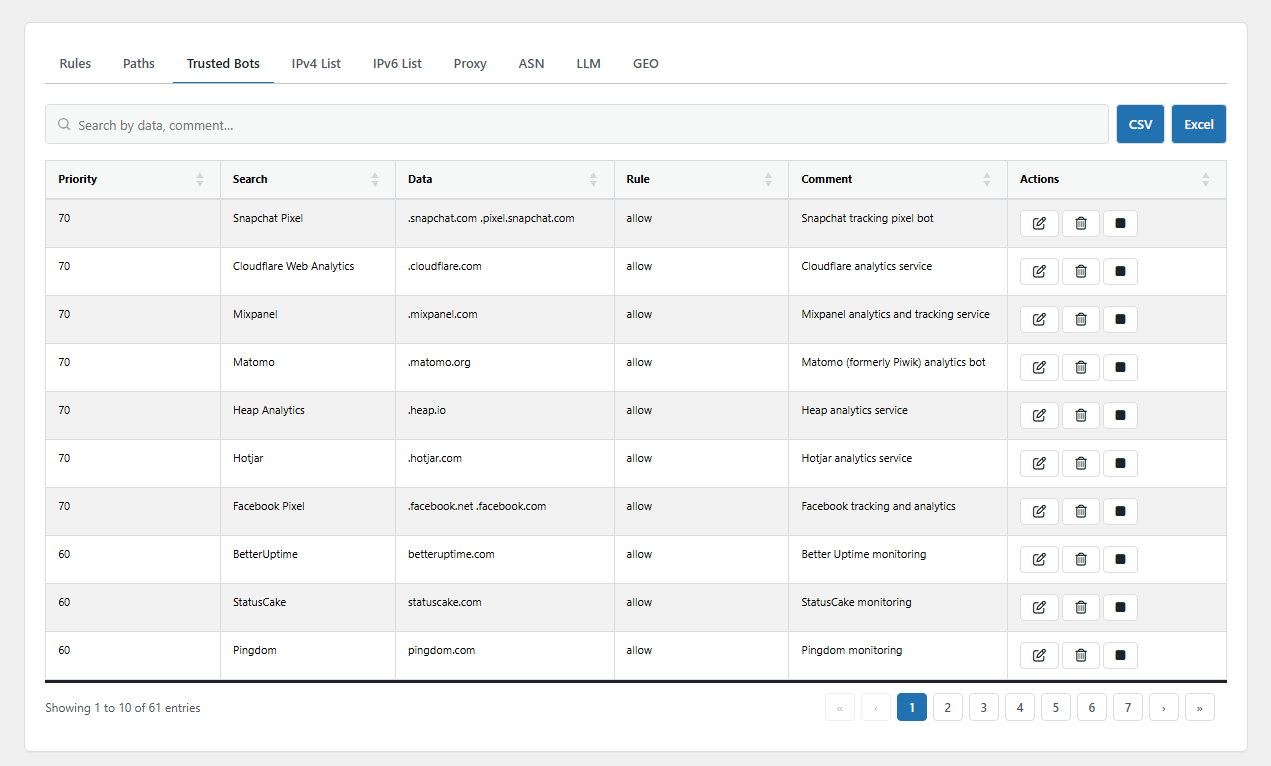
The Trusted Bots tab. Open it from BotBlocker → Rules → Trusted Bots.
Name first, then proof
For each visitor, BotBlocker looks for the Search text of each trusted bot in the User-Agent. Upper and lower case do not matter. When it finds a match, it checks the proof in the Data field. The proof can have three kinds of entries, separated by spaces:
- A host name ending, such as
.googlebot.com. BotBlocker does a reverse DNS lookup of the visitor address. Then it checks that the name ends correctly and that the name points back to the same address. A fake cannot pass this test, because it does not control the DNS of the real provider. BotBlocker saves the result for some time, so it does not repeat the lookup on each visit. See Reverse-DNS cache. - An address or range, written as
ip:66.249.64.0/19. The visitor address must be in that range. - A network, written as
asn:15169. The visitor must come from that network, and the same network must have an Allow rule on the ASN tab. See Country and ASN rules.
If one entry matches, the visitor is a verified good bot. BotBlocker lets it through without the check page and without rate limiting. If no entry matches, BotBlocker refuses the visitor and logs it as "Fake bot detected".
A single dot (.) in Data means "trust the name without proof". Do not use it. Anybody who copies the name gets in.
A fresh installation already has entries for the big search engines and their helper bots, for example Google, Bing, Yandex, Apple, DuckDuckGo, and Baidu. You do not have to add them.
The trusted bots come early
The LLM tab and the Trusted Bots tab are checked before the IP lists and all other rules. So a verified crawler is not stopped by an ASN or country rule in the normal checks. The full order is in Rules and IP lists.
AI crawlers on the LLM tab
The LLM tab lists AI providers and their crawlers. BotBlocker's cloud keeps this list up to date. You do not add entries here. You only decide which providers you trust.
For each provider, the table shows the Provider name, the IP Ranges it publishes, and the UA Tokens, which are the names in the User-Agent. The check works like on the Trusted Bots tab, but only with address ranges. A visitor with a matching token from a listed range is a verified AI crawler. A visitor with a matching token from any other address is refused as a fake.
Each row has Enable and Disable. When you disable a provider, BotBlocker does not block it. It only stops trusting it. Its crawler then goes through the normal checks like any other visitor, and usually it fails the check page. Sync from Cloud gets the latest list now, and Download as JSON saves a copy.
Settings
Trusted Bots
These fields are in the Add Trusted Bot dialog.
Priority
The position of the entry in the list, from 1 to 100. A lower number comes first. BotBlocker stops at the first entry whose name matches. So if two entries can match the same User-Agent, give the more specific one the lower number. The built-in search engine entries use priority 1.
Rule
Default: Allow
The action for a matching crawler: Allow, Gray, Dark, or Block. Only Allow uses the proof in Data. The other actions apply to every visitor with this name, without a check of the origin:
- Allow: check the origin, then let the real crawler through.
- Gray: mark the visitor as suspicious.
- Dark: send the visitor to the check page.
- Block: refuse every visitor with this name. Use it for a crawler you never want, for example an aggressive SEO tool.
Search
The text to find in the User-Agent, for example Googlebot. Use the part that is unique to this crawler. A short or common text, such as bot, matches far too many visitors.
Data
The proof of origin: host name endings such as .googlebot.com .google.com, ip: ranges, or asn: networks, separated by spaces. Copy them from the crawler's own documentation. For example, Google publishes how to verify Googlebot.
If the proof is wrong or out of date, the real crawler is refused as a fake. If the proof is too loose, fakes get in.
Comment
The name of the crawler and where you found its proof, for example "Bing, from Microsoft documentation". This helps you update the entry later.
LLM
The LLM tab has no fields. You use Enable and Disable in each row, and the Sync from Cloud and Download as JSON buttons above the table. If the table is empty, click Sync from Cloud.
When something goes wrong
- A crawler you want is refused as "Fake bot detected"? Its origin does not match the Data field. The provider may have new host names or ranges. Update Data from the provider's documentation. Do not replace it with a dot.
- A crawler you want still gets the check page? Check that its entry is switched on and that Search is in its real User-Agent. Look at the User-Agent in the visitor log, see Traffic and audit logs.
- Real crawlers fail the host name check everywhere? Your server may not be able to do DNS lookups. Ask your host, and read Reverse-DNS cache.
- You want to keep out all AI crawlers of one provider? Disable the provider on the LLM tab. To refuse them at once, also add a Block entry with their token on the Trusted Bots tab.
- The LLM tab is empty? Click Sync from Cloud. BotBlocker also tries to repair an empty list by itself after a few minutes.