Visitors arriving from app browsers
Let real people in when they open your link inside Instagram, Facebook, LinkedIn, X, or WhatsApp.
Many people never open your site in a normal browser. They tap a link in a social app, and the page opens in a small browser inside that app. These in-app browsers behave in unusual ways. Their browser name can look like a crawler. They send the phone's language, not the person's. They can send a strange Referer. And mobile networks are sometimes listed as hosting providers.
The result: a real person matches several bot signals at the same time and sees the "access denied" page. They do not know why, and you only see it if you read the log.
In-App Browser Mode fixes this. When a visitor from an in-app browser is about to be refused for one of the selected reasons, BotBlocker sends them to the check page instead. A real person passes and continues. A bot that only copied the app's name still has to pass the check.
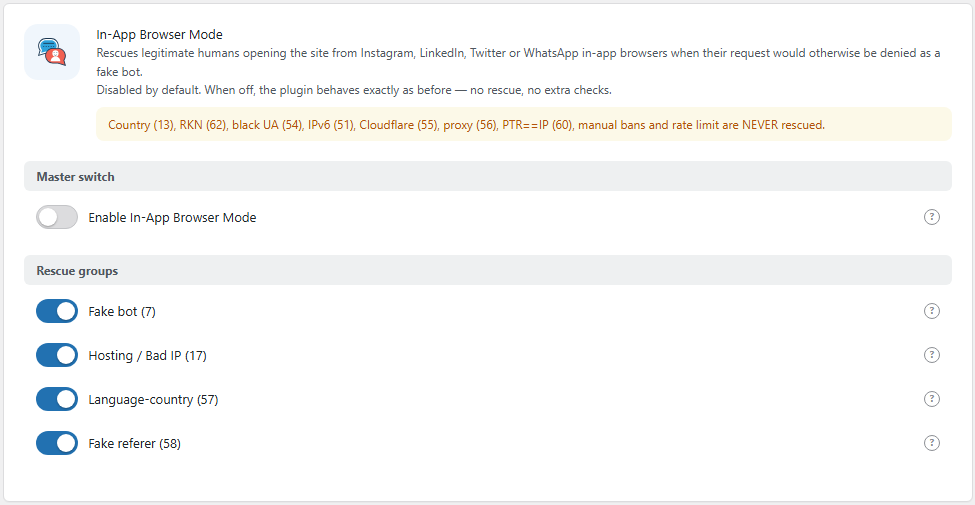
The In-App Browser Mode panel. Open it from BotBlocker → Settings → Access Control → In-App Browser Mode.
A rescue is a second chance, not a free pass
The mode acts only at the moment a refusal is already decided. It then asks two questions:
- Is the refusal reason one of the selected rescue groups? If not, the refusal stays.
- Is the visitor using an in-app browser? BotBlocker looks for app names in the User-Agent:
Instagram,FBAN,FBAV,FBDV(Facebook),LinkedInApp,Twitter for iPhone, andWhatsApp/.
If both answers are yes, the refusal is cancelled:
- A visitor who already has a valid verification cookie goes straight to the page.
- Everyone else goes to the check page and must pass it like any doubtful visitor.
Because the rescue ends at the check page, faking an app name gives a bot nothing more than a normal visitor gets.
When the mode is off, BotBlocker behaves exactly as before. There are no extra checks and no extra cost.
Some refusals are never rescued
The panel shows a warning with the reasons that stay final, whatever the browser. These are rules you set on purpose, or clear network facts:
- Country blocks (code 13) and the RKN list (code 62).
- Blacklisted User-Agent (code 54) and IPv6 (code 51).
- Cloudflare (code 55), proxy (code 56), and an IP address with no reverse-DNS name (code 60).
- Manual bans in your IP rules, and rate limiting blocks.
It shows in the log
If logging of blocked visitors is on, each rescue is written to the log as "In-app browser rescue", with the original reason. When an in-app visitor is refused for a reason that is not rescued, the log says "In-app UA detected, deny ... NOT rescued". So you can see both what the mode did and what it could not do. See Log and reports.
Settings
Master switch
Enable In-App Browser Mode
Default: Off
Turns the rescue on for the groups selected below.
- On: in-app visitors refused for a selected reason go to the check page instead.
- Off: nothing changes. Refusals work as before.
Turn it on if your site gets traffic from social apps, or if your log shows refusals with codes 7, 17, 57, or 58 for mobile visitors.
Rescue groups
Each switch covers one refusal reason. All four are on by default, so turning on the master switch rescues all of them. Turn one off if you want that refusal to stay final even for app visitors.
Fake bot (7)
Default: On
The case this mode was built for. The app's browser name looks like a known crawler, but the mobile IP address has no matching reverse-DNS name, so BotBlocker treats it as a fake bot. This is the typical Instagram case.
Hosting / Bad IP (17)
Default: On
Some mobile networks are wrongly listed as hosting providers. Real phones on these networks look like servers. See Connection types.
Language-country (57)
Default: On
In-app browsers send the phone's language. A person with an English phone in Germany then fails Geo IP / Language Mismatch. See Bot detection signals.
Fake referer (58)
Default: On
Some apps send a Referer that is not a valid web address. That fails Fake Referer. See Bot detection signals.
If visitors from one app are still refused
- Find the reason first. Open BotBlocker → Reports, find an entry close to the complaint, and read the reason code.
- The code is 7, 17, 57, or 58. Check that the master switch is on and that the matching group is on. Then ask the visitor to try the same link again.
- The log says "NOT rescued". The reason is on the never-rescued list. Change the rule that caused it, for example a country block, if the refusal is wrong.
- The log shows no in-app entry. The app may use a browser name that BotBlocker does not know. It is then handled as a normal browser. Look at the reason and adjust that setting.