Maintenance actions
Keep BotBlocker's data fresh and tidy: refresh downloaded lists, clear old caches, and start over when you must.
BotBlocker keeps its own working data. It records visits, remembers answers in a cache so that it does not look them up again, and uses lists that it downloads from outside sources. This data makes the protection smart. But over time, caches can become old, lists can go out of date, and the visitor history can grow large.
The Maintenance tab lets you manage this data with one click. Some buttons are safe refreshes: they download a newer list or empty a cache that BotBlocker fills again by itself. Other buttons delete data for good. They cannot be undone, so they ask you to confirm first.
The rule is simple: use the refreshes when you need them, and use the deletions only with a reason and a backup.
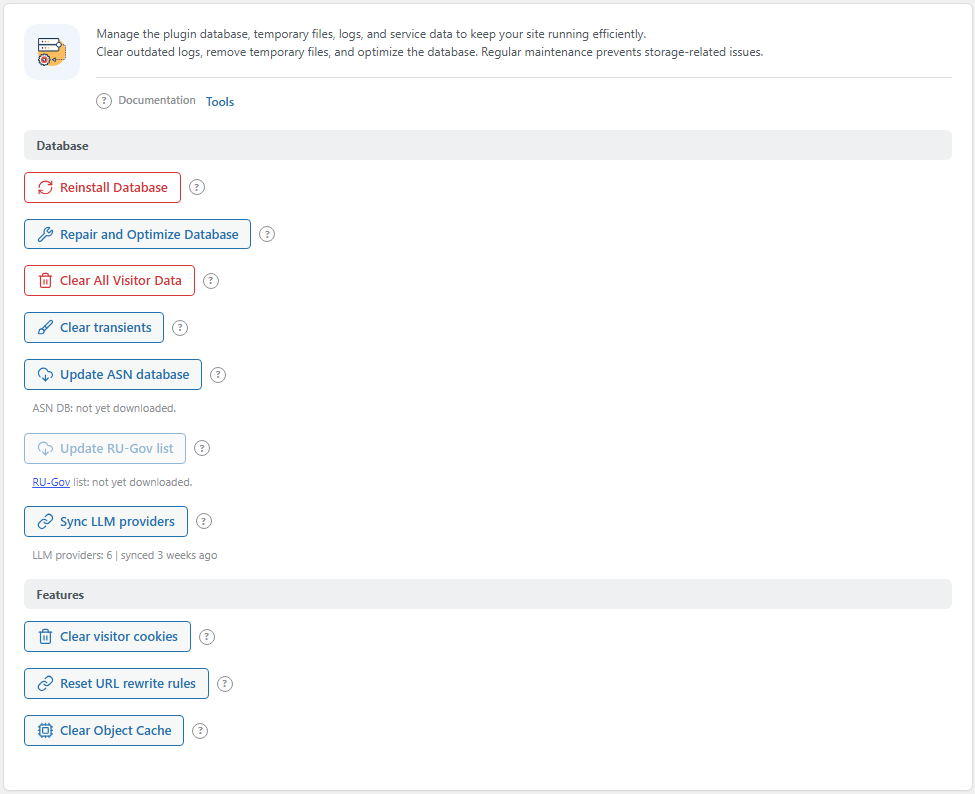
The Maintenance tab. Open it from BotBlocker → Tools → Maintenance.
Safe refreshes and permanent deletions
This table shows what each button does to your data.
| Button | What it changes | Can you undo it? |
|---|---|---|
| Update ASN database | Downloads a new ASN database in the background | Not needed |
| Update RU-Gov list | Downloads a new RU-Gov network list in the background | Not needed |
| Sync LLM providers | Downloads the AI provider list from the BotBlocker cloud | Not needed |
| Clear transients | Deletes BotBlocker's cached values. They come back by themselves. | Not needed |
| Clear PTR cache | Deletes saved reverse-DNS answers. They are looked up again on the next visit. | Not needed |
| Reset URL rewrite rules | Builds the WordPress permalink rules again | Not needed |
| Clear Object Cache | Empties the object cache. It fills again by itself. | Not needed |
| Repair and Optimize Database | Only shows instructions | Not needed |
| Clear visitor cookies | Makes all verification cookies invalid | No |
| Clear All Visitor Data | Deletes all visit records and statistics | No |
| Reinstall Database | Resets your settings and rule lists to the defaults | No |
Only a user who can manage BotBlocker can use these buttons: an administrator, or the network administrator on multisite.
Before you delete anything
A deletion is final. Do these steps first:
- Make a full backup of the site files and database, with your host or a backup plugin.
- Make an extra copy of your BotBlocker setup with Export data and settings in Tools.
- If the visitor history is important, look at it or export it in Traffic and audit logs.
- Run one deletion at a time. Reload the page and check the result before you do the next one.
Background downloads need WP-Cron
Update ASN database and Update RU-Gov list do not download on the click. They put a job in the WordPress cron queue, and the download starts a few seconds later. If WP-Cron does not run on your site, the button says "scheduled", but nothing arrives. On a quiet site, set up a real server cron job. Monitoring overview explains how.
Under the buttons, a status line shows when each list was last updated and how big it is. If a download failed, the error is shown there too.
Database
This group refreshes and clears the data that BotBlocker keeps in the database.
Update ASN database
An ASN tells which network an IP address belongs to, for example a hosting company or a home internet provider. BotBlocker uses this data for its ASN rules in GEO and ASN rules. This button starts a new download of the ASN database from the BotBlocker servers. It changes no settings. If a download is already waiting, BotBlocker tells you that it is already scheduled.
Update RU-Gov list
This button downloads a fresh copy of the RU-Gov network list, a public list of IP ranges that belong to Russian government networks (VK networks are left out). BotBlocker uses it for the Block RKN option in Bot detection signals. The button is grey until Block RKN is on. Turn that option on first.
Sync LLM providers
BotBlocker keeps a list of known AI services, with their user-agent names and IP ranges. It uses this list to recognize real AI crawlers in Trusted bots. This button gets the newest list from the BotBlocker cloud right now, without waiting for the normal schedule. Your server must be able to connect to the internet. If the sync fails, the old list stays.
Repair and Optimize Database
This button does not change anything by itself. It opens a short guide on how to use the built-in WordPress database repair tool:
- Add
define( 'WP_ALLOW_REPAIR', true );towp-config.php. - Open the repair page that the guide links to, and run the repair.
- Remove the line from
wp-config.phpagain.
Do not forget step 3. While the line is there, anyone who knows the address can open the repair page, without a login. See the WordPress guide to wp-config.php for details.
Clear transients
Transients are small cached values with an end time. This button deletes all of BotBlocker's transients from the database, not only the expired ones. Other plugins' transients stay. Use it when a change does not show, and you think an old cached value is the cause. Nothing important is lost. BotBlocker builds the values again, so the next few requests can be a little slower.
Clear PTR cache
When BotBlocker checks a trusted bot, it looks up the reverse DNS name of the visitor's address. That name is the PTR record. It turns an address back into a host name, and the plugin uses it to confirm that a request that says "Googlebot" really comes from Google. Each answer is kept in a cache, so the DNS server is not asked again on every hit.
Sometimes the DNS server does not answer in time. Older versions saved that failed lookup as if it were a real answer, and the visitor stayed unverified for a long time. This version never saves a failed lookup, and it removes the failed answers that earlier versions stored. The button is there when you want a clean start: it deletes every saved answer and empties BotBlocker's cache. Use it after the upgrade, or when a search engine or PageSpeed Insights reports a 400 error on a page that should be open. The next visit looks the name up again.
The button works on the current site only. On a multisite network, run it on each site that needs it.
Clear All Visitor Data
This button deletes the full visit history: normal visits, suspicious visits, cloud-checked visits, the Dashboard counters, and the daily statistics. It also clears BotBlocker's transients, so old totals do not come back from the cache. Your settings, rules, and downloaded lists stay.
You cannot undo this. Your statistics are the proof that shows if a setting change helped. So clear them only with a good reason: for example, after you move to a new domain, or after a spam flood that you do not want in your reports.
Reinstall Database
This button puts BotBlocker's settings and main rule lists back to the state of a new install. It empties your settings, search-engine rules, path rules, general rules, and IPv4 and IPv6 address rules. Then it builds the default data and the rule files again, and resets the daily statistics. Your visit history is not deleted. For that, use Clear All Visitor Data.
You cannot undo this. Every change you made is gone. Do not use it to undo one wrong setting. Change that setting instead. Use it only when you really want to start from zero, and export your setup first.
Features
This group works on the running site.
Reset URL rewrite rules
WordPress uses rewrite rules to turn a friendly address like /about-us/ into the right page. Sometimes these rules get out of step, and pages show a 404 error. This happens most often after you change the permalink structure or add a plugin that adds new pages. This button builds the rules again. It can also rewrite the .htaccess file on Apache servers. After you click it, open a few pages to check them.
Clear Object Cache
The object cache keeps database results in memory, so WordPress does not ask the database again and again. This button empties it. If you use Redis or Memcached, it empties that cache too. See Cache backends. Use it when content or settings do not update. The site is a little slower for a short time while the cache fills again.
Clear visitor cookies
When a visitor passes a check, BotBlocker gives them a signed cookie, so they do not have to pass the check again. This button replaces the site salt. Then all old cookies stop working, and every visitor must pass the check one more time. On a multisite network it changes only the current site.
Use it after you make protection stricter and want returning visitors to follow the new rules at once. You cannot undo it. Expect more checks than usual for a short time. Real visitors are not locked out. They only pass the check again. The salts are explained in Emergency recovery secrets.
When something goes wrong
- The update date under a button does not change? WP-Cron probably does not run. Check the status line for an error, and set up a server cron job as Monitoring overview explains.
- Update RU-Gov list is grey? Block RKN is off. Turn it on in Bot detection signals.
- Sync LLM providers fails? Your server cannot reach the BotBlocker cloud. Ask your host if outgoing connections are blocked.
- Pages show 404 errors after a permalink change? Click Reset URL rewrite rules, then check the permalink setting in WordPress.
- More visitors get checks after you cleared cookies or caches? This is normal for a short time. Watch Monitoring overview until it goes back to normal.
- You deleted data and also lost admin access? Use Emergency recovery secrets.