hCaptcha
Use hCaptcha, a check that many visitors already know, on your BotBlocker check page.
BotBlocker has its own built-in checks. They run on your own site, and they work well. But some site owners prefer a well-known outside service. hCaptcha has seen millions of visitors on other sites, so it brings its own bot signals.
With this add-on, hCaptcha takes the place of the built-in check. Everything else stays the same: the same visitors get a check, and a visitor who passes is let in, as before.
The check comes from hCaptcha, not from your site. The visitor's browser loads it from hCaptcha's servers.
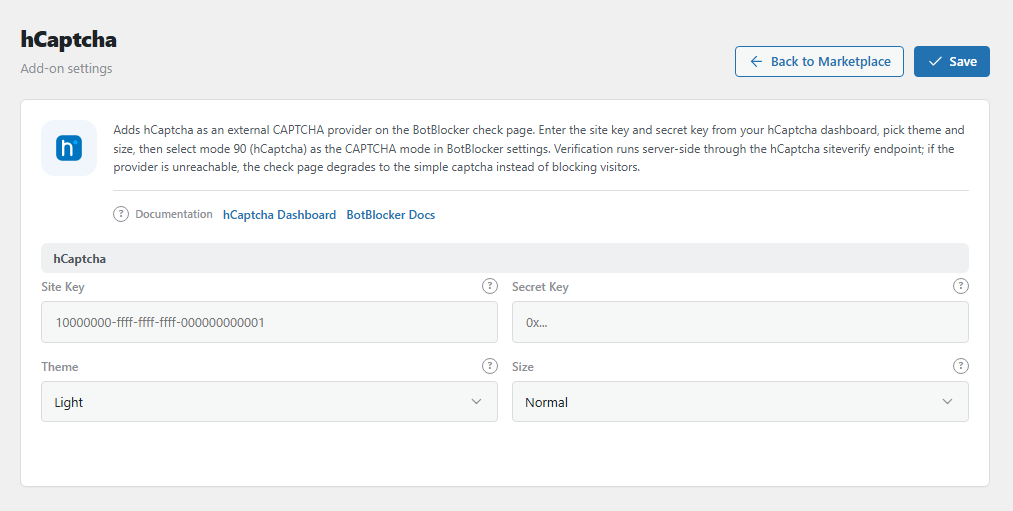
The hCaptcha panel. Open it from BotBlocker → Add-ons.
Two steps to turn it on
The add-on does nothing until you do both steps:
- Save your keys here. In your hCaptcha account, add your site. Copy the site key and the secret key into this panel.
- Select hCaptcha as your check. Go to the CAPTCHA settings and pick hCaptcha as the challenge.
hCaptcha is grayed out in the CAPTCHA list until both keys are saved. This protects you: BotBlocker never shows a check that nobody can pass.
What the visitor sees
A suspicious visitor comes to the check page. Now they see the hCaptcha box instead of the built-in check. When hCaptcha is happy, the page continues by itself, and BotBlocker lets the visitor in.
You choose how visible the box is:
- Normal or Compact: a box with a checkbox. The visitor clicks it. Sometimes hCaptcha also asks for a picture puzzle.
- Invisible: no checkbox. The check starts by itself. hCaptcha shows a puzzle only when it is not sure about the visitor.
What goes to hCaptcha
The visitor's browser loads the box from js.hcaptcha.com. hCaptcha sees that visitor like any other website does.
When the visitor passes, your server asks hCaptcha: "Is this answer real?" It sends the answer, your secret key, and the visitor's IP address. hCaptcha says yes or no. BotBlocker trusts that answer.
If hCaptcha says no, BotBlocker treats it as a wrong answer, the same as in the built-in check. It blocks the visitor's IP address for the Block Time from Blocks and responses.
If hCaptcha cannot check the answer, BotBlocker does not block the visitor. It shows the Button check instead, and the visitor clicks the button to continue. This happens when your server cannot reach hCaptcha, hCaptcha sends a server error, or your secret key is wrong. If Log Manual Verification Requests is on, the log entry for that visit shows CAPTCHA provider error and the reason.
Settings
There are only four settings. You must fill the two keys. The look is up to you.
hCaptcha
Site Key
Default: empty
The public key from your hCaptcha account. The browser uses it to show the box. It is not a secret: anyone can see it in the page.
Copy it with no extra spaces. It looks like 10000000-ffff-ffff-ffff-000000000001.
Secret Key
Default: empty
The private key. Your server uses it to ask hCaptcha if an answer is real. It never goes to the browser.
Keep it private, like a password. Never put it in a page, a screenshot, or a support message. If someone sees it, make a new one in your hCaptcha account and paste it here.
Theme
Default: Light
The color of the box: Light or Dark. Pick the one that fits your check page. For example, pick Dark if your check page has a dark background.
Size
Default: Normal
How big the box is, and how much the visitor must do.
- Normal: the standard box with a checkbox.
- Compact: a smaller, taller box. Good for narrow phone screens.
- Invisible: no box. The check runs by itself, and a puzzle shows only when hCaptcha is not sure.
Invisible is the easiest for visitors. But hCaptcha alone decides who sees a puzzle. After you switch, watch your reports for some days.
If visitors get stuck
- You cannot select hCaptcha in the CAPTCHA settings? One of the keys is empty. Save both keys here first.
- Nobody can pass the check? Make sure both keys come from the same hCaptcha site. Make sure you did not swap them: the site key is public, the secret key is private. Check for extra spaces.
- The box does not show at all? Something blocks
js.hcaptcha.com, for example an ad blocker or a strict firewall. Test in a private window with browser extensions turned off. - Visitors pass the box, but then see the Button check? hCaptcha could not check the answer. The secret key is wrong, or your server cannot reach hCaptcha. The log entry shows the reason. Check the secret key first. Then ask your host if outgoing connections to
api.hcaptcha.comare allowed. - You still see the built-in check? hCaptcha is not selected in the CAPTCHA settings.
- You must let visitors in now? Switch the challenge in the CAPTCHA settings back to a built-in check. Your keys stay saved here for later.