Traffic and audit logs
Decide what BotBlocker writes down, so you can always explain a block later.
When BotBlocker refuses a request, the visitor sees only a short message. The reason stays on your side. If nothing was recorded, a complaint from a real customer turns into guesswork, and an attack that passed through leaves no trace. The traffic log fixes this. It keeps each examined request together with the decision BotBlocker made, so you can look it up later on the Log and Statistics page (BotBlocker → Reports).
BotBlocker also keeps a second, separate record: the audit log. It does not follow visitors. It follows what your own WordPress users do, such as signing in, changing settings, installing plugins, or deleting users. When more than one person manages the site, this is how you find out who changed what, and when.
You decide which request types are recorded, how long the records stay, and which user roles the audit log follows. To read the records, see Log and reports.
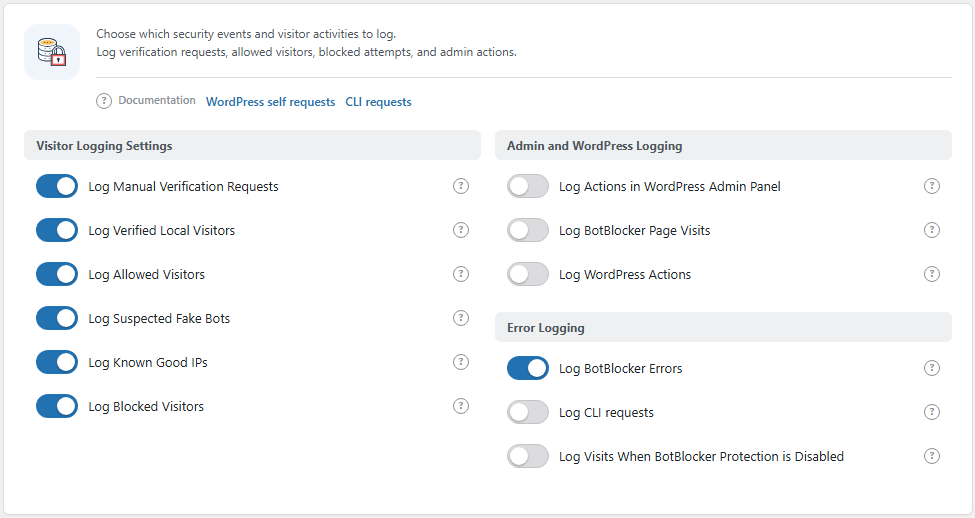
The Logging panel. Open it from BotBlocker → Settings → Data → Logging. The audit log settings are on BotBlocker → Settings → Data → Data Log & Processing.
You choose what goes into the traffic log
BotBlocker sorts each request into a category before it writes it down: a verification, an allowed visitor, a blocked visitor, an admin request, and so on. Each category has its own switch. When a switch is off, BotBlocker still protects the site as usual. It only skips the log entry.
The defaults record the requests that answer everyday questions: who was checked, who was allowed, who was blocked, and what went wrong inside BotBlocker. The noisy categories are off: admin-area requests, WordPress system requests, command-line runs, and visits while protection is off. Turn one of those on when you investigate that kind of request, and turn it off again when you are done. A short, focused window of extra logging is more useful than weeks of everything, and it keeps the database small.
Each entry holds the visitor's IP address and host name, network, country, language, device, operating system, browser, user agent, the requested page, the referrer, and BotBlocker's decision. You can leave out the browser, operating system, and device fields with the switches in Privacy and data.
Old records are removed every day
A daily scheduled task (Clear History in the task list) deletes traffic records older than the Log Retention Period: and audit entries older than the Audit Log Retention:. Both periods accept 3, 5, 7, 10, 14, or 30 days, and both start at 7 days. The traffic retention is described in Notifications and reports.
When a record is deleted, no search or report can bring it back. If you often find out about problems a week or two later, choose a longer period before you need it. The daily task runs through WordPress cron; if cleanup seems to stop, see the Cron Jobs add-on and Tools and maintenance.
The audit log follows your team, not your visitors
The audit log records actions in these areas: sign-in and sign-out (including failed sign-ins and two-factor events), posts and pages, users and roles, media, comments, categories and tags, plugins and themes, WordPress core updates, WordPress settings, and BotBlocker itself (settings, rules, add-ons, maintenance, and use of the secret on/off links). Each entry has a severity (information, medium, or critical) and stores who did it, their role, the IP address, the user agent, and where the action came from, for example the admin area, a REST call, or WP-CLI.
You choose which roles to follow. If a user has several roles, BotBlocker records them when at least one of their roles is on. So a switched-off secondary role never hides the actions of an administrator.
Settings
The logging switches are on BotBlocker → Settings → Data → Logging. The audit log settings are on BotBlocker → Settings → Data → Data Log & Processing.
Visitor Logging Settings
These switches cover ordinary visitors on the public site.
Log Manual Verification Requests
Default: On
Records the visitors that BotBlocker sends to the check page or a captcha. These entries show how often real verification is needed. If the number is very high, your detection may be too strict; if it is almost zero, it may be too relaxed.
Log Verified Local Visitors
Default: On
Records visits from browsers that already passed a check and carry a valid BotBlocker cookie. This is your returning, trusted traffic. It helps when a visitor says they are checked again and again: you can see whether their cookie was accepted or reset.
- On: you see the full picture of returning visitors, but the log grows fast on a busy site.
- Off: the log stays smaller, but you cannot follow a verified visitor from page to page.
Log Allowed Visitors
Default: On
Records visitors that passed all checks or matched an allow rule. This is the comparison group. Without it you see what was refused, but not what normal traffic looked like at the same time.
Log Suspected Fake Bots
Default: On
Records visitors that BotBlocker flagged as likely bots because their browser details do not agree with each other. Read these entries when you tune detection, because they were refused on suspicion, not on a fixed rule.
Log Known Good IPs
Default: On
Records good bots that BotBlocker confirmed, for example a search engine crawler whose host name matches a trusted bot rule. It confirms that your trusted bot rules work. Turn it off if this routine crawler traffic fills too much of the log. Visitors that match an allow rule are logged under Log Allowed Visitors.
Log Blocked Visitors
Default: On
Records every refused request. This is your main evidence when a visitor reports a problem or when you want to see a repeated attack. Keep it on.
Admin and WordPress Logging
These switches cover requests that are not ordinary page views. They are off by default because they are noisy.
Log Actions in WordPress Admin Panel
Default: Off
Records requests from signed-in administrators, and requests to admin and technical paths such as /wp-admin/, /wp-login.php, admin-ajax.php, xmlrpc.php, /feed/, robots.txt, sitemaps, and files under /wp-content/ and /wp-includes/. It also records signed-in users who skip the checks. Turn it on when you investigate login or admin-area traffic. Expect many more entries while it runs.
Log BotBlocker Page Visits
Default: Off
Records visits to BotBlocker's own admin screens (Dashboard, Settings, Rules, Tools, and so on). This is mostly useful for support and debugging. Visits to the check page are recorded by Log Manual Verification Requests.
Log WordPress Actions
Default: Off
Records requests to WordPress system addresses: wp-cron.php, the REST API (/wp-json/), comment submissions (wp-comments-post.php), trackbacks, and media uploads (async-upload.php). Turn it on when you investigate comment spam, API abuse, or background tasks. The login page itself is covered by the admin switch above, not this one.
Error Logging
Log BotBlocker Errors
Default: On
Records errors inside BotBlocker, for example a failed response. When something behaves strangely, this is usually the first place that explains why. Keep it on.
Log CLI requests
Default: Off
Records requests that run from the command line, such as WP-CLI commands or a server cron job that calls PHP directly. Turn it on when scheduled work behaves differently from web traffic, or when you want to see whether command-line tools reach the site.
Log Visits When BotBlocker Protection is Disabled
Default: Off
Records traffic that arrived while BotBlocker protection was off, for example during maintenance or after the secret "off" link was used. It explains a missing check: if a request has no decision, this category shows that protection was not active at that moment.
Audit Log
Enable Audit Log
Default: On
Turns the record of user actions on or off. It fills the Audit Log tab on BotBlocker → Reports. Keep it on if more than one person manages the site, or if a developer or host may need to see later what changed. Turning it off stops new entries; the existing ones stay until the daily cleanup removes them.
Audit Log Retention:
Default: 7 days
Sets how long audit entries stay before the daily cleanup deletes them. You can choose 3, 5, 7, 10, 14, or 30 days.
- Shorter: a smaller database and less stored information about your staff.
- Longer: you can still answer "who changed this?" when someone notices a change weeks later.
Roles to Audit
Default: All roles on
One switch for each WordPress role on your site, for example Administrator, Editor, Author, Contributor, and Subscriber, plus roles that other plugins add. BotBlocker records actions only from users with at least one role that is on. Turn off a role only when its actions do not matter to you, for example Subscriber on a shop with thousands of customer accounts.
Common problems
- Nothing is recorded for a request. Check that its category is on. Remember that admin paths such as
/wp-login.phpfall under Log Actions in WordPress Admin Panel, and REST or comment requests under Log WordPress Actions. - An expected visit has no decision. Turn on Log Visits When BotBlocker Protection is Disabled to see whether protection was off. Also check the retention period: the entry may already be deleted.
- The log is large or slow to open. Turn off the noisy categories first (admin, WordPress actions, verified local visitors), then shorten the retention period.
- The Audit Log tab is empty. Check that Enable Audit Log is on and that at least one role under Roles to Audit is on.
- Old records are never deleted. The cleanup runs from WordPress cron. Check the Clear History task under BotBlocker → Settings → Data → Cron Jobs.