BotBlocker on WordPress Multisite
Protect every site in your network with one activation, and keep each site's data apart.
A WordPress network (multisite) runs many sites from one installation, one database and one set of plugins. That raises questions a single site never has. Does one activation protect all sites? Does a change on one site change the others? Where is each site's data?
BotBlocker knows about networks. You can activate it for the whole network or for single sites. Each site gets its own settings, rules and logs. Only the PRO license is shared.
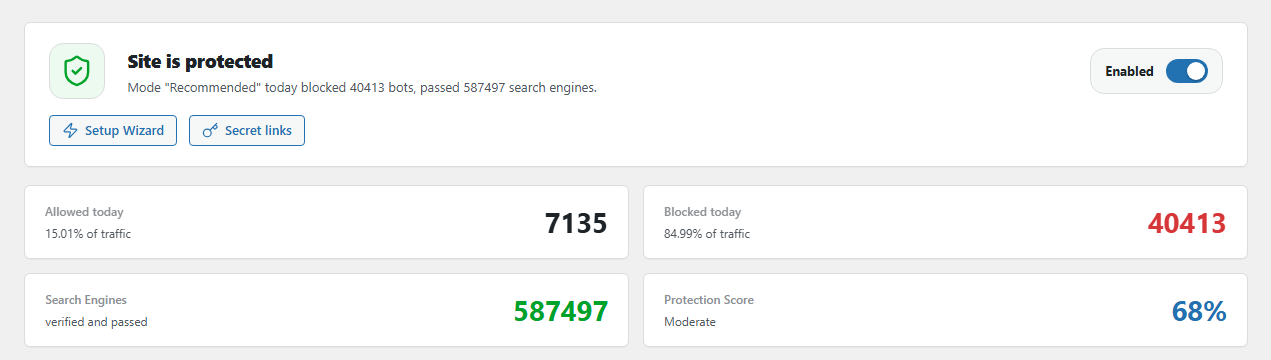
The BotBlocker Dashboard of one site. You activate BotBlocker for the network from Network Admin → Plugins.
Two ways to activate
Network activation protects every site at once. Go to Network Admin → Plugins and click Network Activate. BotBlocker prepares each site, in batches of 50 so that a large network does not overload the server. A site you create later is protected by itself.
Activation per site protects only the sites you choose. On each site, go to Plugins and click Activate. A new site has no protection until you activate BotBlocker there too.
| Network activation | Per site | |
|---|---|---|
| New sites protected by themselves | Yes | No |
| Who can open BotBlocker screens | Super admins only | Each site's admin |
| Best for | One owner, one security policy | Sites run by different people |
Who can change settings
On a network-activated install, BotBlocker screens need the right to manage the network. In practice, only a super admin sees them. A site admin does not see BotBlocker, but the site is still protected. This stops one policy from being changed in many places.
There is no BotBlocker screen in Network Admin itself. Switch to a site, and open BotBlocker in that site's dashboard.
One license, separate sites
The PRO license is the only thing that all sites share. You connect it once, on any site, and every site in the network gets PRO. When you connect it, BotBlocker also turns on Cloud Validation on every site. When you disconnect it, the change also goes to every site. See Cloud API.
Everything else is per site: settings, IP rules and bans, visit and audit logs, counters, and the Setup Wizard. BotBlocker does not copy one site's setup to the others. A ban you add on one site does not block that address on the other sites.
Run the Setup Wizard on each site, and configure each site on its own.
After you activate
Run the Setup Wizard on each site. Each site starts with safe defaults, and the wizard sets it up for that site's needs.
Two-factor authentication is the exception to the per-site rule. The role list is per site, but a super administrator is covered on every site when the administrator role is protected, and the passed check follows the sign-in session instead of the site. Read Two-factor authentication.
Removing sites and the plugin
When you delete a site from a network-activated install, BotBlocker turns off that site's add-ons and background tasks.
When you delete the plugin from the network, BotBlocker removes the tables and data folder of every site and the shared network values. Take a backup first.
Common problems
- A site looks unprotected after network activation? Check that Network Admin → Plugins shows BotBlocker as network-active. Then open Health Status on that site.
- You cannot open BotBlocker on a site? On a network-active install you need super admin rights.
- A new site has no protection? BotBlocker is active per site. Activate it on the new site, or use network activation.
- A ban on one site does not work on another? That is expected. Bans are per site.
- Settings from one site are missing on another? That is expected. Settings are per site. Run the Setup Wizard on that site.
- The license or Cloud Validation changed on all sites at once? That is how it works on a network. See Cloud API.
- You locked yourself out of every site? One rule that matches your address can block you on each site where you added it. Use Emergency recovery secrets.
- A missing-files notice appears, or lookups fail? Check that the site's uploads folder exists and can be written. If the main site's folder moved, the shared files are missing until BotBlocker rebuilds them.