Browser checks
Catch bots that dress up as real browsers, without locking out real people.
Modern bots do not send broken headers. They run a real browser engine in the background, often controlled by a script, and they copy the name of a normal browser. Some use "anti-detect" tools that change the browser's details on purpose, so each bot looks like a new visitor.
These tools are good, but not perfect. They change what the browser says, and they often forget to change how it behaves. A browser that says "Chrome on an iPhone" but has no touch screen, or that lists plugins no real browser has, is suspicious. The browser checks look for these contradictions.
The checks run on the check page, inside the visitor's browser. When they find enough evidence, the visitor does not pass automatically and must solve a challenge. A real person with an unusual browser can still get in. A bot usually cannot.
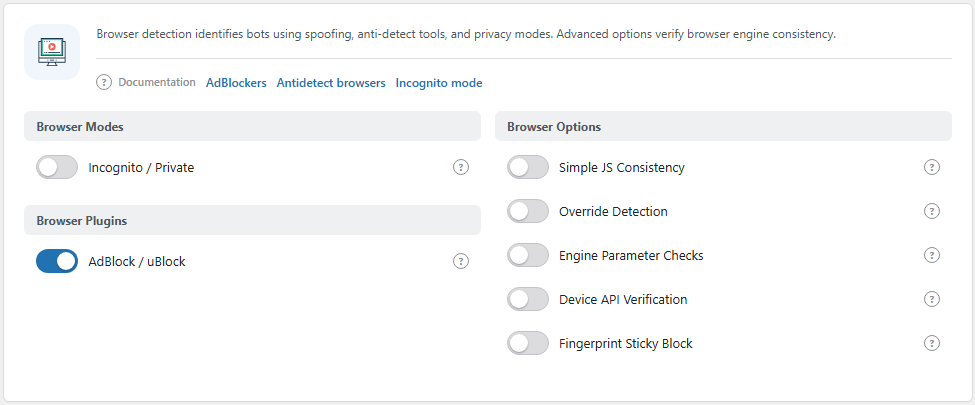
The Browser & Plugins panel. Open it from BotBlocker → Settings → Detection → Browser & Plugins.
The checks run on the check page
A visitor meets these checks only when BotBlocker sends them to the check page. On that page, a small script tests the browser and reports the results. BotBlocker then decides on the server:
- All good: the visitor passes, gets a verification cookie, and goes on to the page.
- Too many warning signs: the automatic check fails, and the visitor sees the challenge you chose in Challenge modes.
So a failed browser check is not a ban. It is a request for more proof. This makes the checks much safer than the header checks on Bot detection signals, which refuse at once.
Visitors who already have a valid verification cookie do not see the check page again until the cookie ends. See Cookies and sessions.
One warning sign is not enough
The four Browser Options and the Incognito / Private setting each switch on a small group of tests. Each test has a weight. BotBlocker adds up the weights of the tests that fired, and a group counts as "triggered" when it reaches its limit.
A single triggered group does not fail the check. BotBlocker fails the automatic check when one of these is true:
- Two or more groups are triggered.
- A known bad pair of tests fires together, for example a fake browser name together with fake graphics details. Real browsers almost never produce these pairs.
- The total evidence is high: at least 6 weight points with 8 or more tests switched on, or at least 70% of all reported weight with 5 or more tests switched on.
In practice: turning on only one option catches very little. The checks get stronger, and still stay fair, when you turn on several of them together.
| Setting | What its tests look for | Group limit |
|---|---|---|
| Incognito / Private | Signs of a private browsing window | 2 points |
| Simple JS Consistency | Browser name that does not fit the browser's features; fake Chrome details | 4 points |
| Override Detection | Fake plugin list; fonts or language that do not fit | 5 points |
| Engine Parameter Checks | Missing features the engine should have; graphics (WebGL) details that do not fit | 3 points |
| Device API Verification | Touch support that does not fit the device; unnatural timing | 2 points |
It works together with other features
- The check page must be shown first. These checks do nothing for a visitor who is never sent to the check page. Rules, rate limits, and other signals decide that. See Verification overview.
- Cloud Validation adds a second opinion. With a PRO license, the same browser data can go to BotBlocker Cloud. See Stricter checks.
- Behavioral Analysis looks at behavior over time. A bot that passes once still has to act like a person later. See the Behavioral Analysis add-on.
- TLS fingerprinting checks the connection. It compares the browser name with how the encrypted connection was made. See TLS fingerprinting.
Settings
The panel has three groups. Browser Modes and Browser Plugins each hold one setting. Browser Options holds the consistency tests and the sticky block.
Browser Modes
Incognito / Private
Default: Off
Switches on a test for private browsing windows. Private mode is a normal browser feature. Many people use it on shared computers or to keep their history clean. It says nothing about whether the visitor is a bot.
On its own, this group cannot fail the check. It only adds evidence when other groups are also on. So it mostly helps when bots use private-mode profiles together with other tricks.
- On: private windows count as one more warning sign.
- Off: private mode is ignored.
Leave it off unless your log shows that bots on your site use private windows.
Browser Plugins
AdBlock / uBlock
Default: On
Detects an active ad blocker on the check page. Unlike the other browser checks, this one works alone: when an ad blocker is found, the automatic check fails with "Ad blocking software detected", and the visitor must solve the challenge.
Many real people use ad blockers. With this setting on, each of them solves a challenge once, then browses normally with the verification cookie. That is a small cost, but a real one.
- On: ad-blocker users must solve a challenge to pass.
- Off: ad blockers are ignored.
If many visitors complain about challenges, or if you use silent verification and want nobody to see a challenge, turn this off first.
Browser Options
These tests compare what the browser says with how it behaves. They are off by default. Turn on several together for the best effect, then watch the log for a few days.
Simple JS Consistency
Default: Off
Checks that the browser's name fits its real features, and looks for Chrome-specific details that fake Chrome builds get wrong. This is the most useful single test group against simple anti-detect tools.
Real visitors rarely fail it. Unusual browsers, very old browsers, and some privacy extensions can.
Override Detection
Default: Off (needs a PRO license)
Looks for browser details that a tool has changed after the browser started. It checks for a fake plugin list, fonts that render differently from what the system claims, and a language that does not fit the rest of the browser. Anti-detect tools change exactly these details.
Strong privacy extensions change them too. If you turn this on, watch for complaints from privacy-conscious visitors.
Engine Parameter Checks
Default: Off (needs a PRO license)
Checks that the browser supports the features its engine should have, and that its graphics (WebGL) details fit the claimed browser. A bot that says "Chrome" but runs on a different engine often fails here.
Virtual machines, remote desktops, and computers with graphics acceleration turned off can also fail, because their graphics details look unusual.
Device API Verification
Default: Off (needs a PRO license)
Checks that touch support fits the device the browser claims to be, and looks for unnatural timing. For example, a "phone" with no touch screen is a warning sign. Headless browsers, which run without a screen, often fail these tests.
Desktop browsers that pretend to be mobile, for example in developer tools, also fail. That is fine for visitors, but remember it when you test your own site.
Fingerprint Sticky Block
Default: Off
Every browser that reaches the check page has a fingerprint: a code made from many browser and device details. BotBlocker keeps a record for each fingerprint and counts how often it was refused.
When a fingerprint is refused 3 times, BotBlocker marks it as blocked. With this setting on, a blocked fingerprint always fails the automatic check, even from a new IP address. This stops bots that change their IP address after each block. A fingerprint that passes more than 10 times, and was never blocked, is marked as trusted instead.
- On: a fingerprint refused 3 times must solve the challenge every time, from any IP address.
- Off: fingerprints are still recorded, but they do not affect the result.
The risk: a fingerprint is a resemblance, not an identity. Two people with the same phone model and the same browser version can have the same fingerprint. Turn this on only when your log shows the same bot coming back from many different addresses.
Common problems
- Many visitors suddenly see a challenge. Look at AdBlock / uBlock first. It is on by default and it affects real people.
- Visitors on virtual machines or remote desktops cannot pass automatically. Turn off Engine Parameter Checks.
- Privacy-focused visitors complain. Turn off Override Detection and Incognito / Private.
- You see a challenge when you test in mobile emulation. This is Device API Verification at work. Test on a real phone.
- One visitor always gets a challenge, from every network. Their fingerprint may be marked as blocked. Turn off Fingerprint Sticky Block if this happens to real people.
- Bots still pass. Turn on more than one Browser Options test. One group alone rarely fails the check.