Alerts in the admin header
A single bell that tells you when BotBlocker needs your attention.
Most BotBlocker problems do not break the site. A missing reCAPTCHA key or a lost Cloud connection just makes protection weaker, and nobody notices. The bell menu in the BotBlocker header catches these problems for you. It shows a short list of things to fix, each with a link to the right screen.
Alerts are about BotBlocker's own setup and health. They do not report single visitors. To see why a visitor was blocked, use Log and reports.
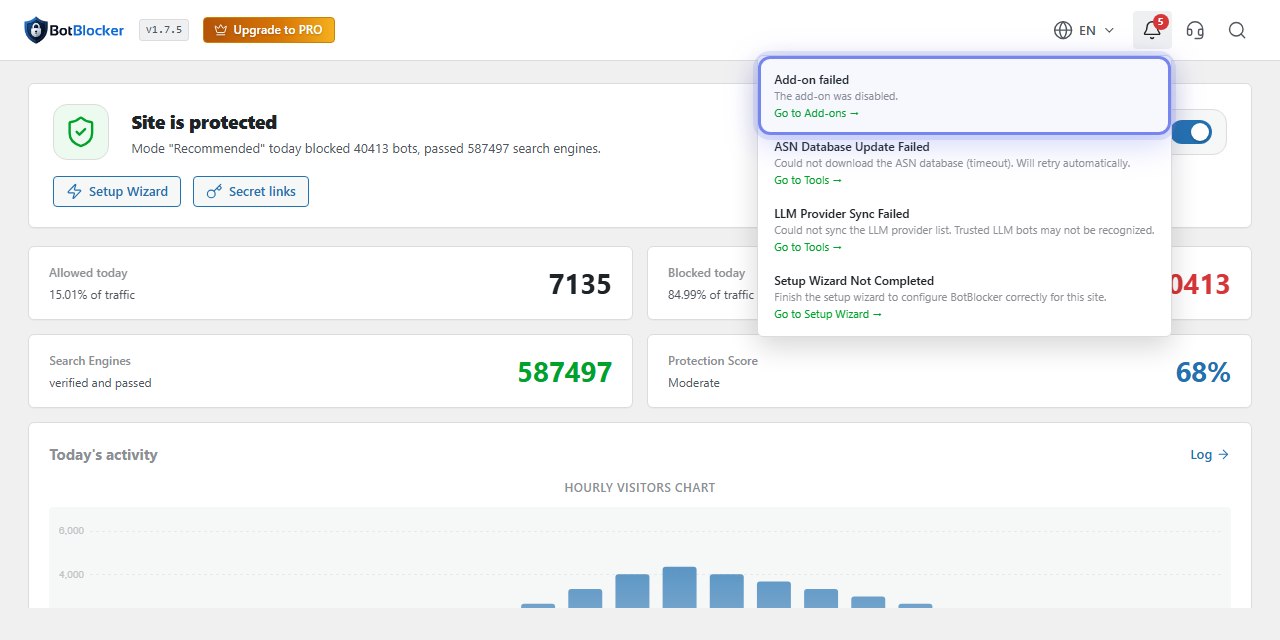
The bell menu. Open it from the bell icon in the header of any BotBlocker page.
The Notifications card in the sidebar
BotBlocker pages also show a Notifications card in the left sidebar. It collects the same active alerts in a short list, together with a few PRO tips: cloud protection, VPN and Tor blocking, and add-ons. A red number next to the card title counts every row, and the same count appears in the BotBlocker menu badge.
The card shows the first rows only. When more are waiting, click Show all to expand the list and Show less to close it. A row with a PRO pill is a suggestion, not a problem; an alert without the pill reports a real setup issue. Each row links to the screen that fixes it or explains it.
The card disappears when there is nothing to show. Fixing an alert removes it from both the bell and the card.
What can appear in the bell
A number on the bell shows how many alerts are active. Open it to read each title and message. Most alerts have a link such as Go to Add-ons, Go to Integrations, Go to Tools, or Go to Cloud API. With nothing to report, the menu shows No alerts.
- Setup: the setup wizard is not finished, or development mode is active.
- Missing keys: reCAPTCHA v2 or v3 is on but its keys are empty, so the check falls back to the simple check. See reCAPTCHA.
- Two-factor sign-in: 2FA is on but your own account has no authenticator yet, or the QR code was not verified. See Two-factor authentication.
- Cloud: no connection to BotBlocker Cloud, the license is about to expire or has expired, or few requests remain. See Cloud API.
- Data updates: the ASN database or another background data sync failed. BotBlocker retries by itself.
- Missing files: generated files were missing and BotBlocker created them again.
- Add-ons: updates are available, an update failed, or an add-on was turned off because it is not compatible. See Add-ons.
- Telegram: the Telegram Reports add-on is on but the bot token or chat ID is missing.
- Recovery Link Used: someone opened a recovery link on this site. The alert shows when. It has two links: Regenerate links opens the Security action links panel, and View audit log shows the IP address and time of each use. The second link shows only when the audit log is on.
- Speed and caching: Redis or Memcached is available on the server but not used, or a cache plugin needs an extra setting. See Cache backends and Hosting and compatibility.
Alerts clear themselves
You cannot dismiss an alert by hand. Fix the cause and the alert goes away. Setup checks are cached for about one hour, so a fixed problem can stay in the bell up to an hour. Event alerts, such as a failed update or a lost Cloud connection, stay for up to one day, or one hour for missing files. If the problem comes back, the alert comes back too. The Recovery Link Used alert has no time limit. It stays until you click Regenerate links.
Alerts are not emails
The bell only shows inside the WordPress admin. It does not send email or messages. For a regular summary on your phone, use Telegram Reports or Pusher Digest. See also Notifications and reports.
Common problems
- An alert stays after I fixed the problem. Wait up to an hour, then reload the page.
- I expected an email about an alert. The bell does not send email. Check the admin from time to time, or use a messaging add-on.
- I need to know why a visitor was blocked. Alerts do not cover visitors. Open Log and reports.