Responses and API access
Keep stores, apps, and the verification check working when browsers ask for permission first.
Modern sites do not only serve pages. A store loads prices in the background, a dashboard asks your site for data, and a mobile app talks to the WordPress REST API. When this code runs on a different address than your site, the browser follows strict rules called CORS. Before some requests, it sends a short permission question, a "preflight". If your site does not answer it correctly, the browser stops the real request.
These problems are hard to find. Nobody sees a block page. A checkout button simply does nothing, or an app shows "network error". The request never reaches your site, so your logs can stay empty.
The two settings on this page make sure that BotBlocker answers these browser questions correctly: one for preflight requests to your site, and one for BotBlocker's own verification check.
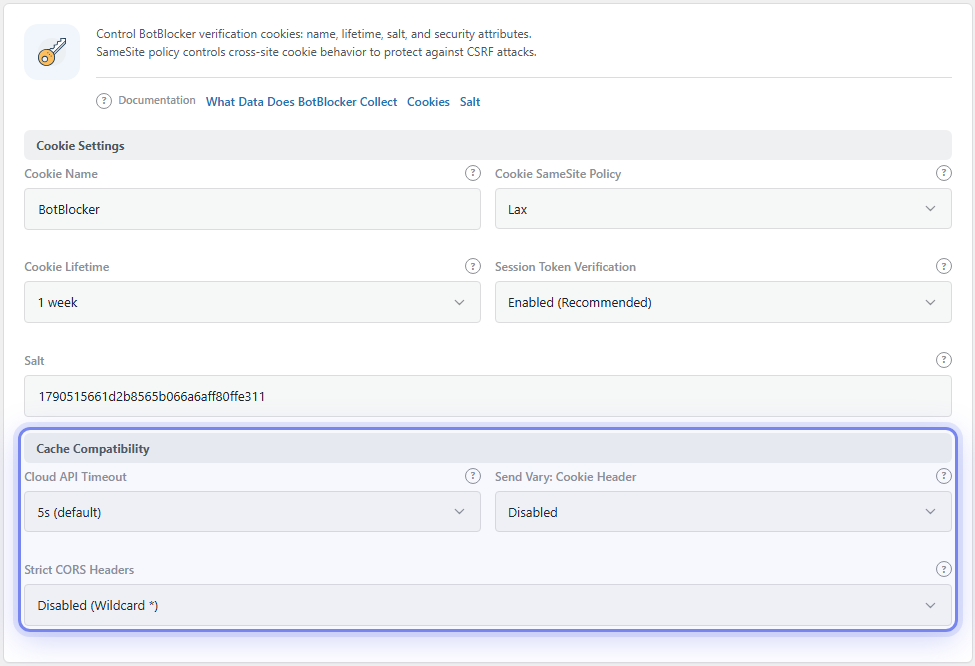
The Cache Compatibility group with Strict CORS Headers. Open it from BotBlocker → Settings → System → Cookie Settings. Allow OPTIONS Preflight is on BotBlocker → Settings → Detection → Bot Detection, in the Extra Options group.
A preflight cannot pass a check
A preflight is an OPTIONS request. The browser sends it automatically, without cookies and without any page to show. So it cannot hold a BotBlocker pass, and it cannot solve a verification check. If BotBlocker checks it like a normal visitor, the preflight can fail, and the browser cancels the real request.
With Allow OPTIONS Preflight on, BotBlocker recognizes a real preflight and lets it through without checks. A real preflight has an Origin header and an Access-Control-Request-Method header. The real request that follows still goes through all the normal checks. So this setting does not open a door for bots: a preflight only asks a question, it does not get your content.
The verification check also uses CORS
When a visitor solves a check, the check page sends the answer to your site in the background. BotBlocker answers with CORS headers. It allows only your own site as the origin, allows cookies, and allows the POST method.
By default, BotBlocker allows all request headers with a wildcard (*). Some browsers do not accept a wildcard together with cookies. In these browsers, the check can fail to finish, and the visitor stays on the check page. Strict CORS Headers fixes this: BotBlocker then names the exact headers (Content-Type and X-Requested-With) instead of the wildcard.
What a refused request gets
Permission headers are only part of the answer. Status codes and block times for refused requests are on Blocks and responses. For headers that protect your visitors, such as frame and HTTPS rules, use the Security Headers add-on.
Settings
Keep both settings at their defaults while your integrations work. Change them only for a problem that you can repeat.
Extra Options
Allow OPTIONS Preflight
Default: On
Lets real CORS preflight requests through without BotBlocker checks. Stores such as WooCommerce, REST API clients, payment tools, and external apps need this.
- On: browsers get an answer to their permission question, and the real request follows.
- Off: preflights go through the normal checks. They can fail, and the browser then cancels the real request with no message to the visitor.
Keep it on. If you turn it off, test your checkout, your forms, and your apps from a real browser.
Cache Compatibility
Strict CORS Headers
Default: Disabled (Wildcard *)
Chooses how BotBlocker lists the allowed headers in its verification answers.
- Disabled (Wildcard *): all headers are allowed. This works in most browsers.
- Enabled (Explicit headers): only
Content-TypeandX-Requested-Withare allowed. This follows the strict browser rules for requests with cookies.
Turn it on if visitors solve the check but stay on the check page, especially in one browser. After the change, test the check in that browser.
When something goes wrong
- A checkout, a form, or an app fails, and your logs show no block? The browser probably stopped the request before it reached your site. Make sure that Allow OPTIONS Preflight is on.
- The browser console shows a CORS error? Check Allow OPTIONS Preflight first. Then read Blocks and responses, because a refused request can also cause a CORS error.
- Visitors solve the check but stay on the check page? Turn on Strict CORS Headers. Also read Cookies and sessions, because a missing cookie gives the same result.
- Only one integration fails? Test it from its real address. Check the reports for a block, and add the service address to your allow list in IP lists if needed.