Stricter checks
Extra switches for hard cases: a second opinion from the cloud, and a way to make everyone prove they are human.
Most sites are well protected by the normal settings. But sometimes a determined bot passes every local check, or you are in the middle of an attack and need everyone to slow down. The Advanced Protection panel holds the switches for these cases.
These switches are powerful, and they have a cost. One makes an outside service part of your checks. Another shows a challenge to every new visitor. Use them for a clear reason, and check the effect on real visitors afterwards.
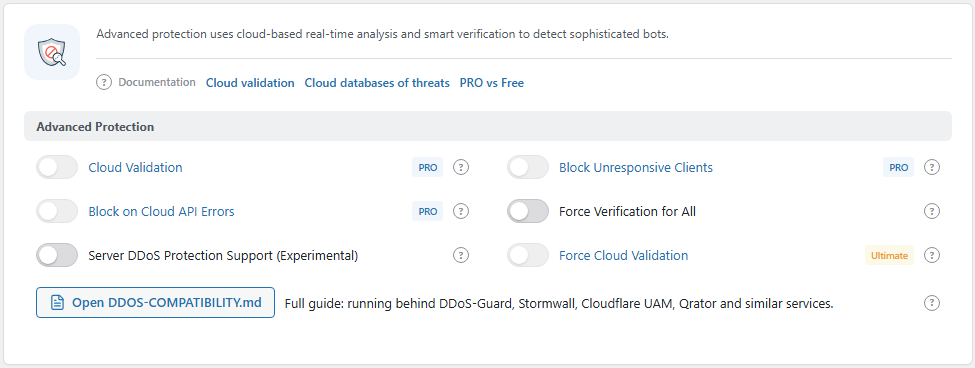
The Advanced Protection panel. Open it from BotBlocker → Settings → System → Advanced Protection.
These switches work on the check page
The switches on this page all act on the check page: the short page where BotBlocker tests a visitor's browser before it lets them in. They do not change who is sent to that page. They change what it takes to pass it.
When the automatic test on the check page fails, the visitor is not banned. They see the challenge that you chose in Challenge modes. A real person solves it, gets a verification cookie, and browses normally. So "stricter" here means "more people solve a challenge", not "more people are blocked".
Cloud Validation asks BotBlocker Cloud for a second opinion
With Cloud Validation on, the check page sends the visitor's details to BotBlocker Cloud: IP address, country, reverse-DNS name, User-Agent, screen size, time zone, and the results of the browser checks. The cloud answers with a status: good, gray, or bad. BotBlocker caches the answer, so the same visitor is not sent again and again.
What happens next depends on Block Unresponsive Clients.
Cloud features need a PRO license. The connection settings are on the Cloud API page.
Settings
Advanced Protection
Cloud Validation
Default: Off (needs a PRO license)
Sends each visitor on the check page to BotBlocker Cloud for a verdict. These are the visitors that BotBlocker already has doubts about.
When Block Unresponsive Clients is on, the cloud answer counts:
- Good: the visitor continues with the local checks.
- Gray or bad: the automatic check fails, and the visitor must solve the challenge.
- No answer (the cloud is down or unreachable): nothing changes. The local checks decide, as they do without the cloud.
Cloud Validation is a second layer on top of the local checks. The cloud sees what happens on many BotBlocker sites. So it can catch a bot that looks clean on your site, for example a new botnet that your site has not seen before. If the cloud is down, your site keeps its full local protection, and your visitors notice nothing.
Block Unresponsive Clients
Default: Off (needs a PRO license; the Full preset turns it on)
Decides if a negative cloud answer stops the visitor. This switch only matters when Cloud Validation is on.
- On: a gray or bad answer fails the automatic check. The visitor must solve the challenge. No answer from the cloud never fails the check.
- Off: the cloud is asked, but its answer does not fail the check. The visitor is judged by the local checks only. Use this while you test the cloud connection.
When a PRO license goes back to the basic cloud level, BotBlocker turns this switch off.
Block on Cloud API Errors also depends on this switch. It only works while this switch is on. See Cloud API.
Force Verification for All
Default: Off
Makes the automatic check on the check page always fail. So every visitor who reaches the check page must solve the challenge by hand. Nobody passes silently.
It does not reach everyone. These visitors are still handled before the check page and do not see a challenge:
- Logged-in administrators, and WordPress cron and heartbeat requests.
- Trusted bots, such as search engines. See Trusted bots.
- IP addresses on your allow list. See IP lists.
- Visitors who already have a valid verification cookie.
Use it for a short time during an attack, or to test your challenge page yourself. Then turn it back off. While it is on, silent verification cannot work, and every new visitor must click, solve, or hold something before they see your site.
Other switches on this panel
The same panel holds three more switches. They are explained on the pages where they belong:
- Block on Cloud API Errors: see Cloud API.
- Force Cloud Validation (Ultimate plan): see Cloud API.
- Server DDoS Protection Support (Experimental), and the Open DDOS-COMPATIBILITY.md button: see DDoS and intermediary resilience.
When something goes wrong
- Cloud Validation seems to do nothing. Check Block Unresponsive Clients. While it is off, cloud verdicts do not change the result.
- Many visitors see a challenge after you turn on Cloud Validation. The cloud marks many of your visitors as gray or bad. Look in the log for the reason. If Block on Cloud API Errors is on, turn it off. See Cloud API.
- Every new visitor sees a challenge. Force Verification for All is on. Turn it off when the attack is over.
- You turned on Force Verification for All, but you do not see a challenge. You are logged in as an administrator, or your browser already has a verification cookie. Test in a private window while logged out. Or use the Protection Test, which shows your site as a new visitor.
- The switches are grey and cannot be changed. Cloud Validation and Block Unresponsive Clients need a PRO license.