Monitoring and maintenance
See what BotBlocker really did with your traffic, and hear about problems before your visitors do.
Settings describe what you want BotBlocker to do. They cannot tell you what happened. After a change, you need real answers: was a real visitor refused, which rule did it, is a new bot showing up, and did someone change a security setting? Only the records of real visits can answer that.
BotBlocker keeps those records for you. It logs the visits you choose, with the reason for each decision. It keeps an audit log of admin actions. It sums everything up in reports, and it can send you a message when something needs attention.
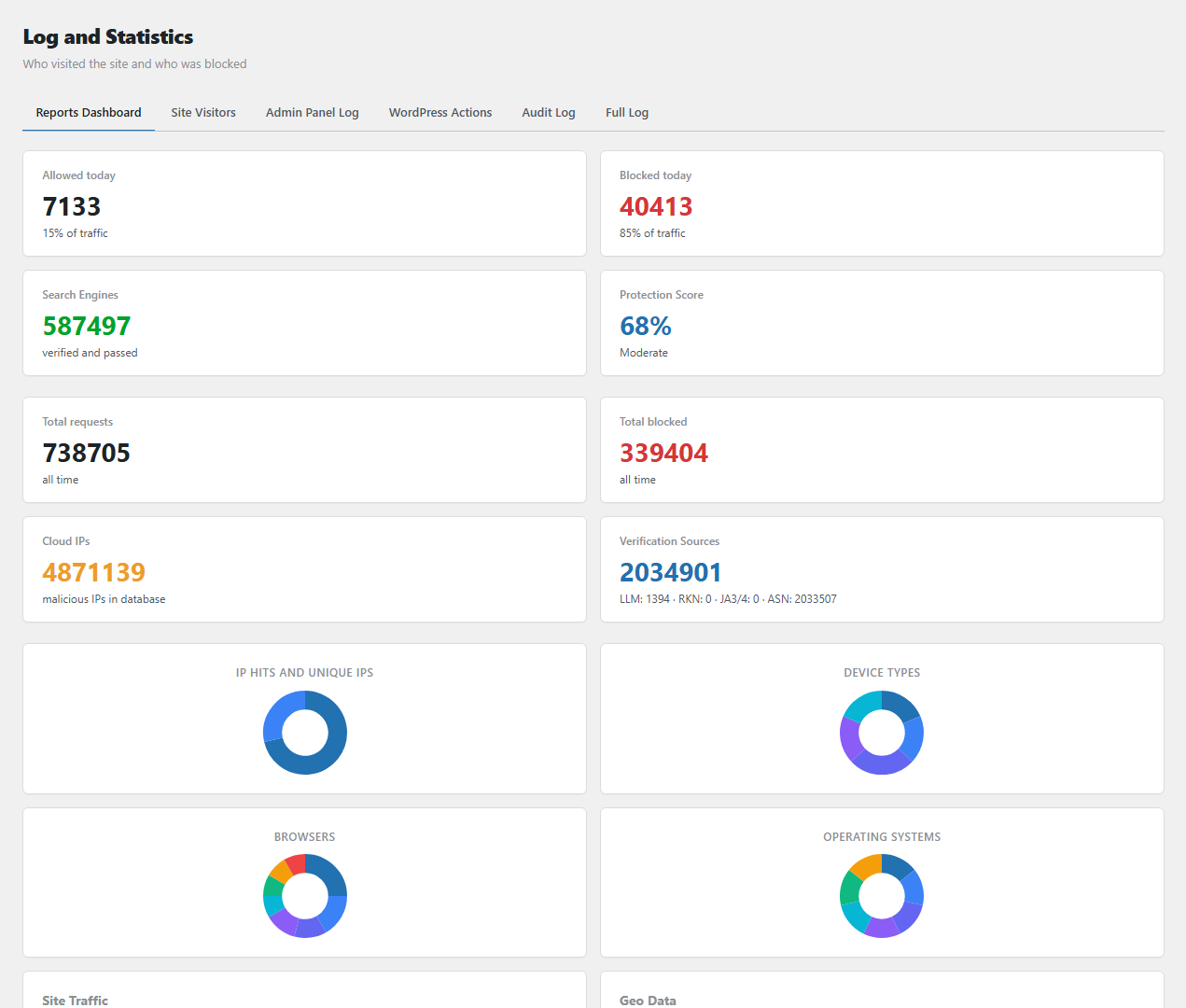
The report tabs. Open them from BotBlocker → Reports.
Every decision has a reason
For each logged visit, BotBlocker stores who came (address, country, browser, device) and what it decided: allowed, checked or blocked, with a short reason. This is the most useful thing to read when a visitor says "your site blocked me". The reason names the rule or check, and that points to the one settings page that owns it. So start with the log, not with the settings.
Records are kept for a limited time
BotBlocker deletes old records by itself. With the defaults, the visit log keeps 7 days and the audit log keeps 7 days. A record older than that is gone, and no report can show it. If you often look further back, make the retention longer. Remember that a longer retention means a bigger database (see Performance and storage).
Logs describe people, too. An entry can hold an address and browser details. Treat the log and every export as personal data. See Privacy and data.
Let BotBlocker tell you
You do not need to watch the log all day. BotBlocker can reach out to you:
- Alerts appear in the admin header when something needs a person.
- Notifications and reports send you emails about events and a regular summary.
- The Telegram Reports add-on sends a weekly summary to a Telegram chat.
- The Pusher Digest add-on sends a weekly summary to your own live dashboard.
Emails depend on your site's mail setup. A security email that never leaves the server looks like calm. Send a test message before you rely on it.
Which page answers which question
| Question | Read this |
|---|---|
| Why was this visit allowed or refused? | Log and reports |
| What is logged, for how long, and which admin roles are audited? | Traffic and audit logs |
| What does this alert in the admin header mean? | Alerts |
| How do I read traffic reports and statistics? | Reports and statistics |
| How do I clean the database and caches? | Tools and maintenance |
| What does protection do with a request? | Protection overview |
Where each control lives
| What | Where |
|---|---|
| Visit log, summary, audit log | BotBlocker → Reports |
| Which visits are logged | BotBlocker → Settings → Data → Logging |
| Retention and audit log | BotBlocker → Settings → Data → Data Log & Processing |
| Report period (default 5 days), time zone | BotBlocker → Settings → System → UI Settings |
Common problems
- Nothing new appears in the log? Check the categories in Settings → Data → Logging, and check that protection is not paused on the Dashboard.
- One visit is missing? Its category may be off, or it is older than the retention.
- The numbers on the Dashboard look old? The interface cache shows a copy that is up to 30 minutes old by default. See Cache backends.
- The Reports page is slow? The log is large. Log fewer categories or shorten the retention.
- A 2FA or license email never arrives? Test your site's mail first.
- Too much noise in the log? Keep the categories you really read. Turn the others on only while you investigate.