Security Headers
Ask every visitor's browser to guard your site, with a few switches and no server files.
Browsers can follow extra safety rules for your site. They can refuse to show your pages inside a frame on a strange site. They can always use the secure connection. They can refuse scripts from places that you do not trust. But a browser only follows these rules when your site asks for them.
Your site asks with "security headers". A header is a short note that your site sends together with each page. The visitor never sees it, but the browser reads it and obeys. This add-on writes these notes for you. You do not need to edit server files.
Security scanners check these headers and give your site a grade. So this add-on is also the fastest way to improve that grade.
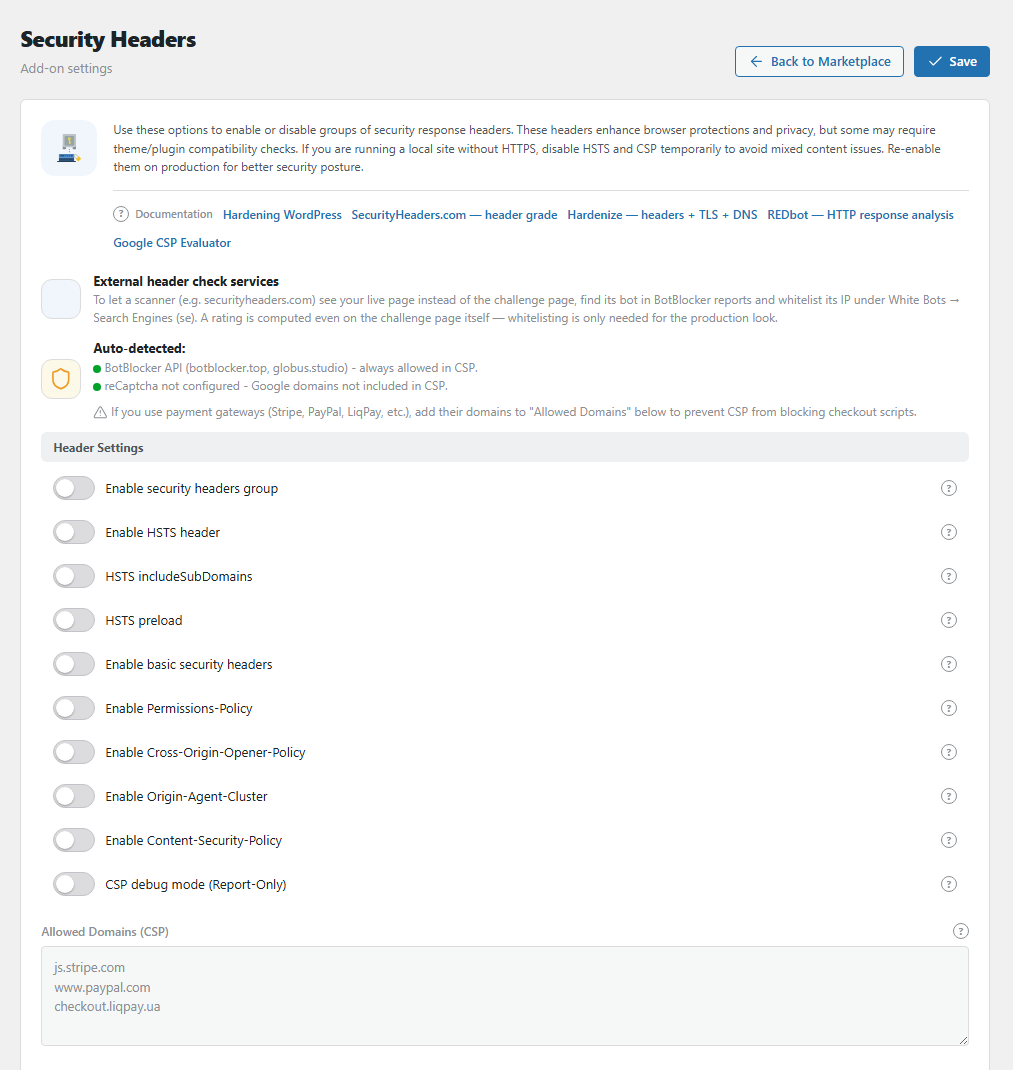
The Security Headers settings panel. Open it from BotBlocker → Add-ons.
Headers guide the browser, they do not stop bots
A bot does not care about your headers. It is not a browser that obeys rules. So these headers do not block bad traffic. BotBlocker's main protection does that.
Headers protect your real visitors. For example, if another site tries to show your login page inside a hidden frame to trick people into clicks (this trick is called "clickjacking"), the browser refuses. The attack fails in the visitor's own browser.
Where the headers go
BotBlocker adds the headers to every normal answer of your site: public pages, the admin area, the login page, and REST requests (the modern way for apps and scripts to talk to WordPress).
Some answers do not get them:
- BotBlocker's own check and block pages.
- Background requests (AJAX) and scheduled tasks (cron).
When you activate the add-on, it puts a small helper file into the wp-content/mu-plugins folder. This file loads before other plugins, so the headers are ready very early. When you deactivate the add-on, the file goes away. If WordPress cannot write the file, you see an error message in the admin area. Then check the folder permissions with your host.
It steps aside for other header plugins
Two plugins that send different rules for the same header make a mess. So this add-on checks for known header plugins, such as HTTP Headers, Security Headers, and SecuPress. If one of them is active, this add-on sends no headers at all. You see a warning in the admin area with the name of that plugin.
To use this add-on, deactivate the other plugin. Or keep the other plugin and deactivate this add-on.
Grow step by step
The headers have different risk. Turn them on in this order:
- Basic security headers. Very low risk. Start here.
- Cross-Origin-Opener-Policy and Origin-Agent-Cluster. Low risk.
- Permissions-Policy. Low risk, but read what it blocks.
- HSTS. Safe only when your whole site works over HTTPS. Browsers remember it for a year.
- Content-Security-Policy. The strongest one. Test it in Report-Only mode first.
Settings
All switches are in one group. The main switch must be on, or the other switches do nothing.
Important: save the panel once. Until you click save for the first time, the add-on has no stored values. Then it treats the main switch and most header switches as on, and it sends them. But the panel shows them as off. After you save the panel once, the site does exactly what the panel shows. The defaults below are what the panel shows.
Header Settings
Enable security headers group
Default: Off
The main switch. When it is off, the add-on sends no headers.
When it is on, the add-on always protects the admin area and the login page from frames, even if the basic headers are off. So nobody can show your login page inside a frame on another site.
Enable HSTS header
Default: Off
HSTS tells the browser: "For this site, always use HTTPS." HTTPS is the secure, encrypted connection with the padlock. After a visitor gets this note once, their browser goes to https:// by itself, even if they type http://. A thief on public Wi-Fi then cannot catch the first, unsafe request.
The browser remembers this rule for 1 year. The add-on sends it only when your site runs on HTTPS.
Risk: during that year, the browser refuses the plain-HTTP version of your site. If your certificate expires or breaks, visitors cannot click past the warning. Turn this on only when your certificate is valid and renews by itself.
HSTS includeSubDomains
Default: Off
Applies the HTTPS-only rule to all your subdomains too, for example shop.example.com and mail.example.com. It works only when Enable HSTS header is on.
Risk: a subdomain that works only over plain HTTP becomes unreachable in browsers for a year. Check every subdomain first, also old ones.
HSTS preload
Default: Off
Adds the word preload to the HSTS note. Browsers have a built-in list of HTTPS-only sites. With preload, they use HTTPS for your site even on the very first visit.
This word alone does nothing. You must also register your domain at hstspreload.org. It works only when Enable HSTS header is on.
Risk: to get off that list takes months. Turn it on only if every subdomain will stay on HTTPS for years.
Enable basic security headers
Default: Off
Sends 5 common, safe notes:
- X-Frame-Options: only your own site can show your pages in a frame. This stops clickjacking.
- X-Content-Type-Options: the browser must not guess file types. So a picture upload cannot run as a script.
- X-XSS-Protection: turns off an old browser filter that caused more problems than it solved. This is the modern advice.
- Referrer-Policy: when a visitor clicks a link to another site, that site learns only your domain, not the full page address.
- X-Permitted-Cross-Domain-Policies: old Flash and PDF tools cannot load data from your site.
This group almost never breaks anything. One exception: if another site of yours shows your pages in a frame, that stops.
Enable Permissions-Policy
Default: Off
Turns off browser features that most sites do not use. Then no script on your pages, not even a bad ad, can use them.
These features are turned off for everybody, also for your own site: camera, microphone, location, motion sensors, screen capture, USB, MIDI devices, autoplay, and payment in the browser. Full screen and picture-in-picture still work, but only for your own site.
Risk: some features are really in use on some sites. For example:
- A contact form that asks for location, or a store finder, stops working.
- Apple Pay and Google Pay buttons can disappear, because browser payment is off.
- Videos do not start by themselves.
- A YouTube video that is embedded on your page cannot go full screen.
If you use one of these, keep this off.
Enable Cross-Origin-Opener-Policy
Default: Off
Keeps your page apart from windows of other sites. For example, a site that you open from a link cannot control your tab.
It still allows the popups that your page opens itself. So "Pay with PayPal" and "Sign in with Google" windows keep working.
Enable Origin-Agent-Cluster
Default: Off
Asks the browser to keep your site in its own memory space, apart from other sites. Visitors see no difference. Safe to turn on.
Enable Content-Security-Policy
Default: Off
CSP is a guest list for your pages. It tells the browser from which places your page may load scripts, pictures, frames, fonts, and more. Anything that is not on the list, the browser refuses. So if an attacker puts a script from their own server into your page, it does not run.
On public pages, the default list is:
- Scripts, styles, fonts, videos, and audio: only from your own site.
- Pictures: from your own site and from any HTTPS address.
- Frames: only your own site.
- Forms: can send data only to your own site.
- Web workers: from your own site and from
blob:addresses. Some browser features start helper workers this way, for example the WordPress emoji loader.
The add-on always adds BotBlocker's own services to the list. If you use Google reCAPTCHA in BotBlocker, it adds the Google domains too. On HTTPS sites, it also asks the browser to load http:// items over HTTPS.
The admin area gets a looser list, so the editor and other admin tools keep working.
Risk: this is the switch most likely to break a page. Things that often fail:
- Scripts from other services: analytics, chat widgets, payment forms, ads. Add them to Allowed Domains (CSP).
- Embedded videos, for example from YouTube. Add the video domain to Allowed Domains (CSP).
- Fonts or stylesheets from other sites, for example Google Fonts. Allowed Domains (CSP) does not help here. Host the fonts on your own site, or keep CSP off.
- Forms that send data to another site, for example some newsletter or payment forms.
Always test with CSP debug mode (Report-Only) first.
CSP debug mode (Report-Only)
Default: Off
Runs the guest list in test mode. The browser blocks nothing. It only writes a message in its console (the developer tools) for each item that the list would block. It works only when Enable Content-Security-Policy is on.
For example: turn on both switches, open your shop, and put a product in the cart. The console shows js.stripe.com would be blocked. Add it to Allowed Domains (CSP), test again, and when the console is clean, turn this debug mode off.
Allowed Domains (CSP)
Default: empty
Extra domains for the CSP guest list. Write one domain per line, for example:
js.stripe.com
www.googletagmanager.com
www.youtube.com
If you do not write http:// or https://, the add-on adds https://. It keeps only the domain name, so a path like /v3/ is removed. Each domain is allowed for scripts, frames, and data connections. Pictures already load from any HTTPS site, so the list does not touch pictures. It does not add web workers: those are already allowed from your own site and from blob: addresses. Scheme sources such as blob: cannot be written here.
The list is trimmed of duplicates and of the BotBlocker API domains, and it has a hard size cap, so a paste cannot grow it without limit.
Do not add BotBlocker or reCAPTCHA domains. The add-on adds them itself.
Risk: each domain on the list is trusted fully. Add only services that you really use.
Test installed headers
The panel has a Test installed headers button. It fetches the live page and compares the response with the add-on settings.
The result shows each group, whether the header is already on the page, whether the add-on switch is on, and a recommendation. Disable means the server or another plugin already sends that header, so the add-on copy is redundant. The reason is written next to it: duplicate HSTS, an existing CSP with unsafe-eval, a server-owned basic header group, or a missing HTTPS connection. Keep means the add-on is the only owner of that group.
The test does not change settings. Use the recommendation to turn the redundant switch off, then save. For a duplicate HSTS or a conflicting CSP, leave one owner only.
If the test cannot read the page, it says so. A check page or a block page in the response means the request did not reach normal content; add the server IP to the allowlist or test from the browser.
Before you go live
Your test copy gets these settings too. When you copy your database to a local or staging site, the settings go with it. If that copy has no HTTPS, HSTS and CSP can break it. Turn them off there. The panel warns you about this.
A header scanner can see BotBlocker's check page, not your site. Scanners like securityheaders.com are bots. BotBlocker can send them to a check page, so they grade the wrong page. The panel explains the fix: find the scanner in your BotBlocker reports, and add its address to White Bots → Search Engines.
When the headers cause trouble
- A page looks broken or half-loaded after you turned on CSP? CSP is the likely cause, not your theme. Turn off Enable Content-Security-Policy and reload. The page recovers at once.
- You want to find what CSP blocks? Turn on CSP and CSP debug mode (Report-Only). Open the page and the browser console. Add each blocked domain to Allowed Domains (CSP). Then turn debug mode off.
- Google Fonts are gone with CSP on? The allowed domains do not cover fonts and stylesheets. Host the fonts on your own site, or keep CSP off.
- Location, camera, Apple Pay, or Google Pay stopped working? Turn off Enable Permissions-Policy.
- Headers do not show, and you see a warning about a conflicting plugin? Deactivate the plugin that the warning names.
- The site does not open over plain HTTP any more? HSTS works as designed. Make sure your HTTPS certificate is valid. Turning HSTS off does not help visitors who already have the rule. Their browsers remember it for a year.
- Headers show that the panel says are off? Save the panel once.
Header ability for automation
The add-on can publish Get security headers (botblocker/get-security-headers) for the WordPress Abilities API. It returns the header set the add-on would send for the current request. The switch is in the add-on settings and is off by default; the master switch on BotBlocker → Integrations → WP Abilities API must also be on.
A second switch, Expose the CSP domains ability, publishes botblocker/set-security-headers-domains. It reads and changes Allowed Domains (CSP) from an automation client. A write requires the confirmation token DOMAINS and can run as a dry run first. Invalid values, ports, paths, wildcards and CSP keywords are rejected, and one bad value stops the whole write. The other header switches are not touched.